مركز المساعدة

How to Enable Developer Mode in Fire TV

To enable Developer Mode on Fire TV, go to Settings > My Fire TV > About, select your Fire TV device name several times to unlock Developer Options, then turn on ADB Debugging and allow app installation permissions. Amazon’s Fire TV developer docs also note that ADB debugging is enabled from Fire TV settings and used for device connection/testing.

Step 1: Open Settings

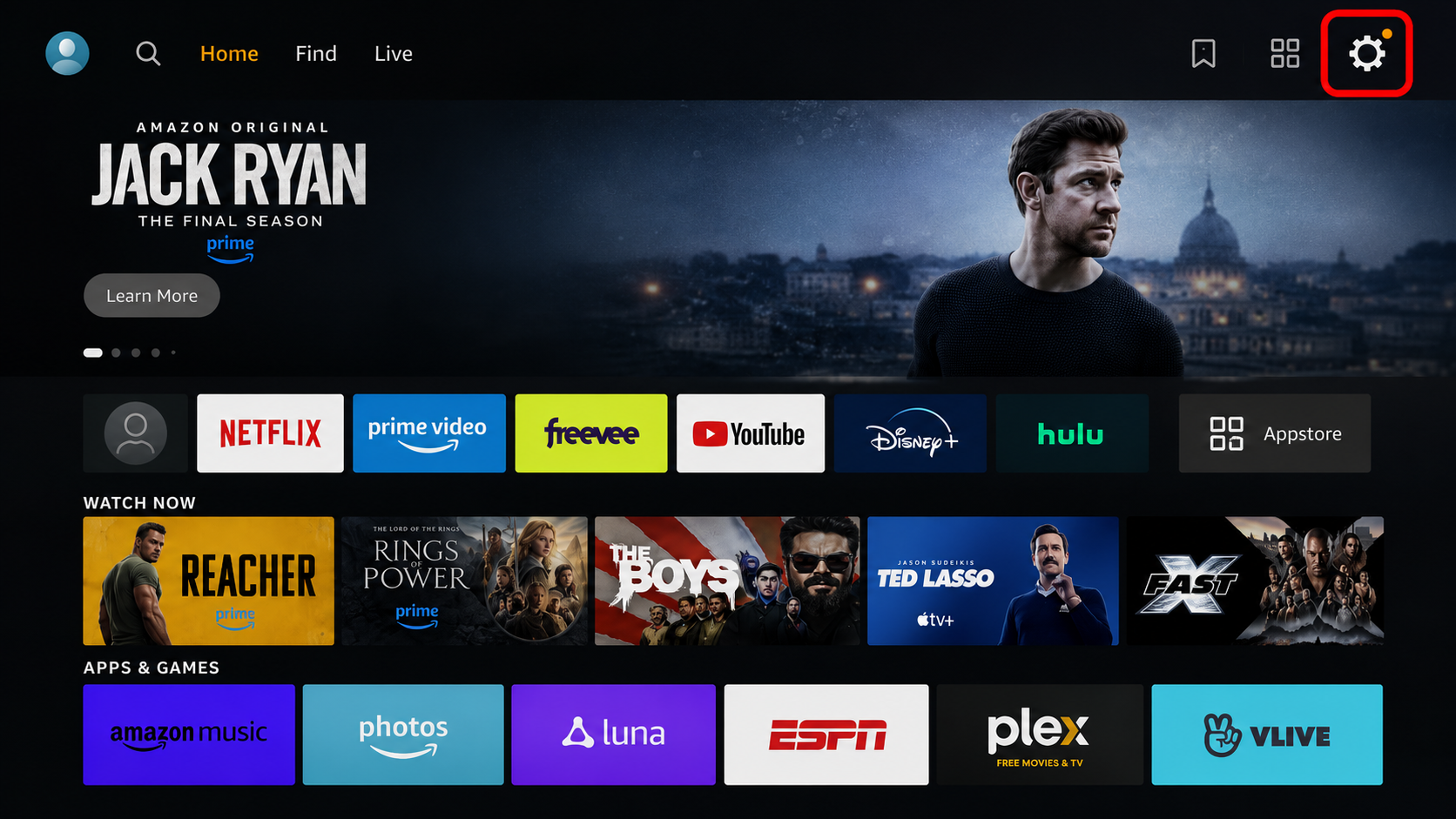
From the Fire TV Stick Home Screen, open Settings.
Step 2: Open the About Section

Go to My Fire TV → About.

Step 3: Enable Developer Options

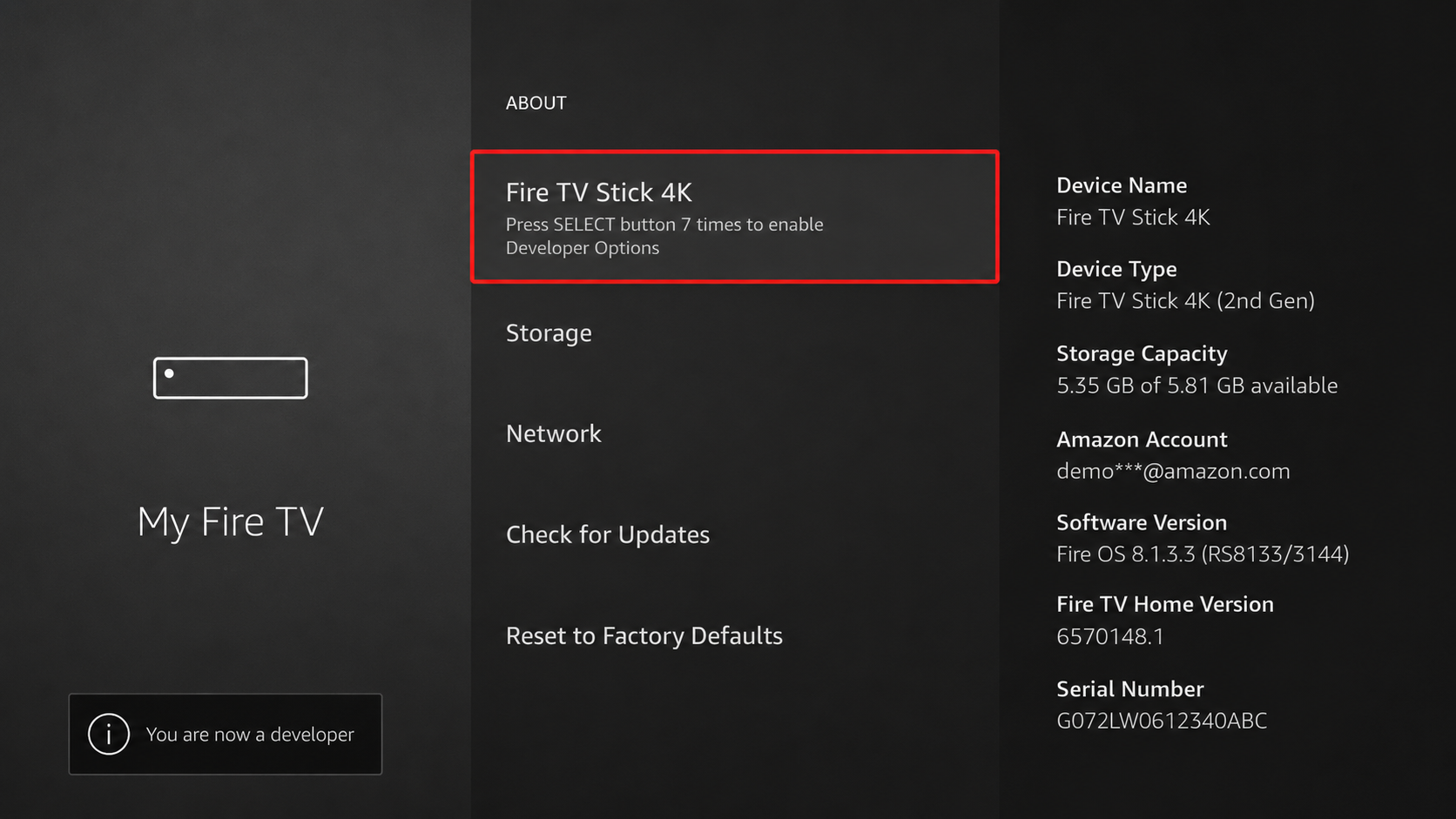
Select your Fire TV Stick device name and press the OK/Select button 7 times on the remote until the message “You are now a developer” appears.
Step 4: Open Developer Options

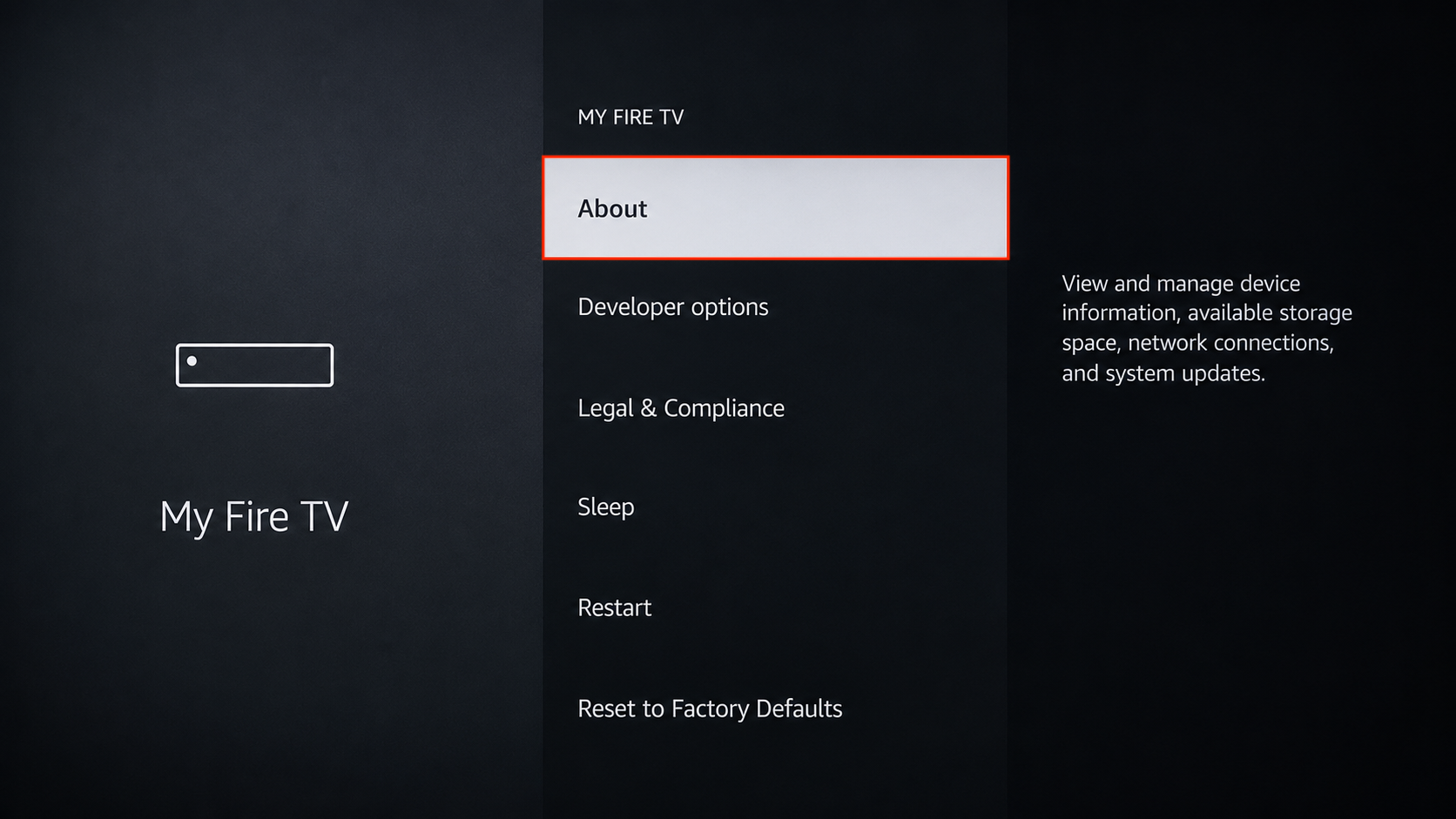
Press the Back button and go to My Fire TV → Developer Options.
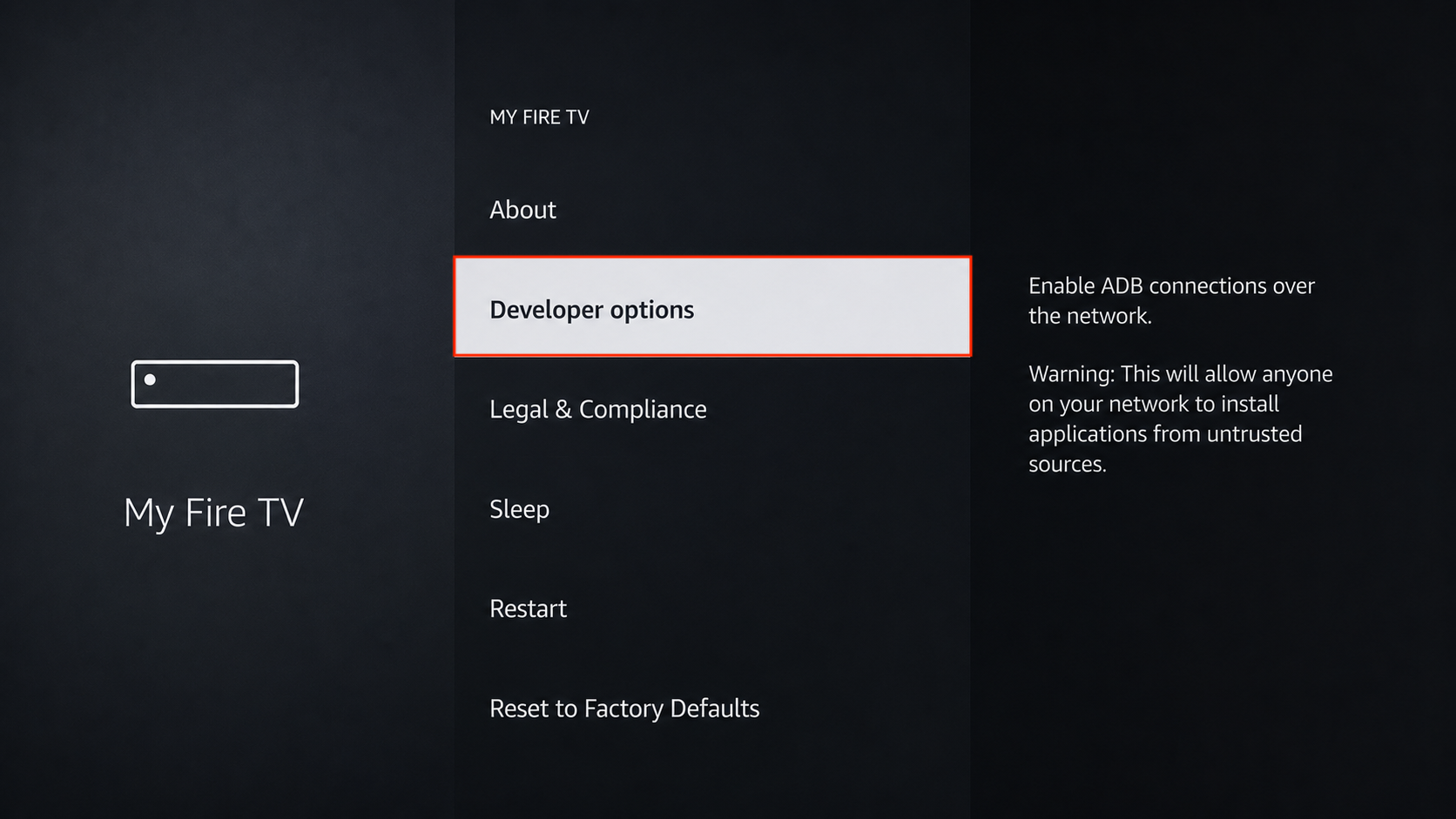
Step 5: Enable ADB Debugging

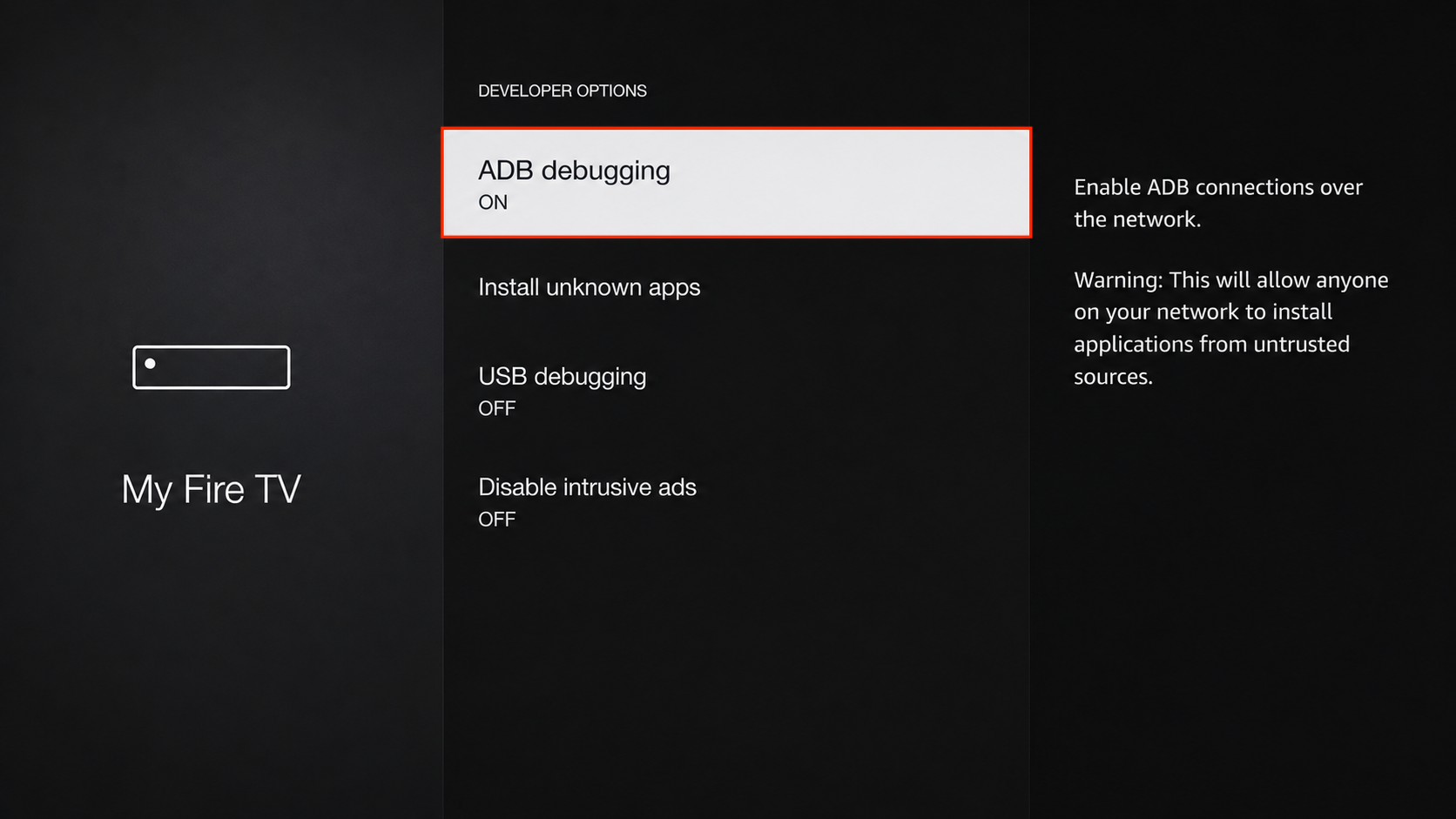
Select ADB Debugging and turn it ON.

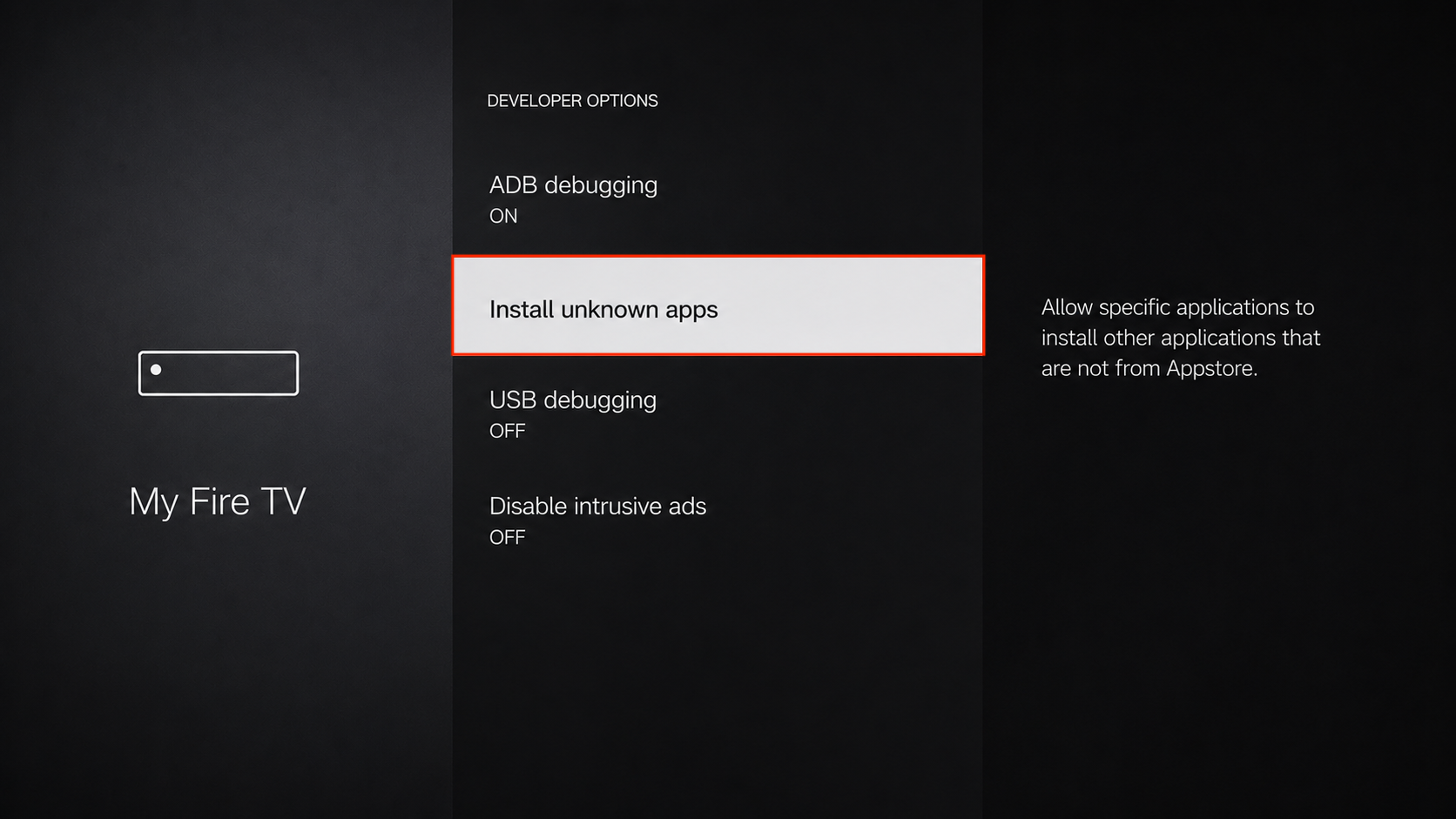
Step 6: Enable Unknown App Installation

Open Install Unknown Apps or Apps from Unknown Sources, then enable it for the required application.
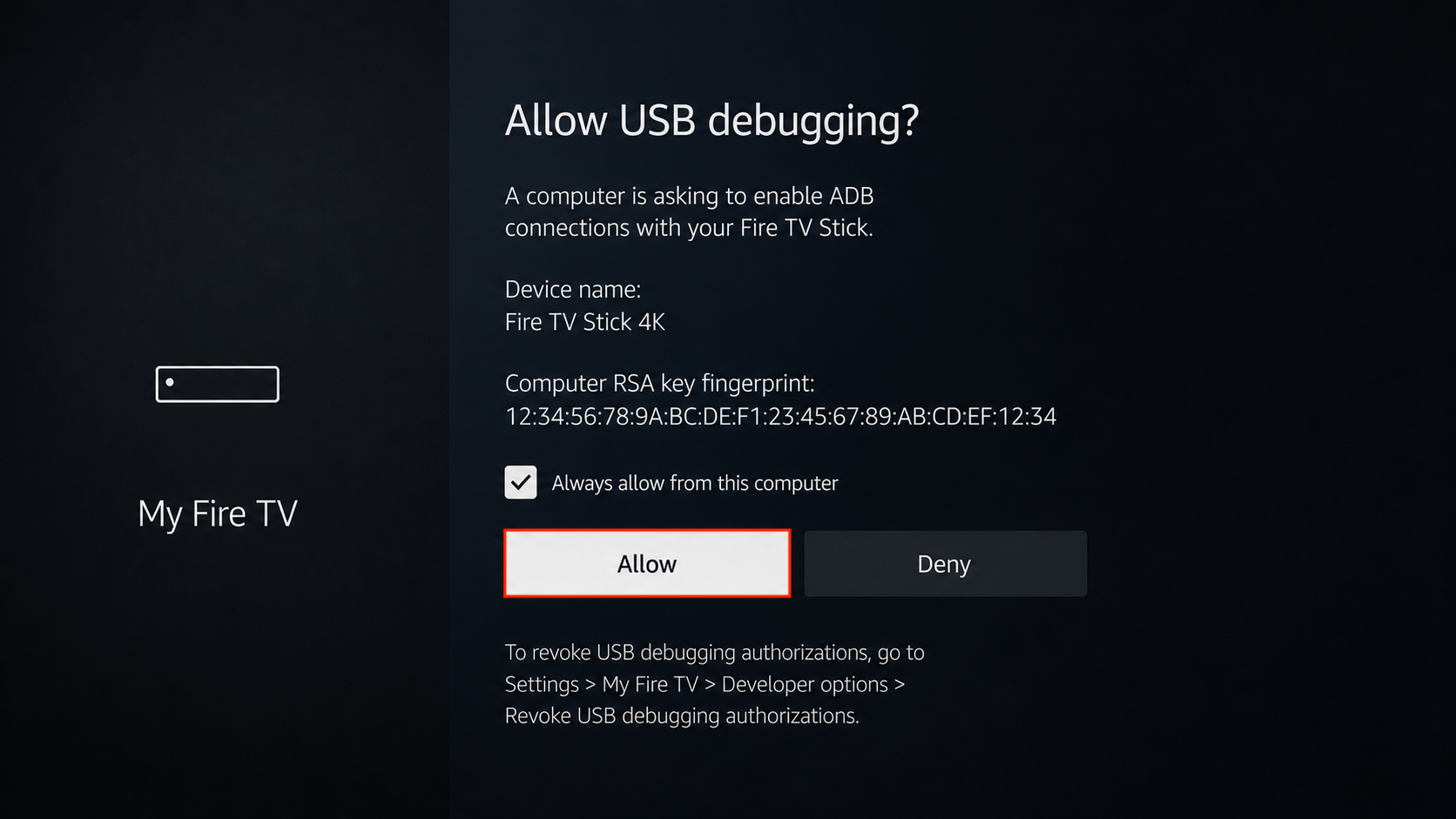
Step 7: Allow the Connection

When connecting the Fire TV Stick to your computer, an authorization prompt may appear. Select Always allow from this computer, if required, and then select Allow.
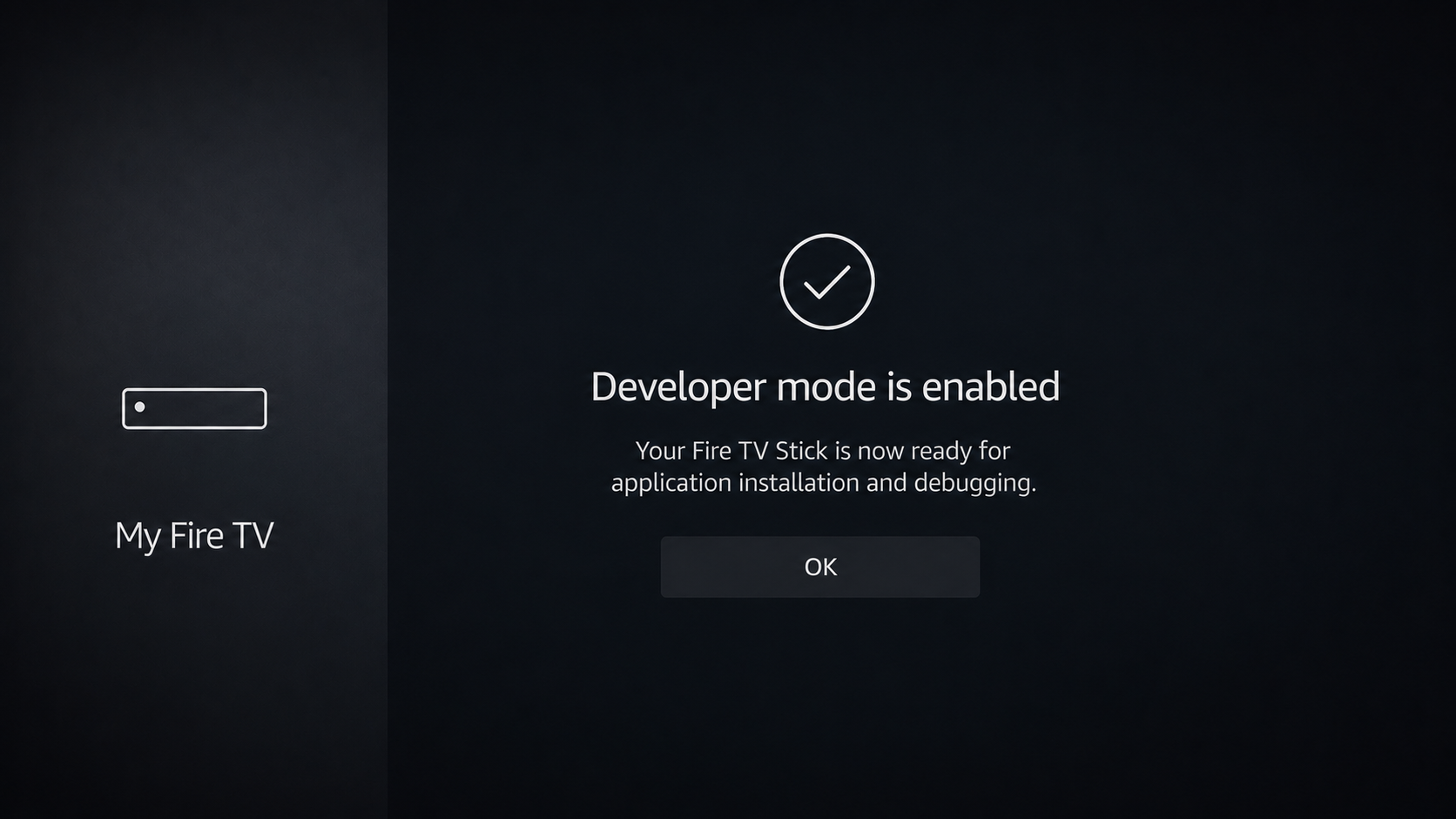
Step 8: Developer Mode Is Ready

Your Fire TV Stick is now ready for application installation and debugging.
هل كانت هذه الإجابة مفيدة؟
😞
😐
😁