Launch the Ace Installer app on your device and wait for the splash screen to load.
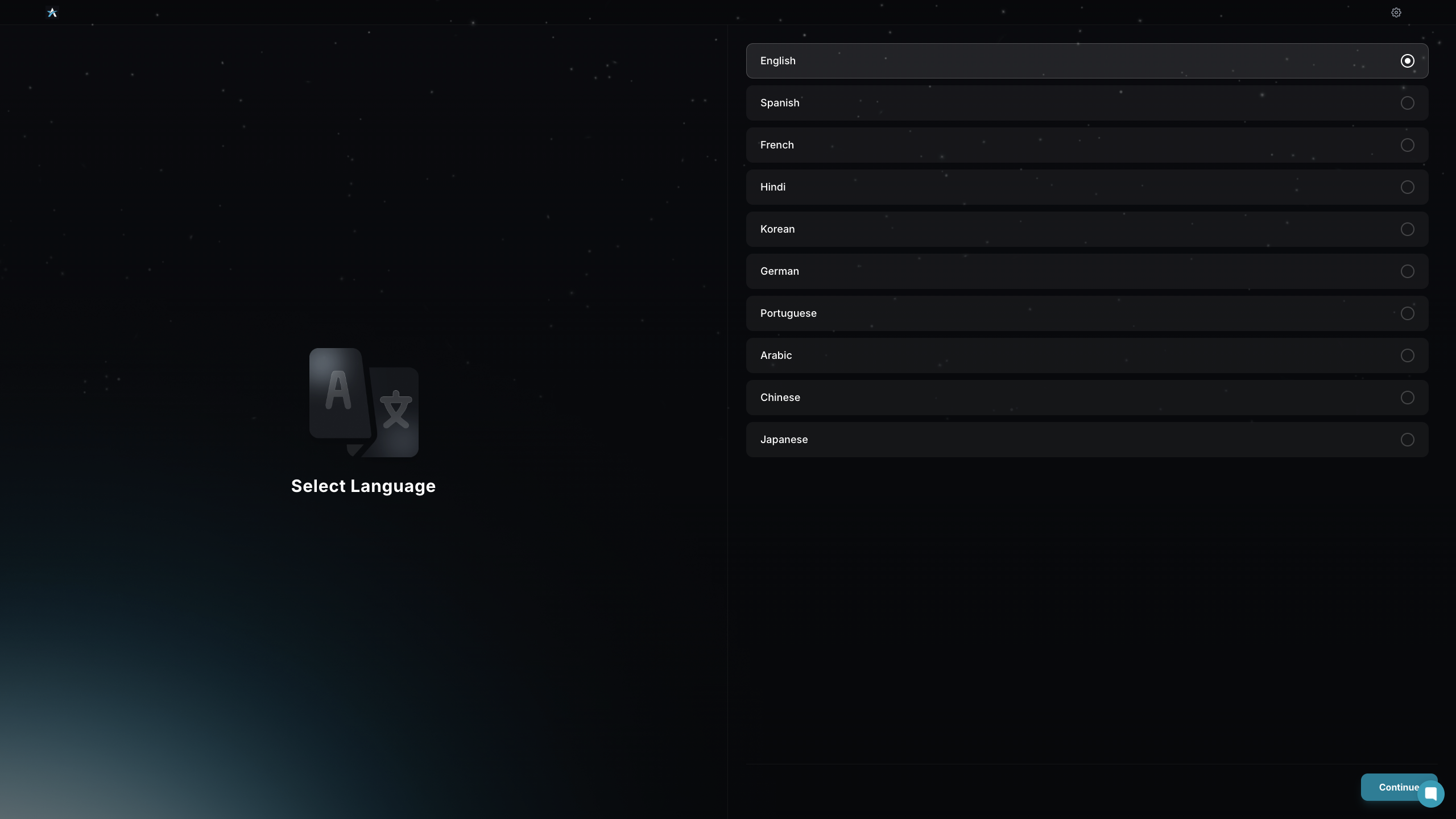
Select Language lets you choose your preferred language to proceed.
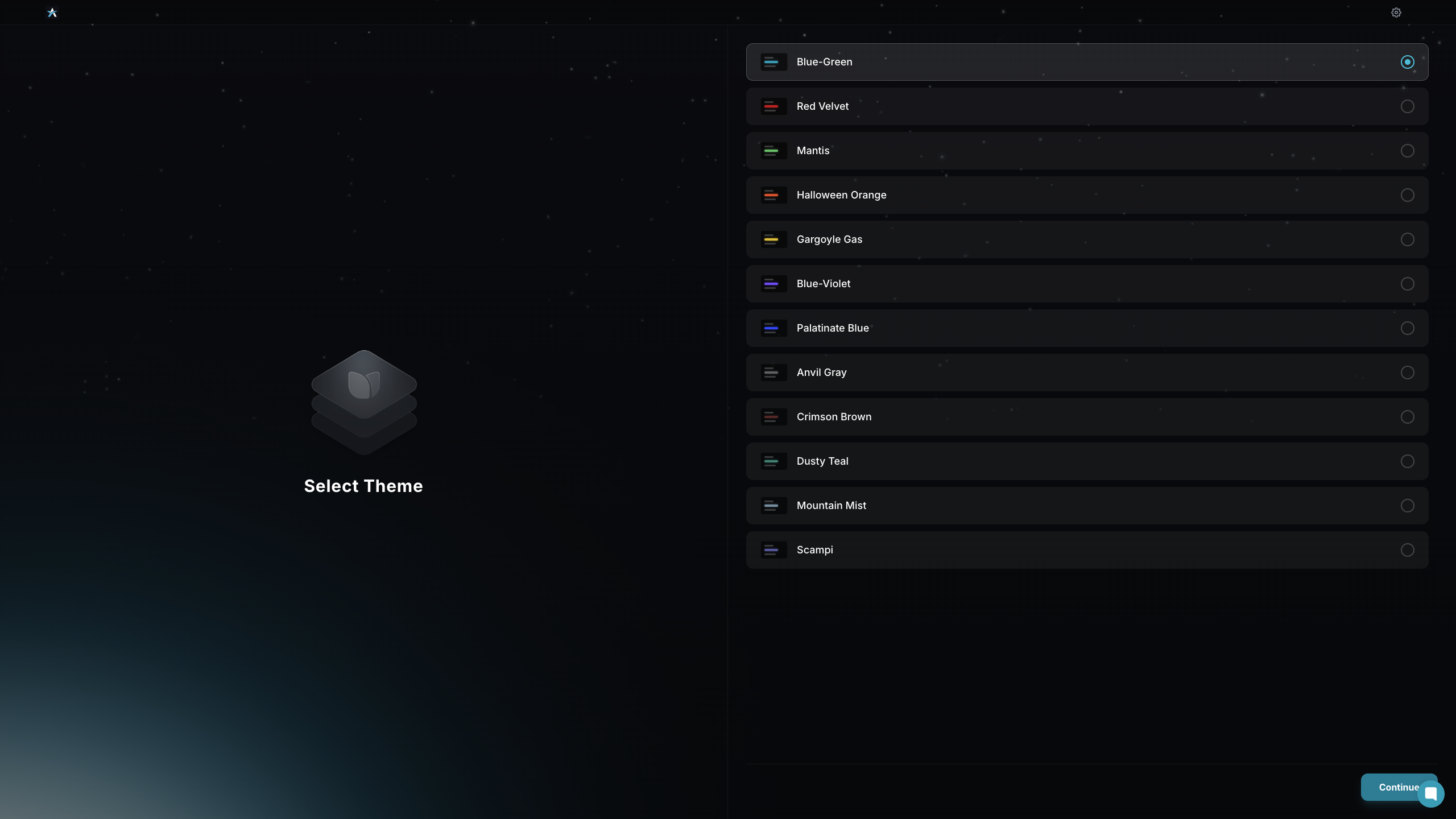
Select your preferred theme from the available options to customize the app’s appearance.
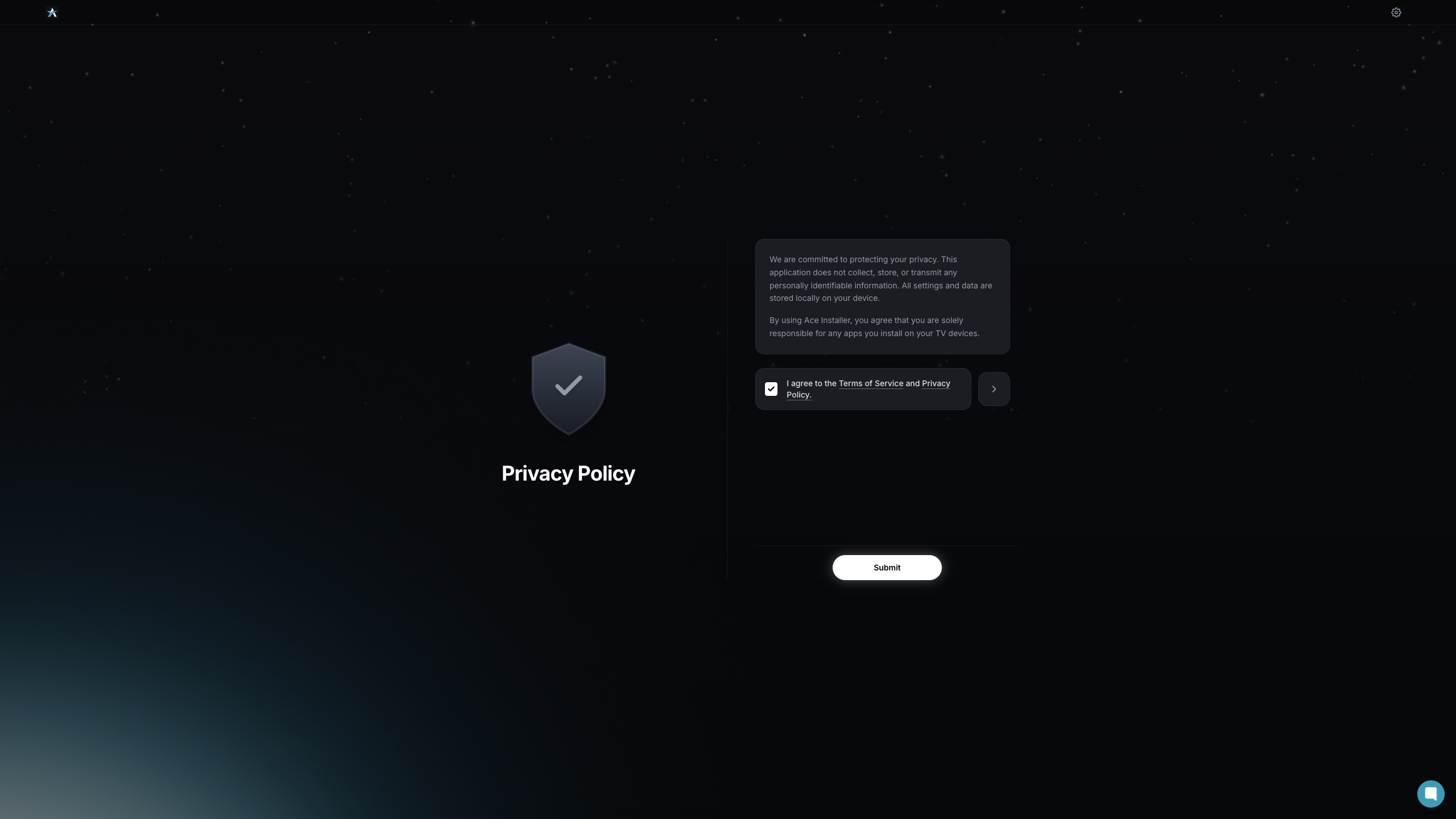
Review the privacy policy agreement, then click Submit to continue.
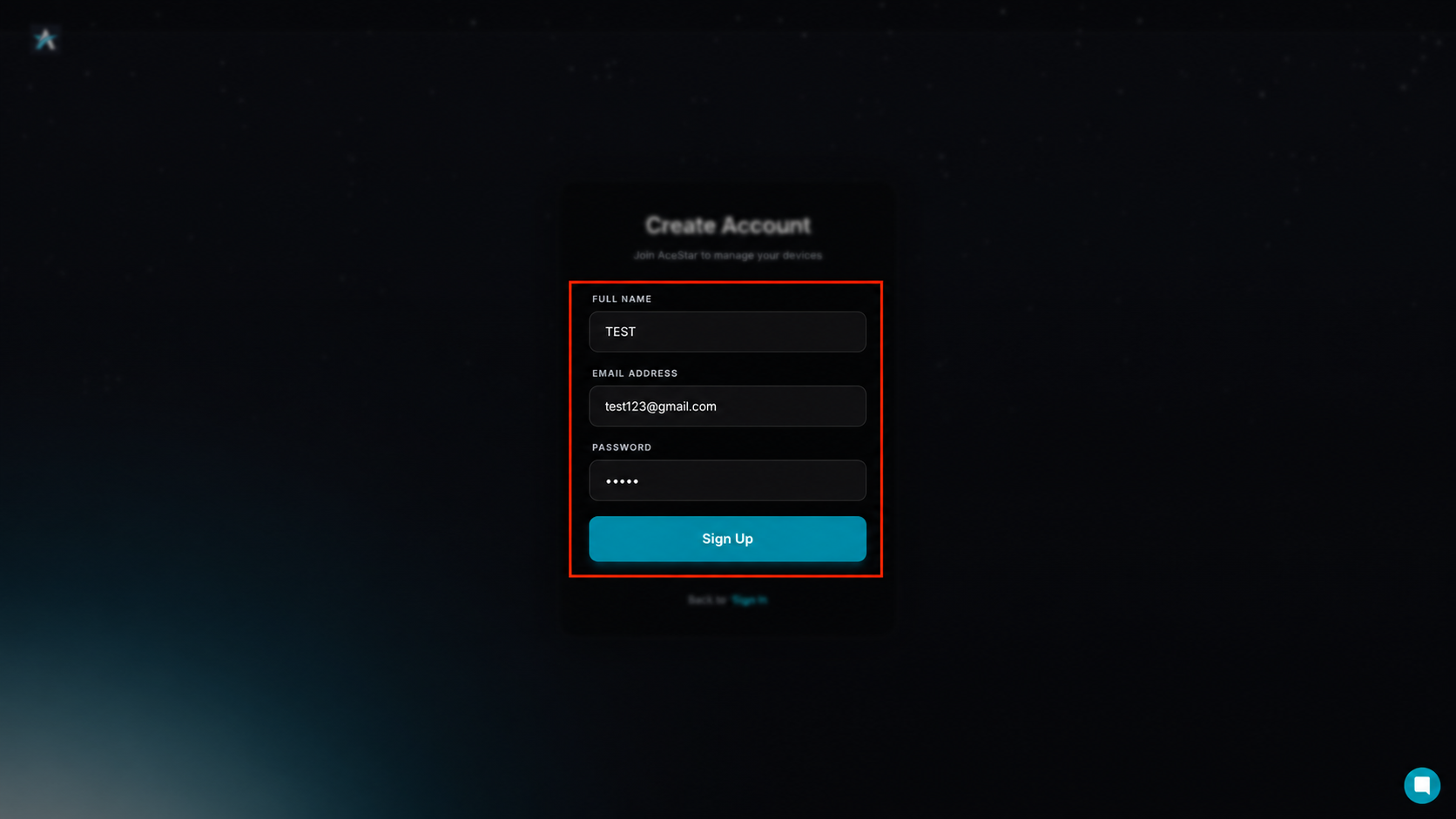
Enter your full name, email address, and password, then click the Sign Up button.
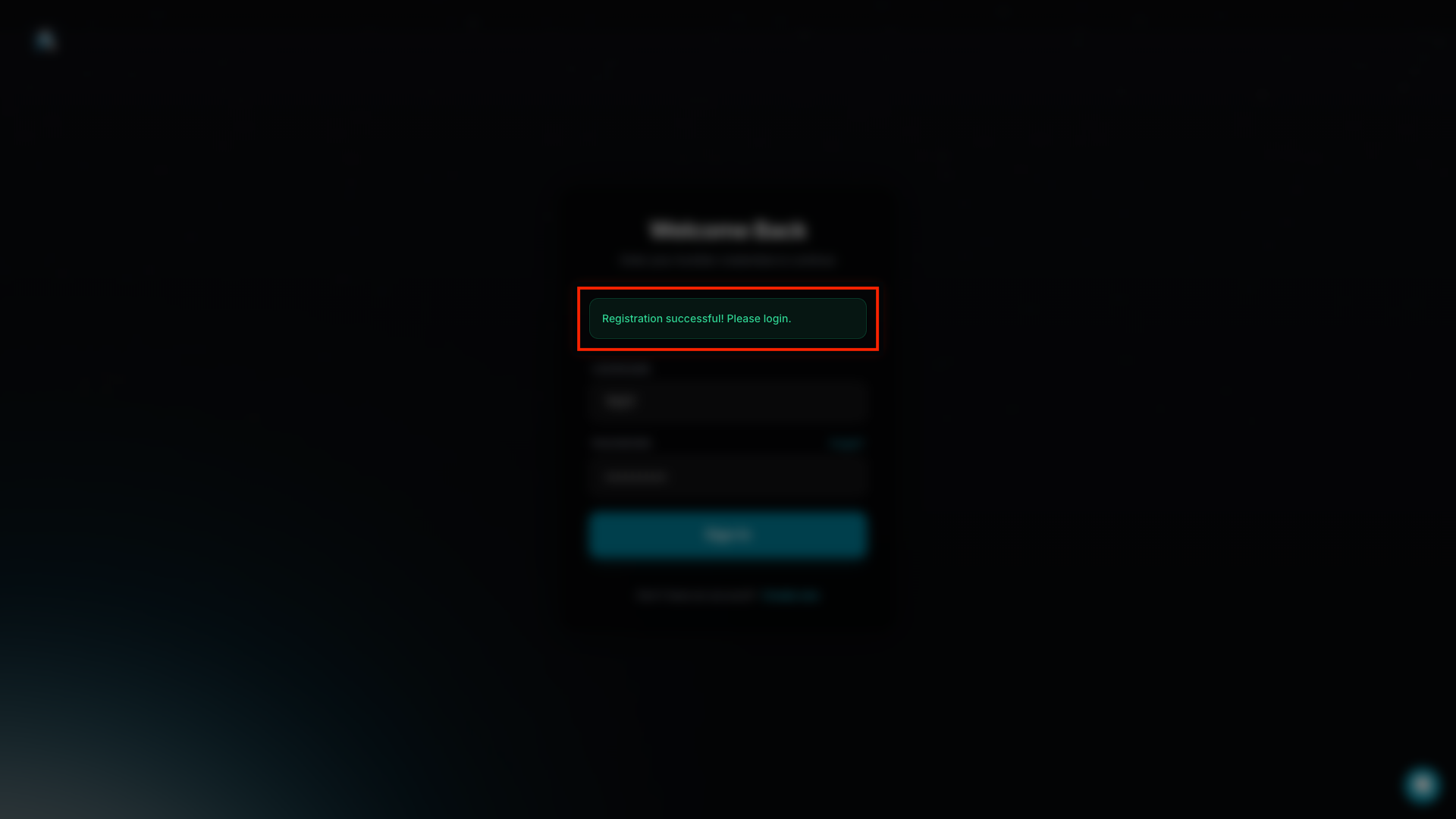
Once the message “Registration successful! Please log in.” appears, your Ace Installer account has been created successfully.
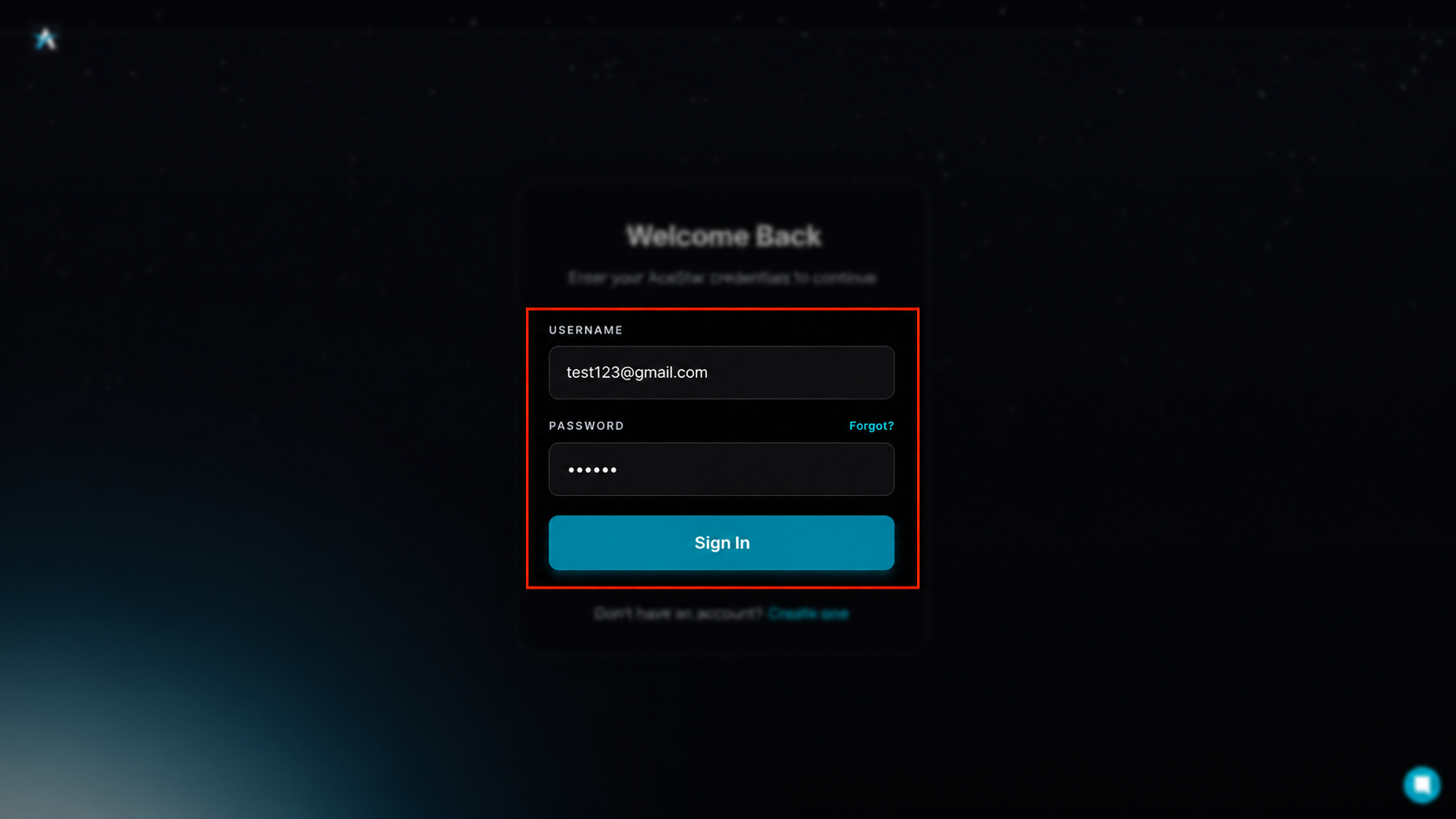
Enter your registered username and password, then click the Sign In button.
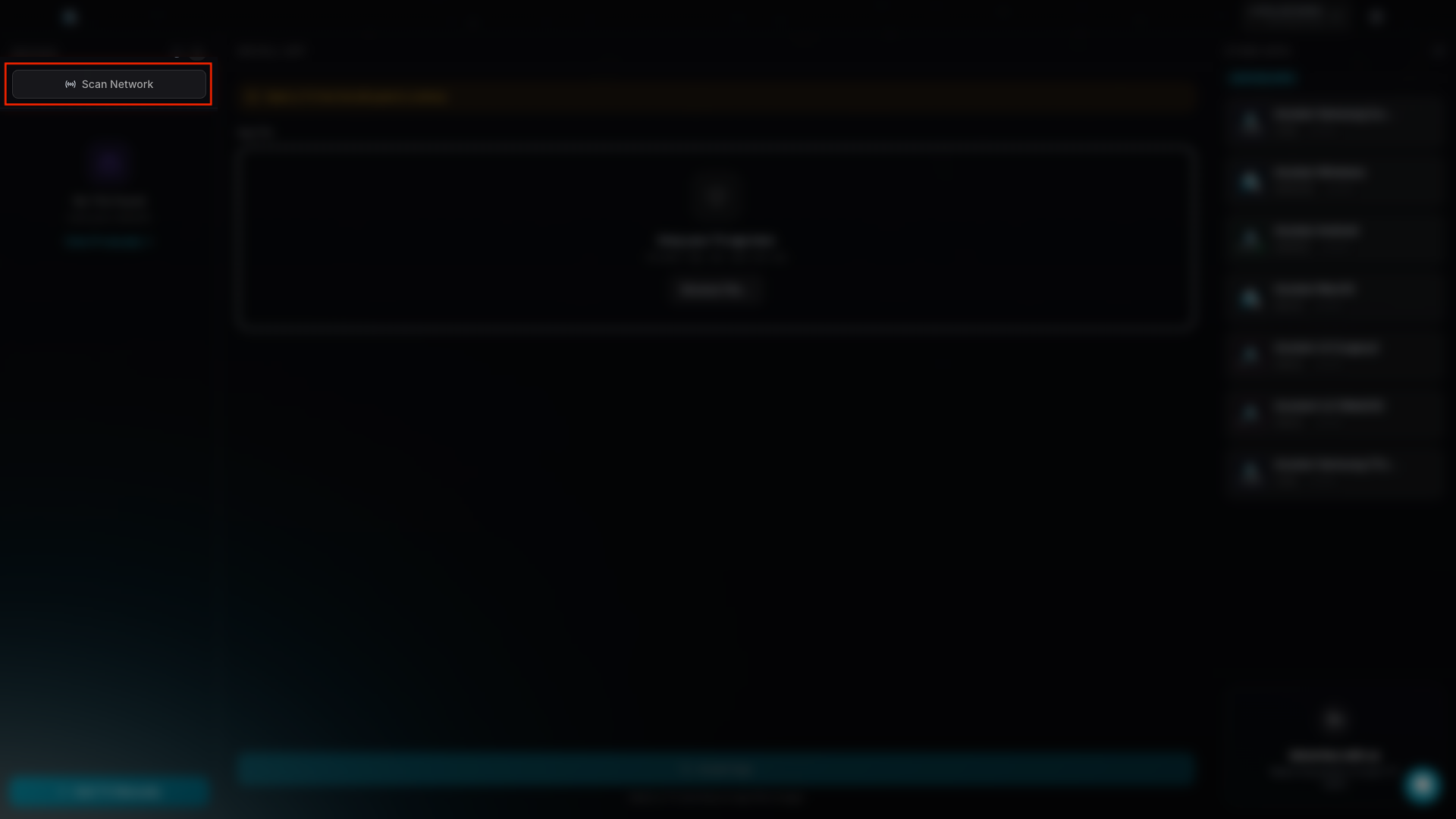
Click the Scan Network button to search for available LG webOS TV devices on your network.
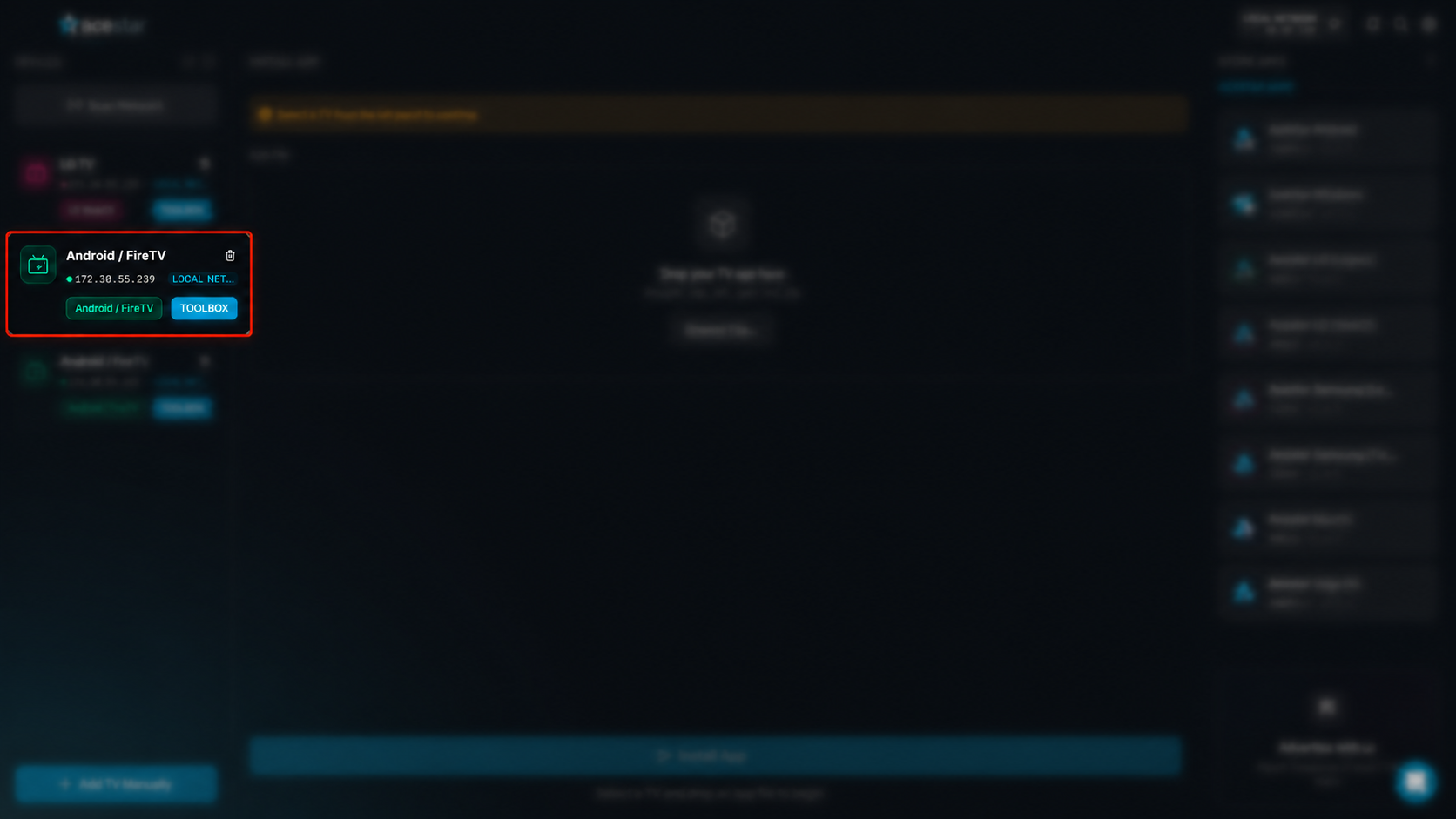
After clicking on Android / Fire TV, a submenu will open. From the available options, select Fire TV to proceed with connecting your Fire TV device.
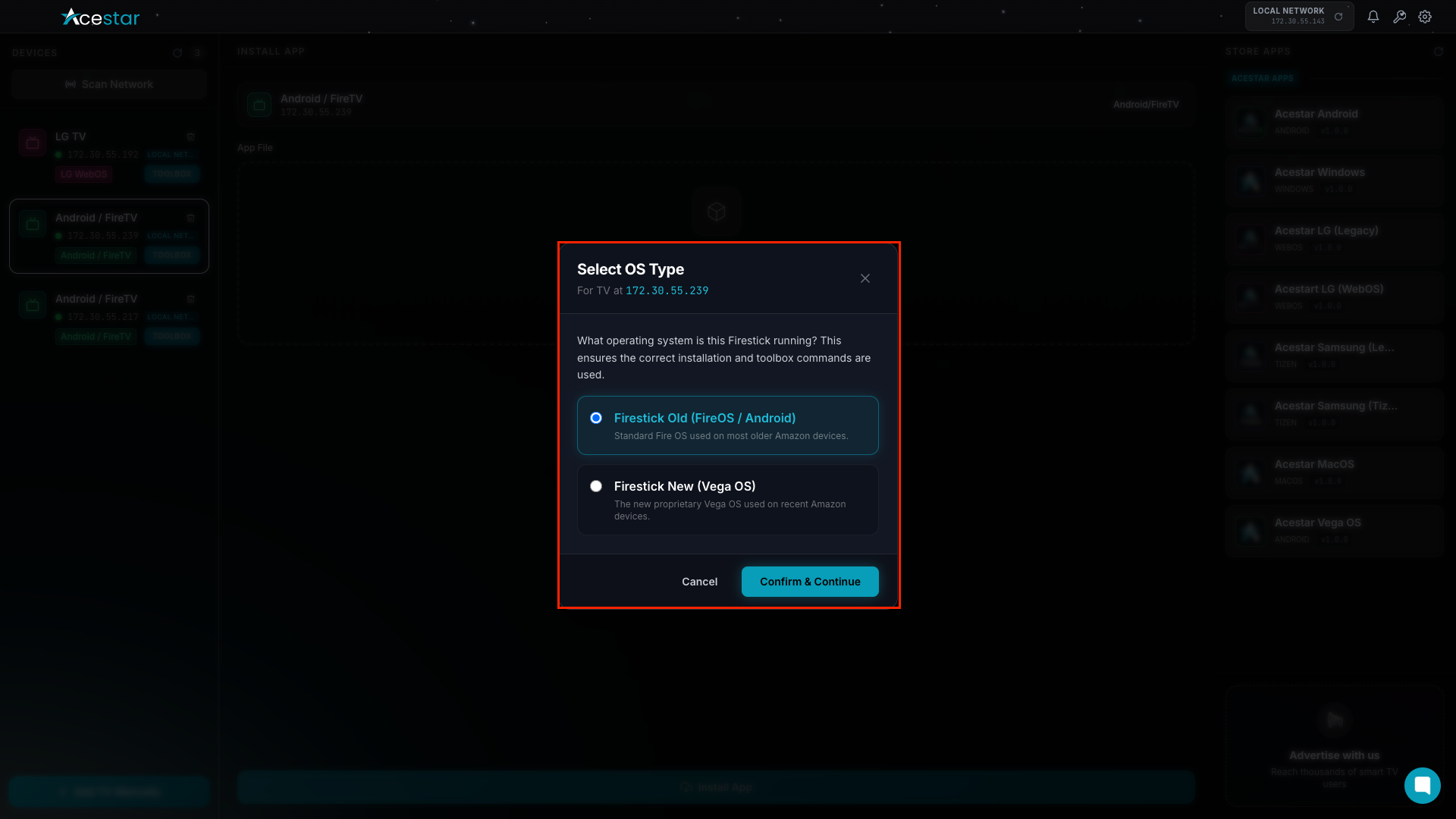
A “Select OS Type” popup will appear. Choose your preferred OS based on your Fire TV device:
Firestick Old (FireOS / Android)
Select this option if you are using older Fire TV or Firestick devices that run on Android-based Fire OS (typically Fire OS 5, 6, or 7).
Firestick New (Vega OS)
Select this option if you are using newer Fire TV devices that run on Vega OS (the latest generation system).
Make sure to choose the correct option for better compatibility and a smooth connection.
Click on Confirm & Continue to proceed.
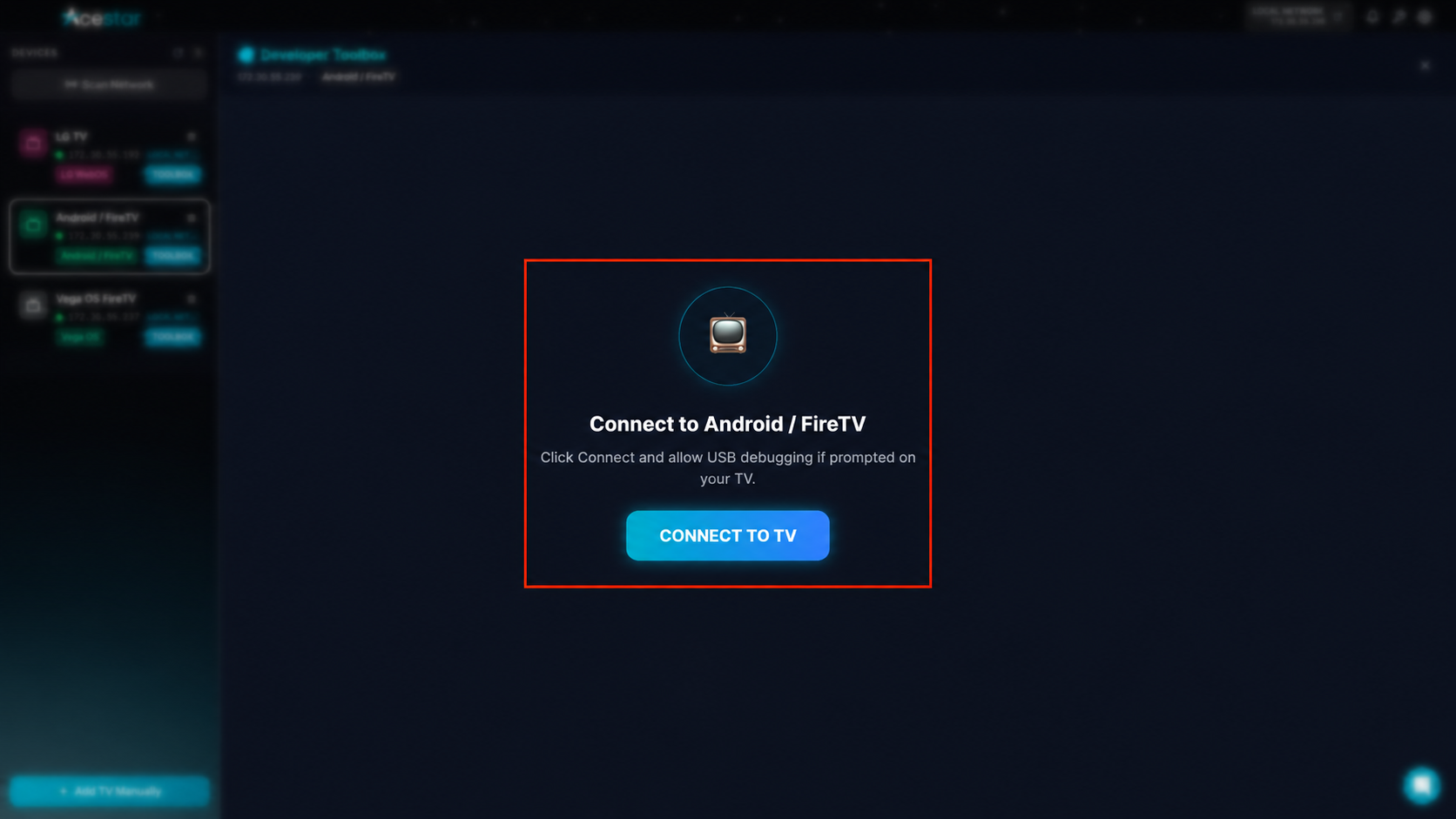
On the Developer Toolbox screen, click on the Connect to TV button.
Make sure your Fire TV device is on and connected to the same network. If prompted on your TV, allow USB debugging to establish the connection.
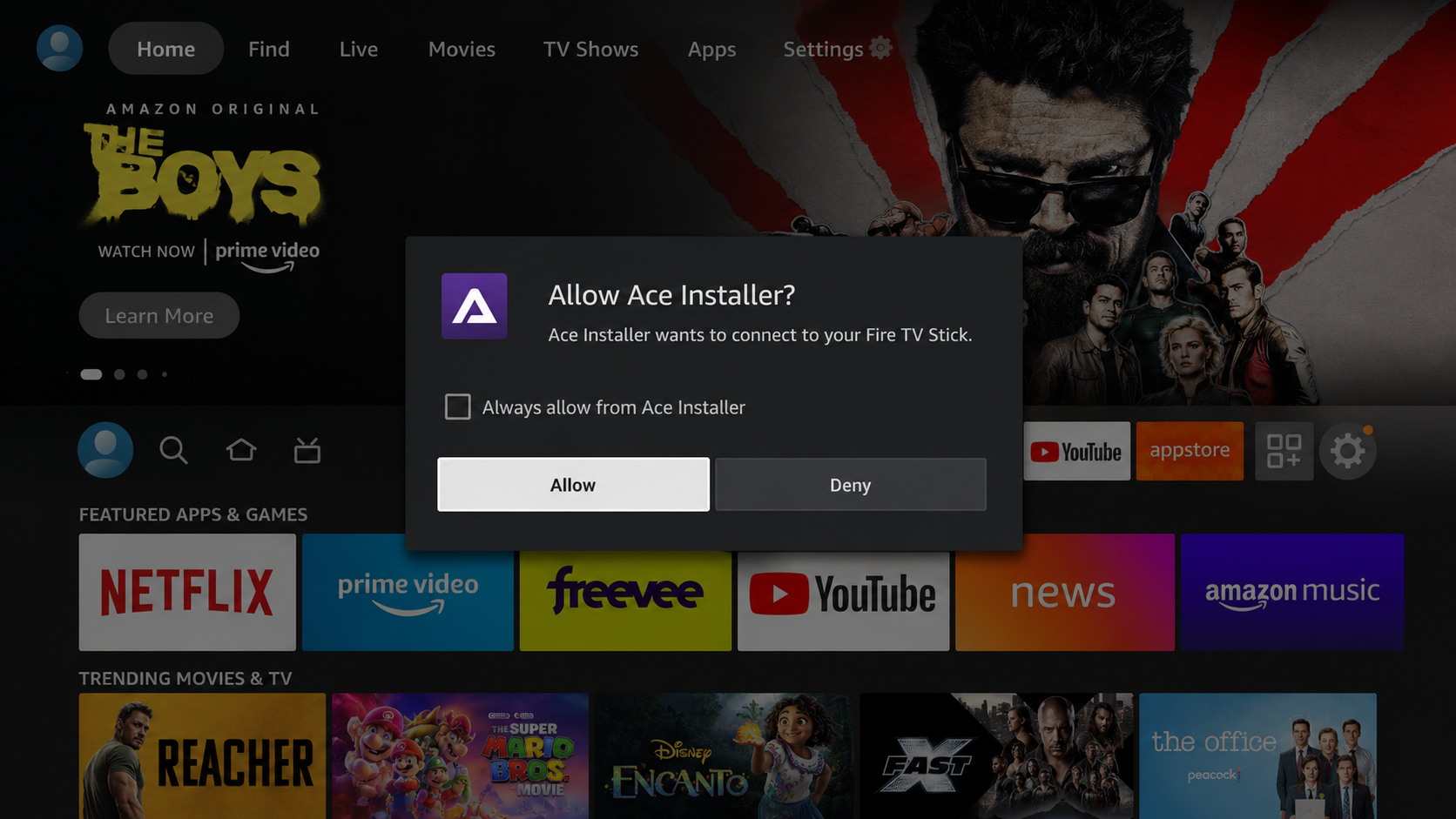
If an authorization prompt appears on the Fire TV Stick, select Allow.
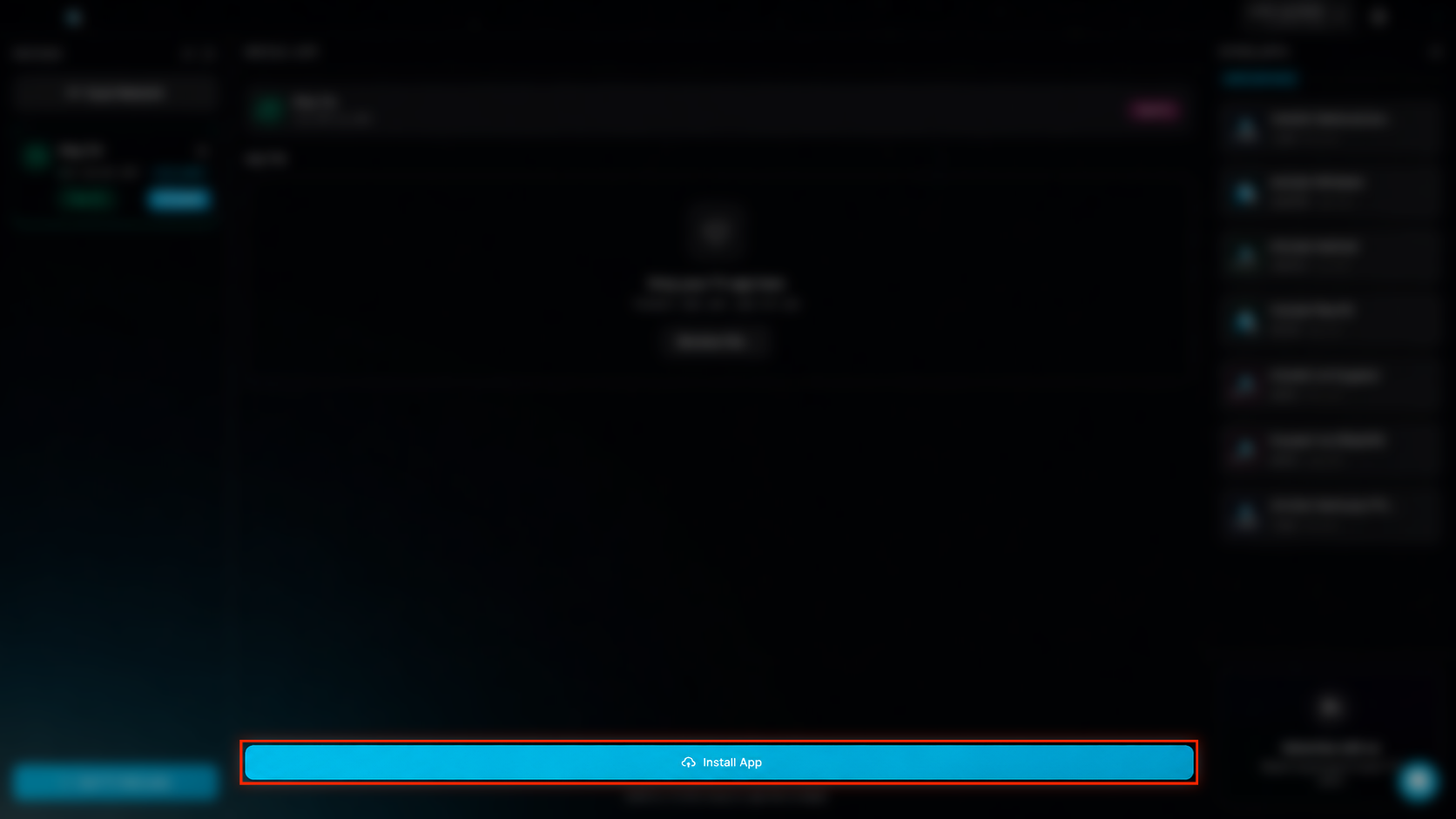
Click Install to install the application on your Fire TV Stick.
Open the installed app from Your Apps & Channels on your Fire TV Stick.