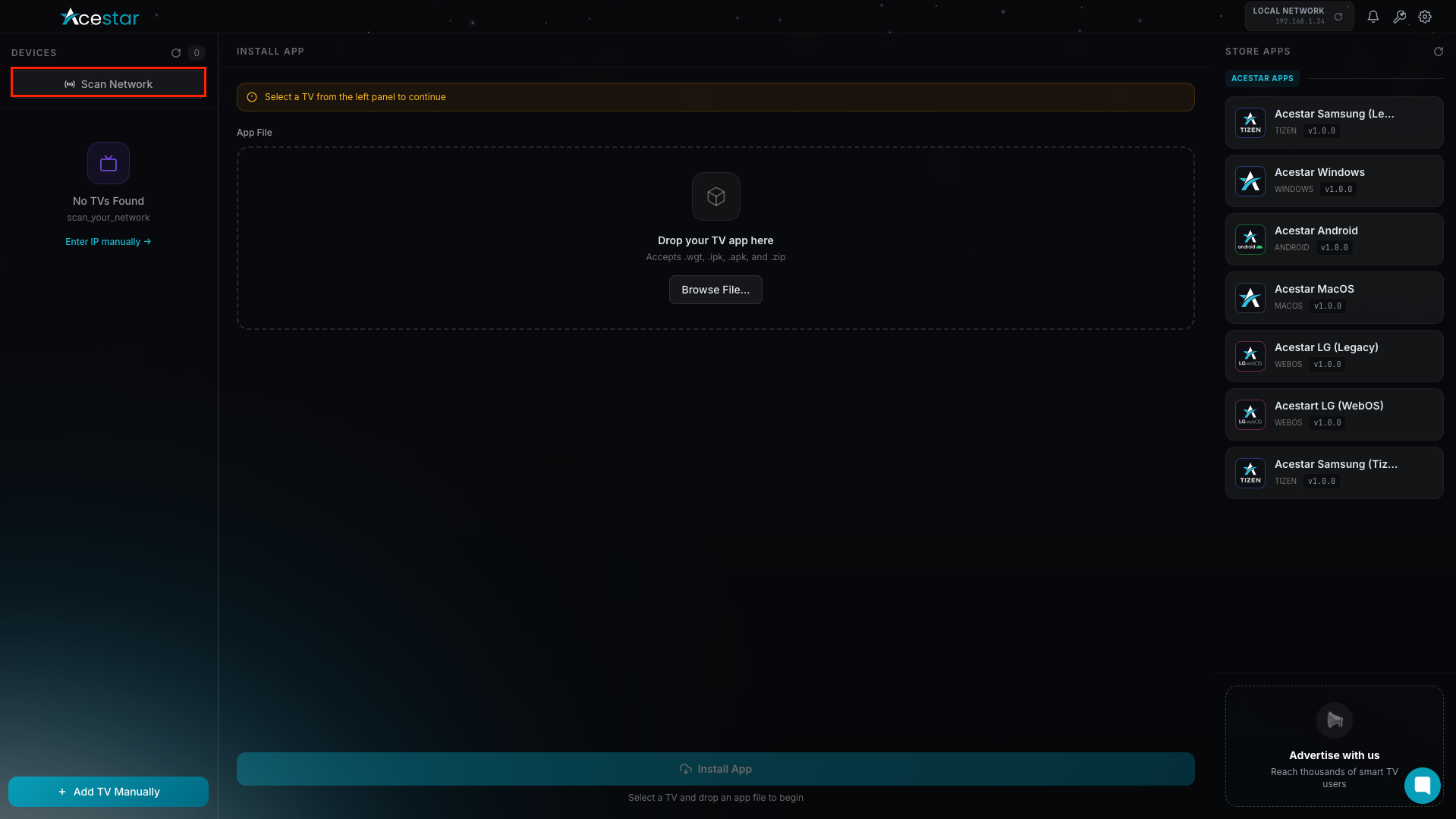
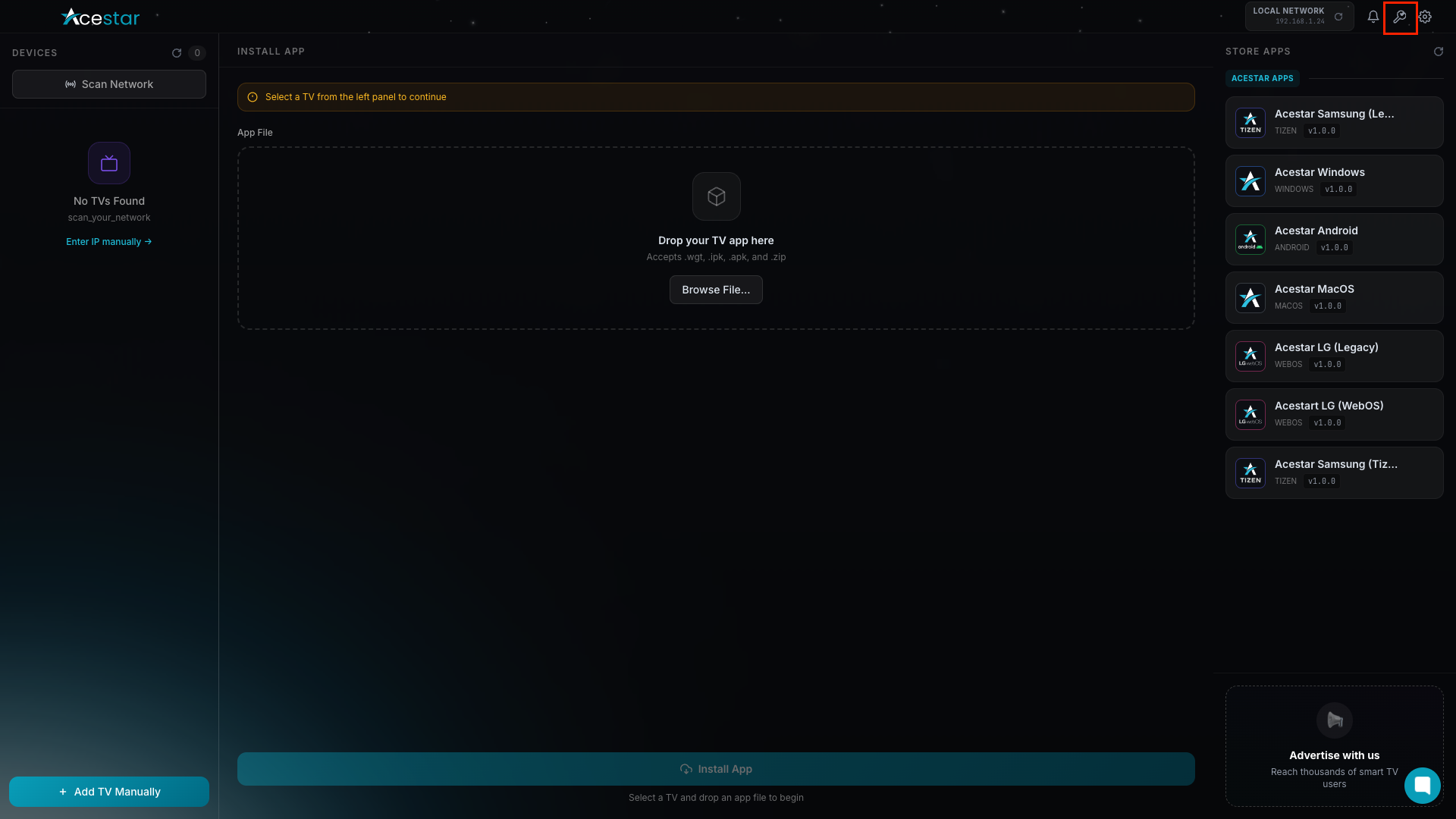
Click the Scan Network button to search for available devices.
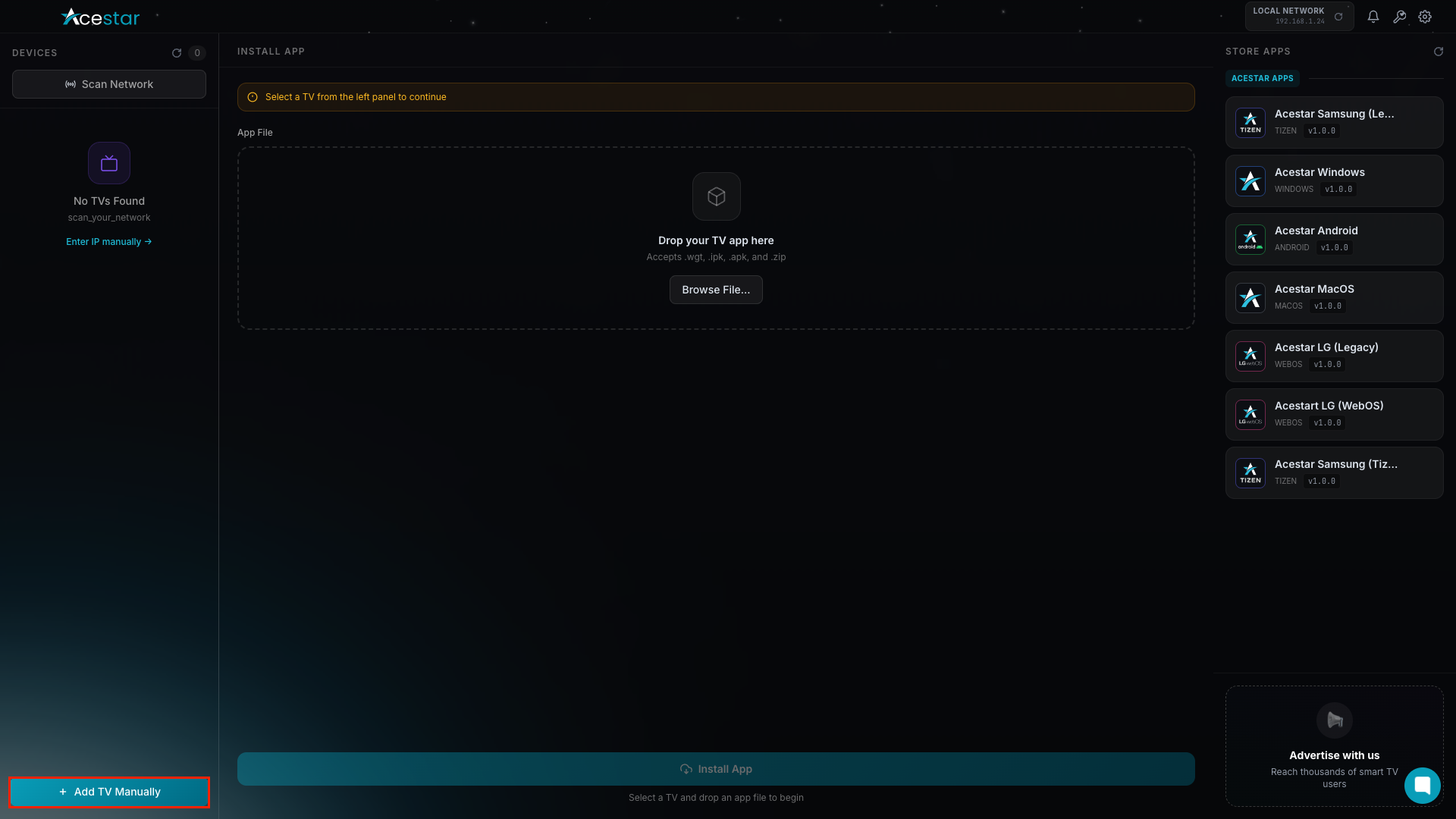
Click Add TV Manually to connect a device by entering its details manually.
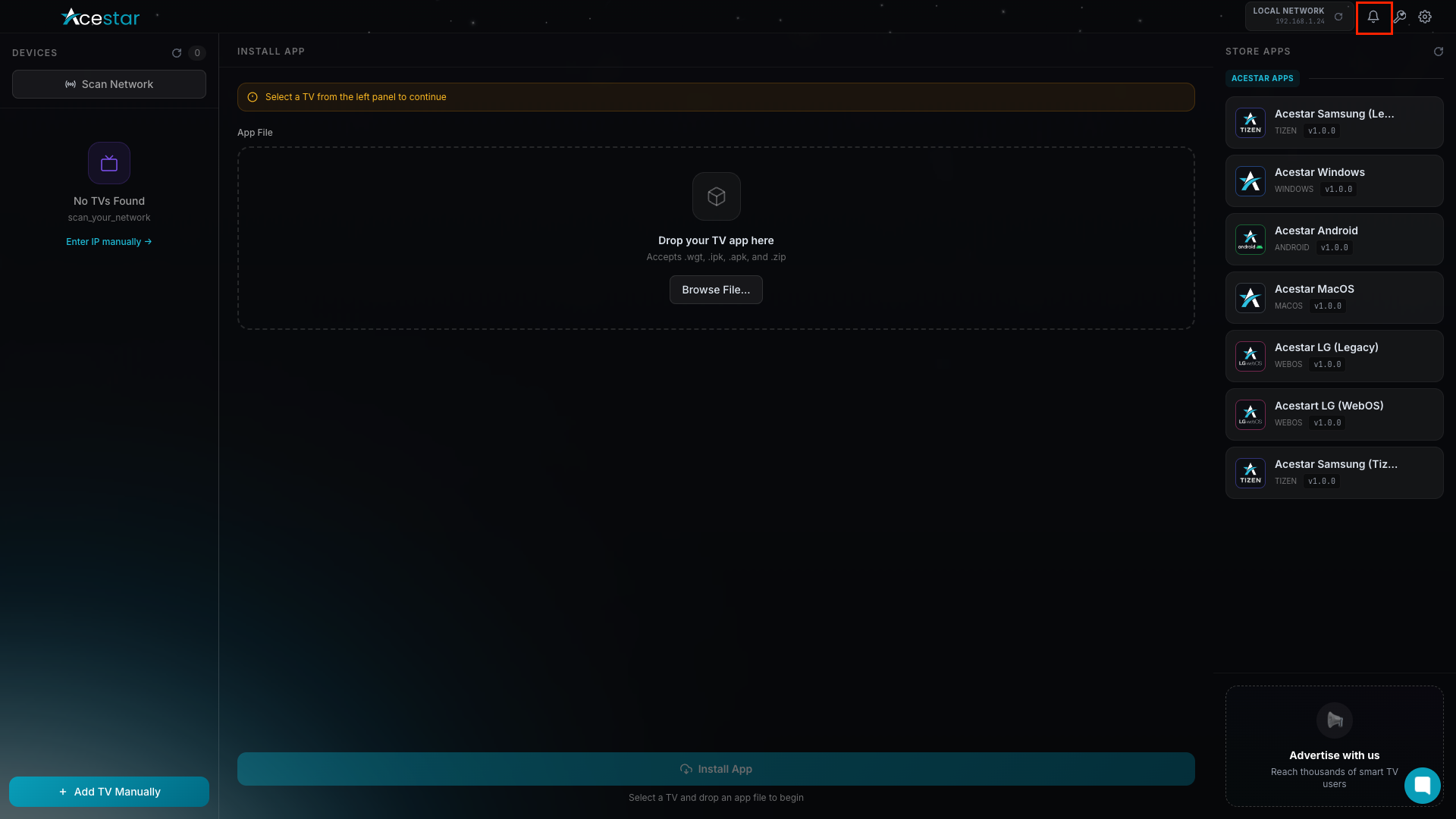
Click the Notification icon to view new announcements and updates.
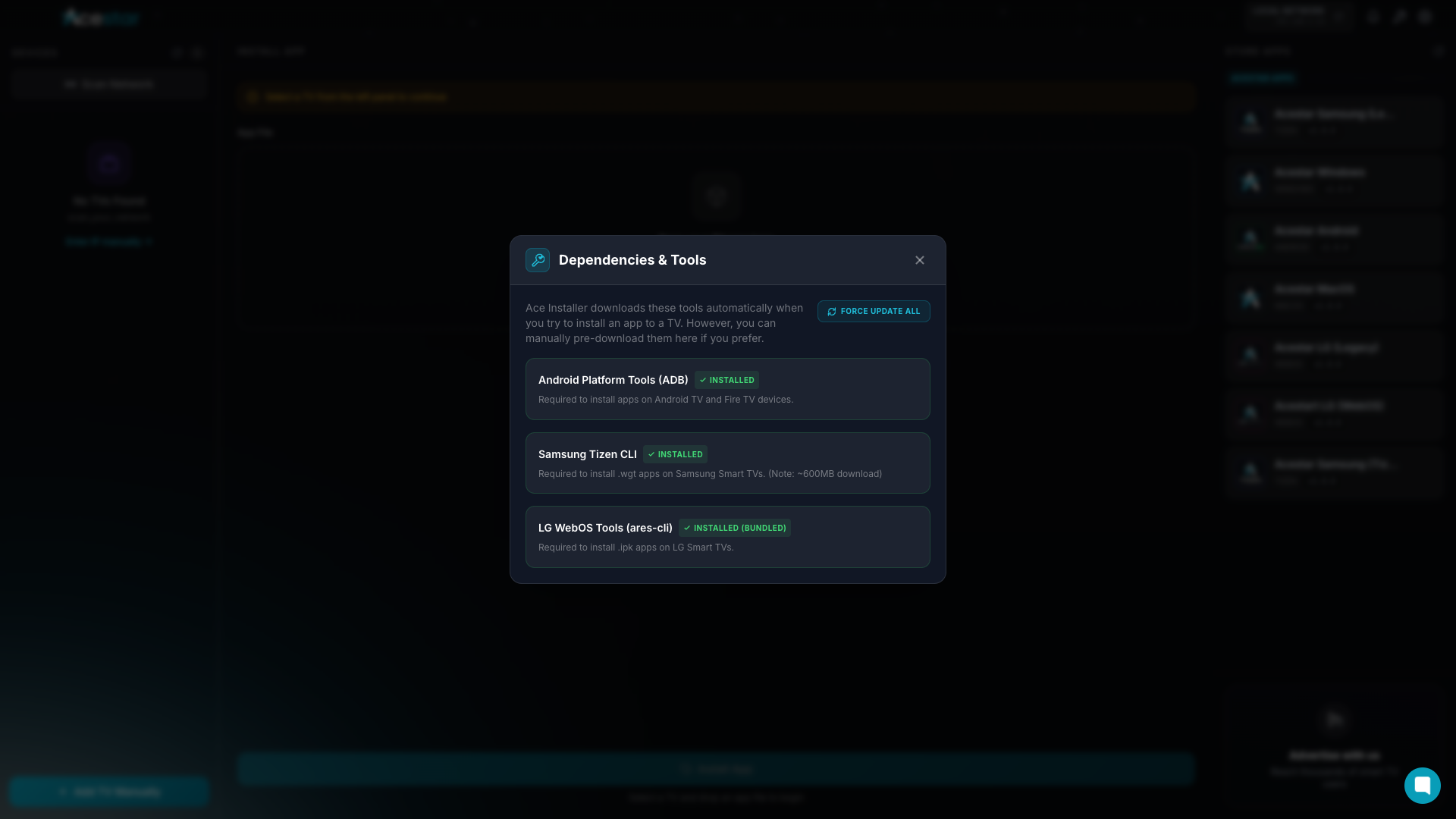
Click the Dependencies & Tools icon from the top-right menu.
Click Force Update All to update all required tools and dependencies.
Note: When you click Force Update All, Ace Installer will start updating all supported tools and dependencies together. This ensures that every required component is updated to the latest version before continuing with app installation.
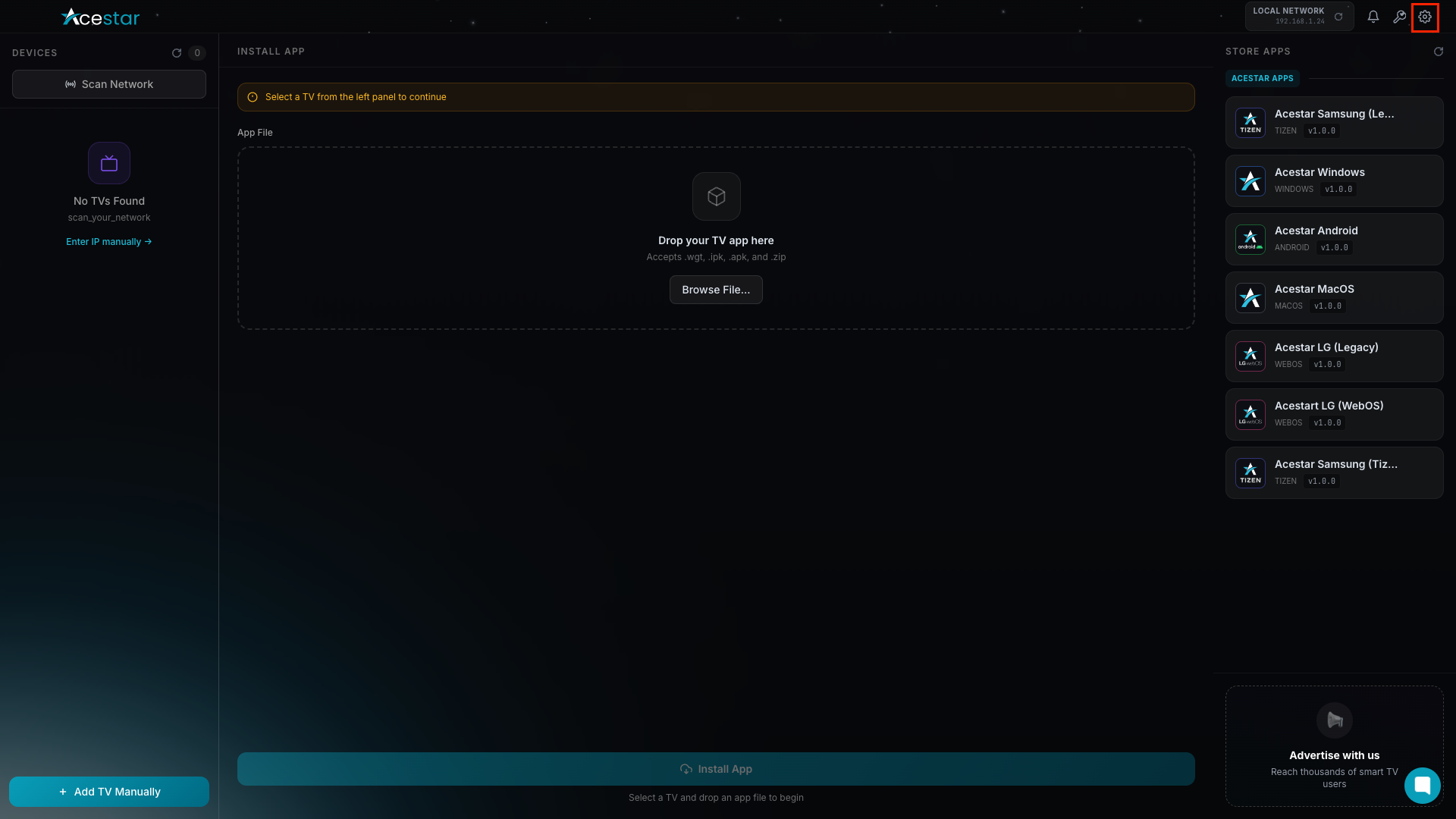
Click the Settings icon in the top-right corner.
Click Change Language to update the Ace Installer app language.
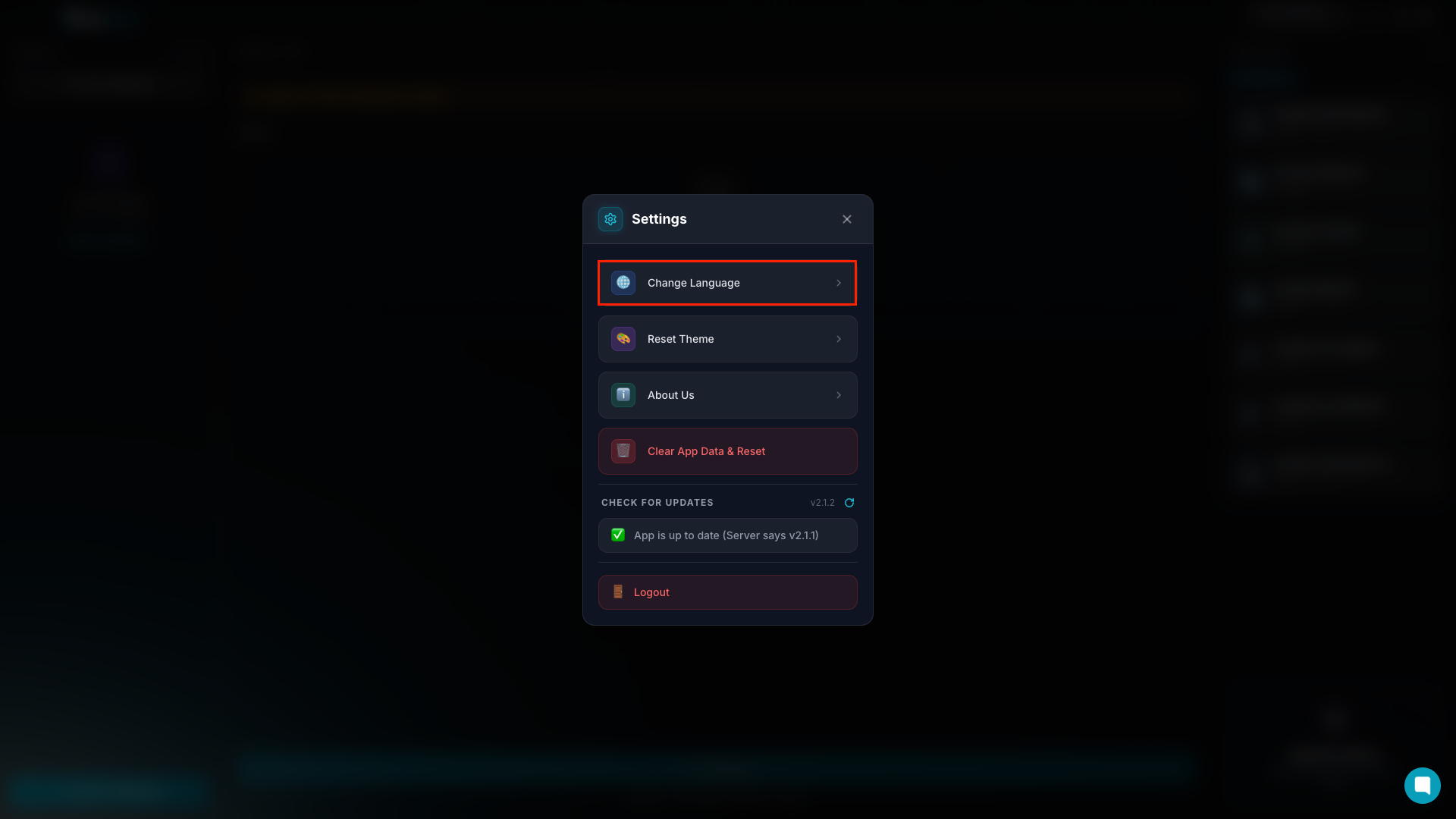
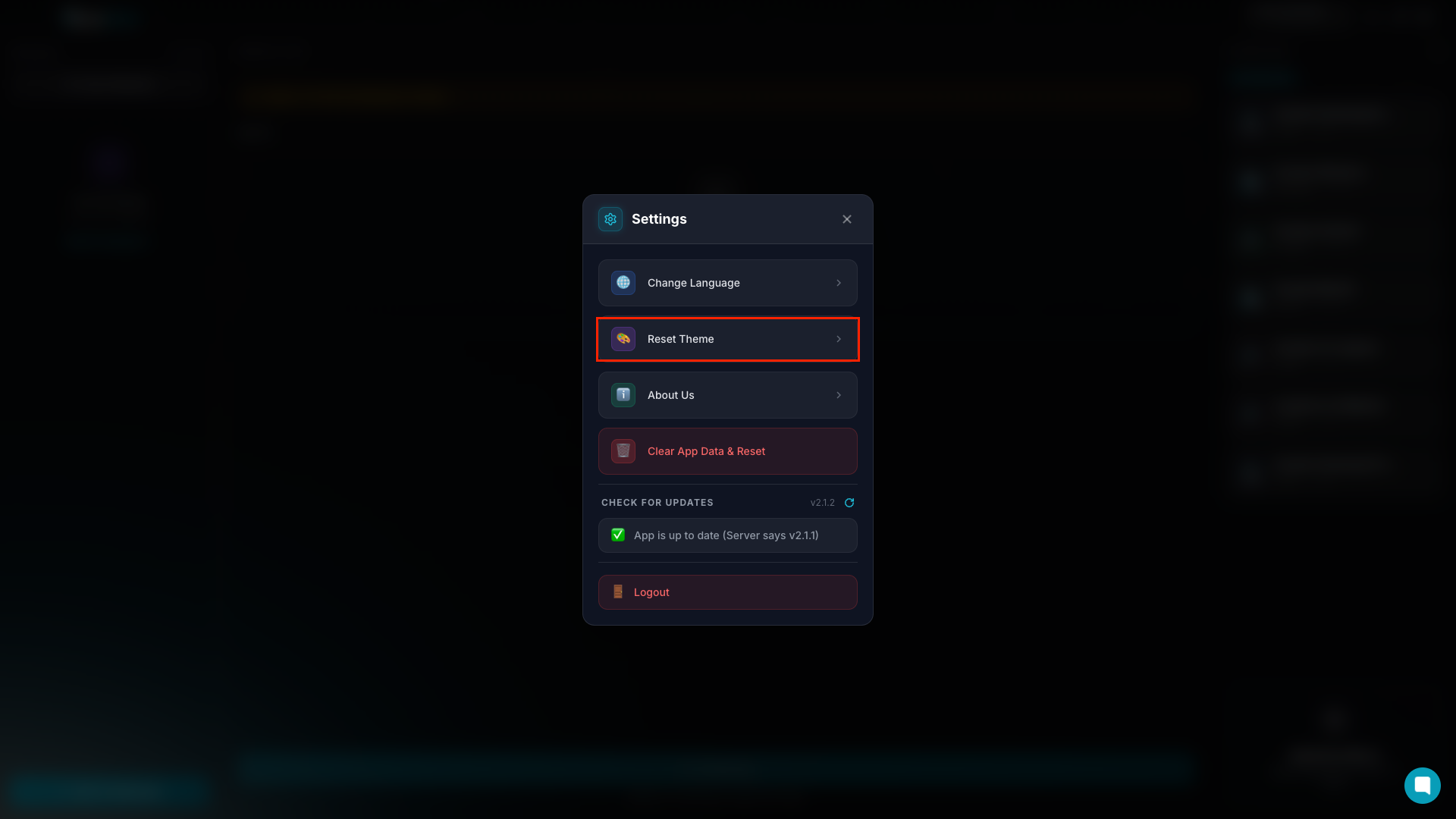
Click Reset Theme to restore the default Ace Installer theme.
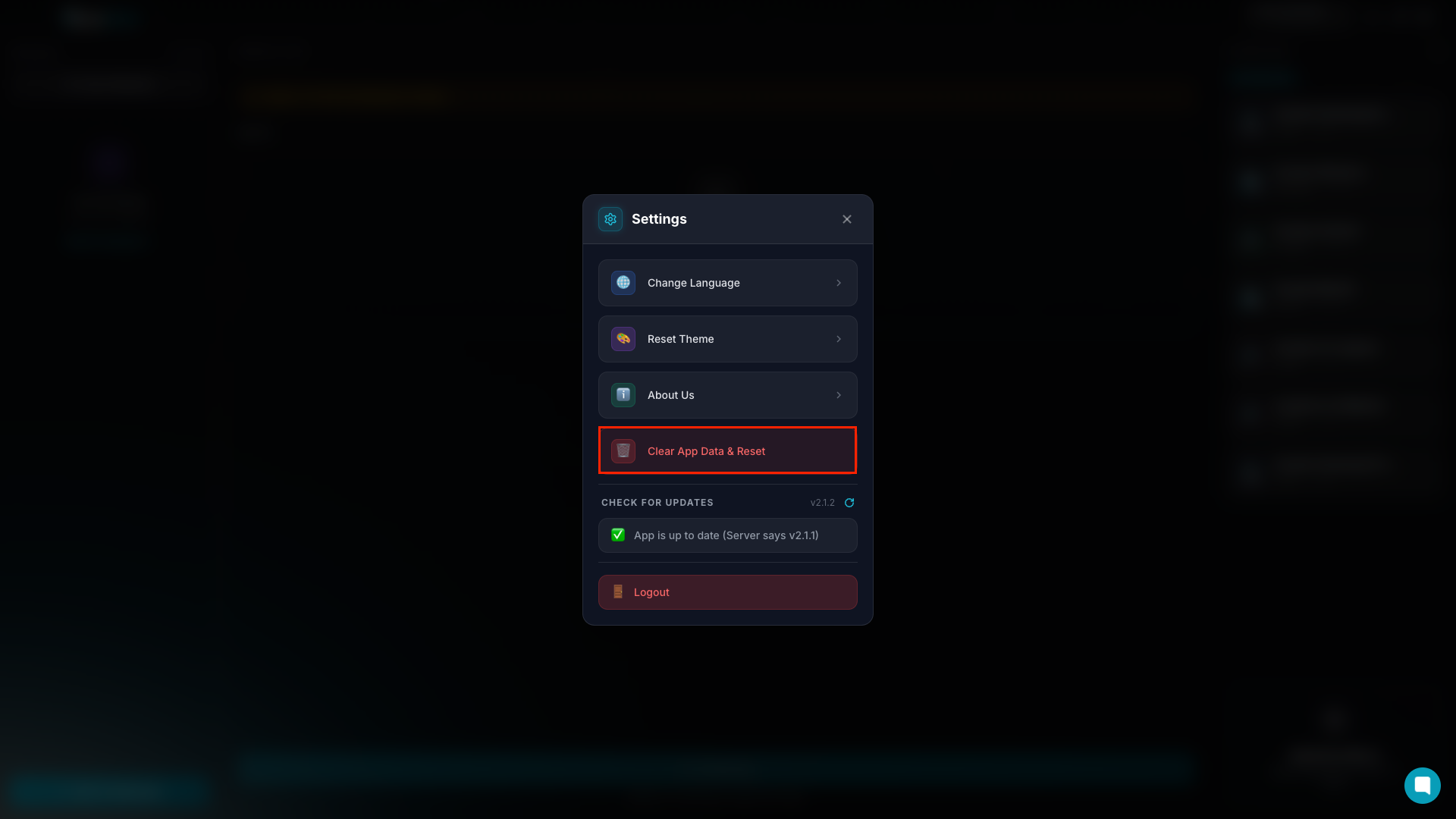
Click "Clear App Data & Reset" to remove saved app data and reset Ace Installer.
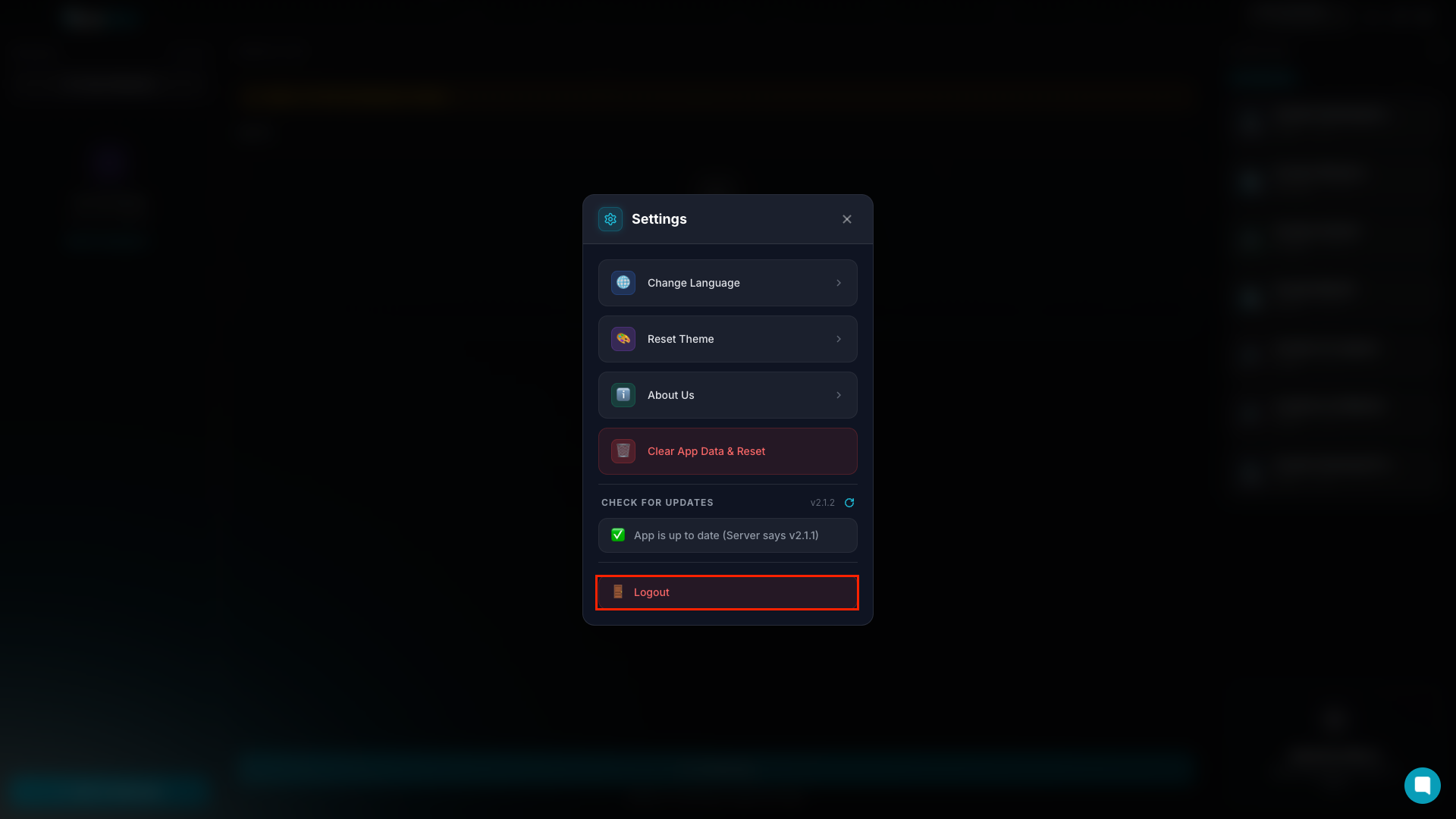
Click Logout to sign out of your Ace Installer account.