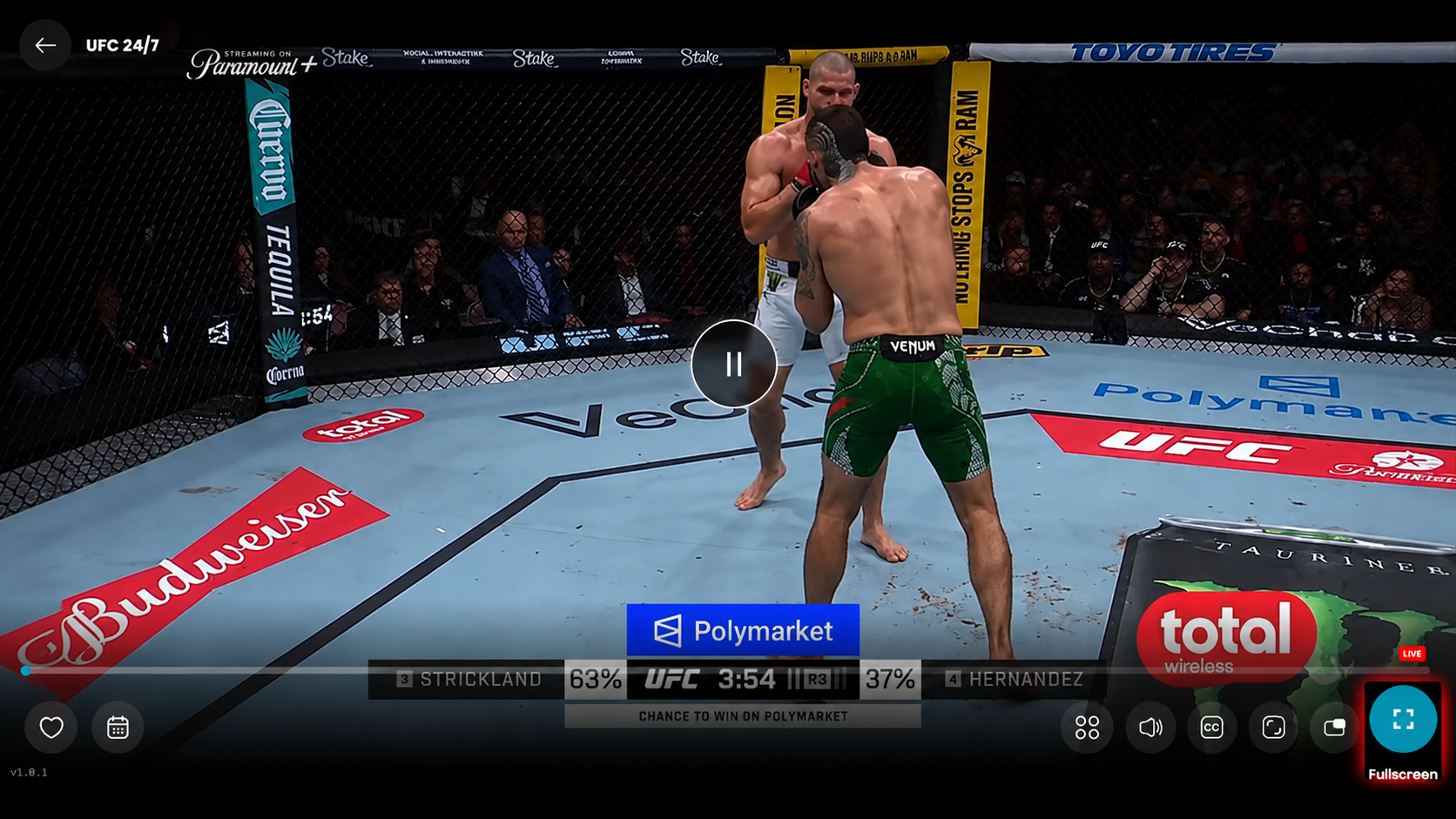
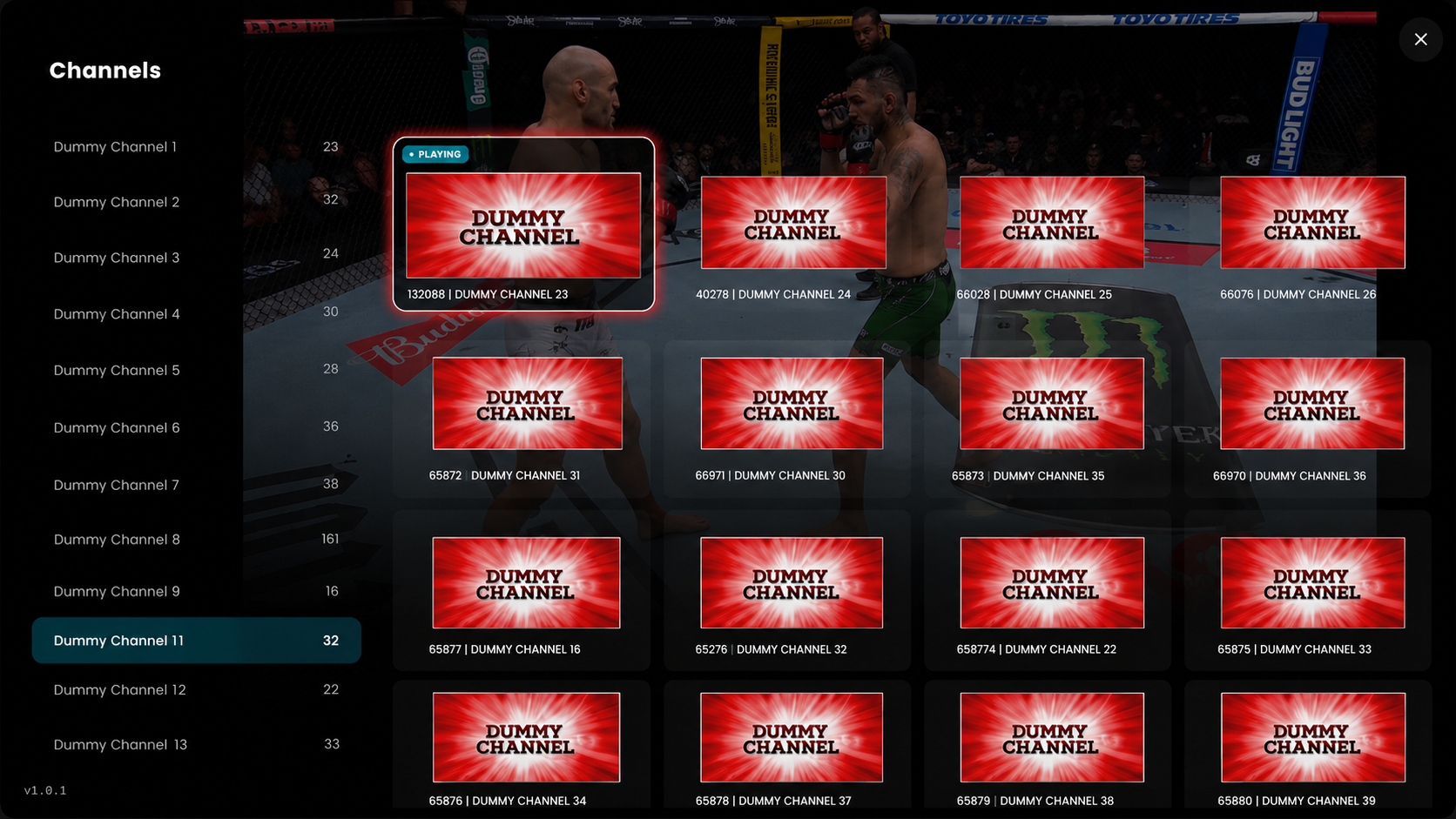
The chosen channel will start playing.
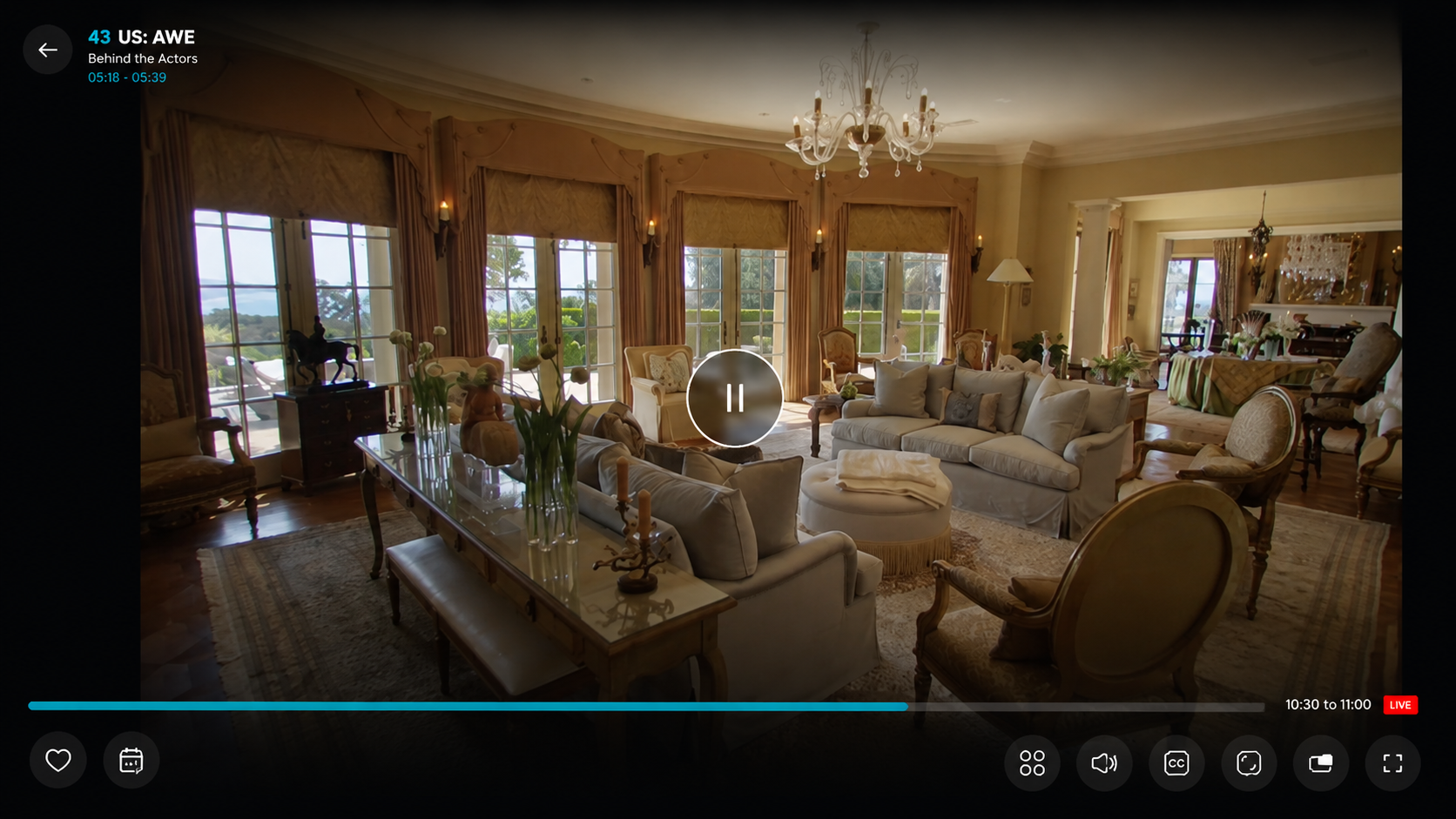
Click on the Favorite icon to save the channel for quick access later.
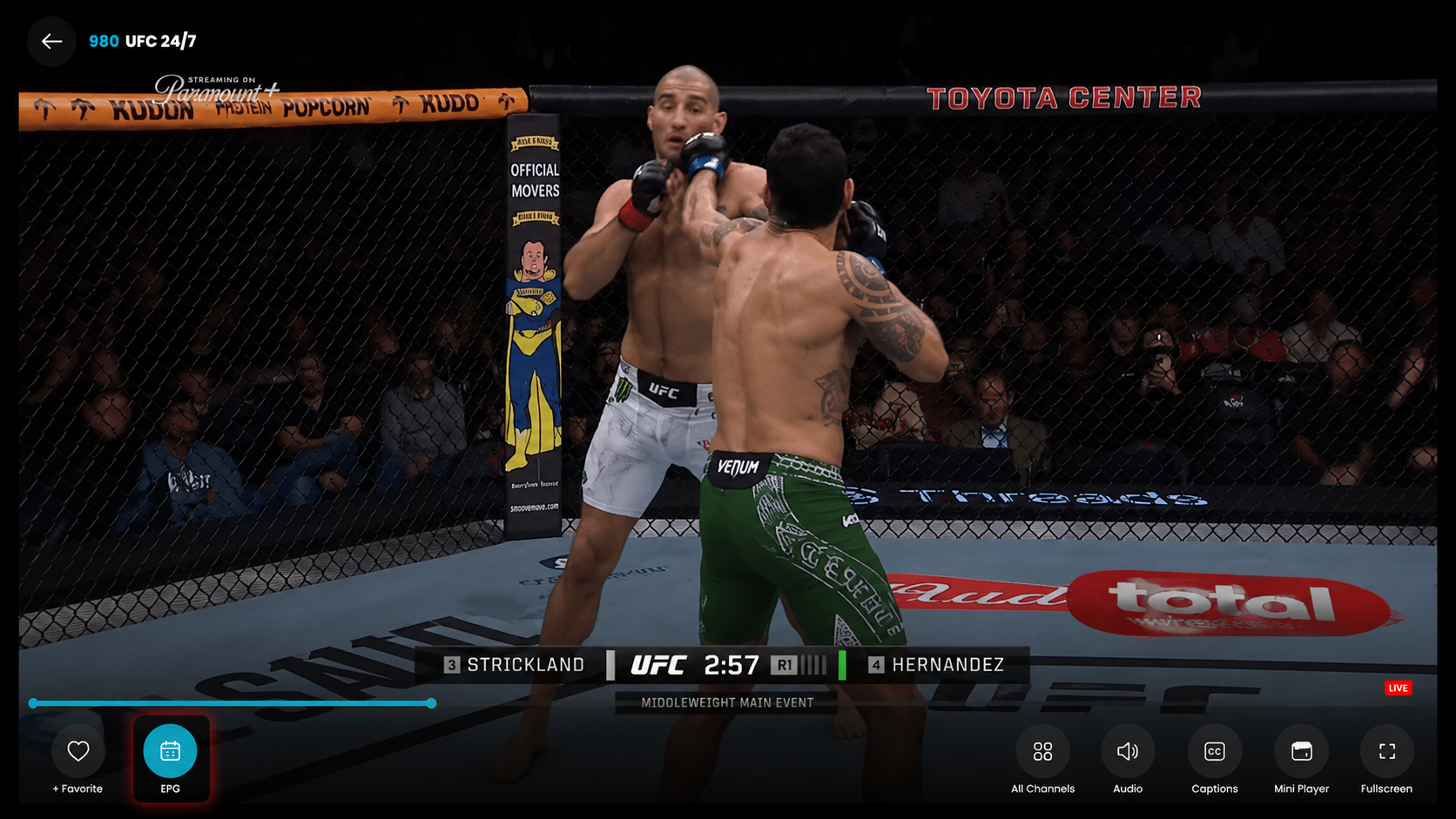
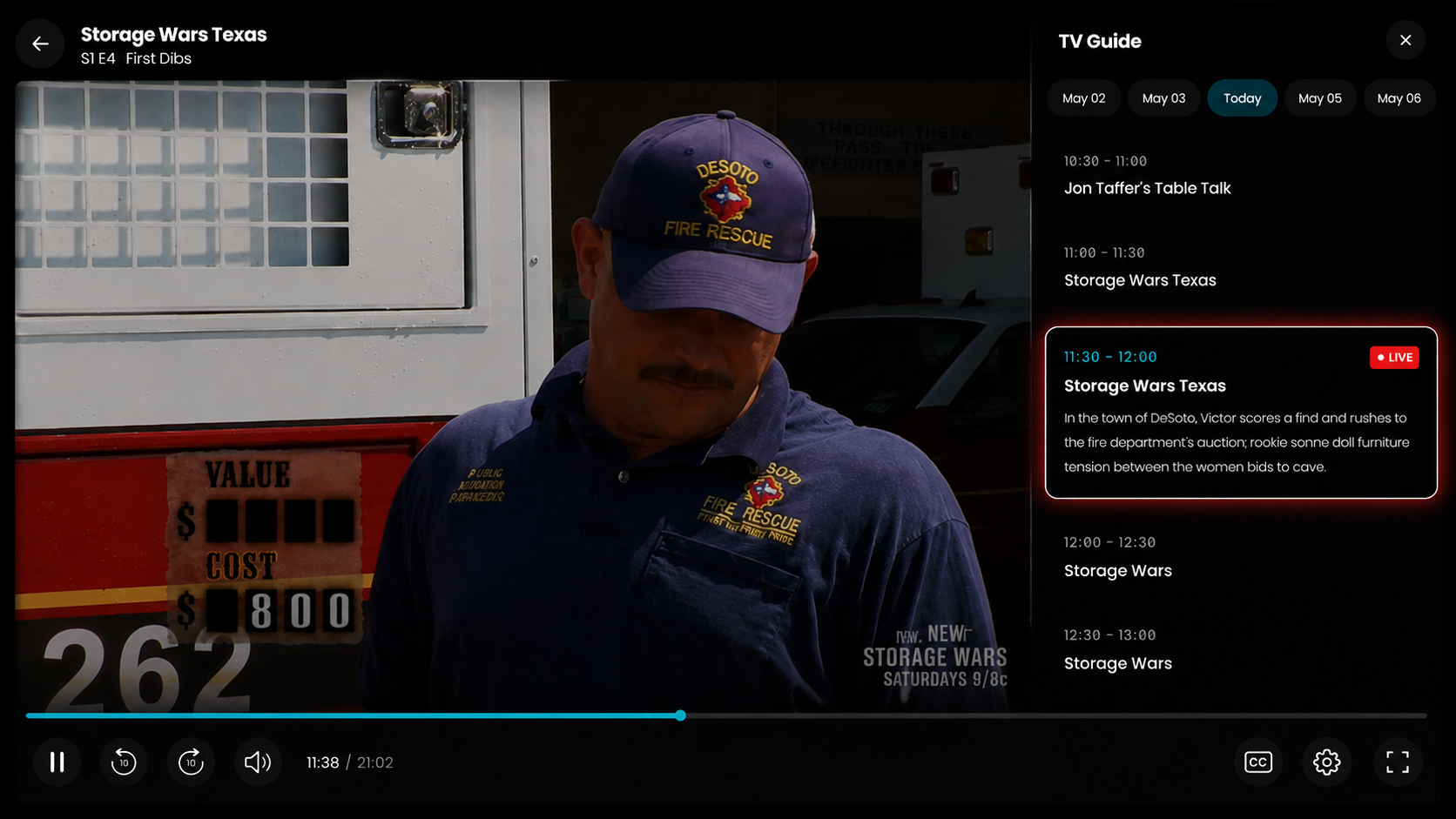
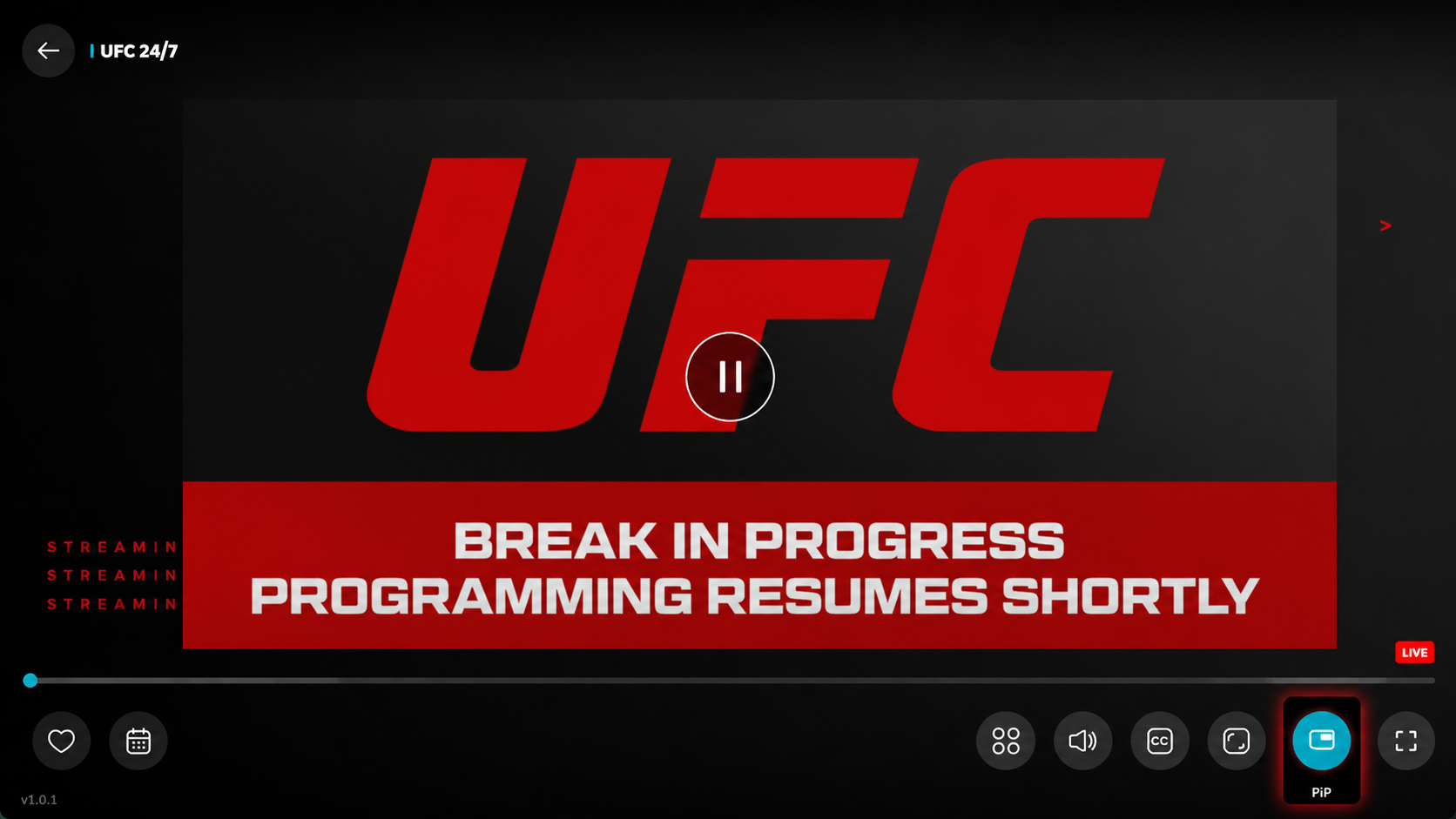
Click on the EPG option while playing a channel to view the program guide.
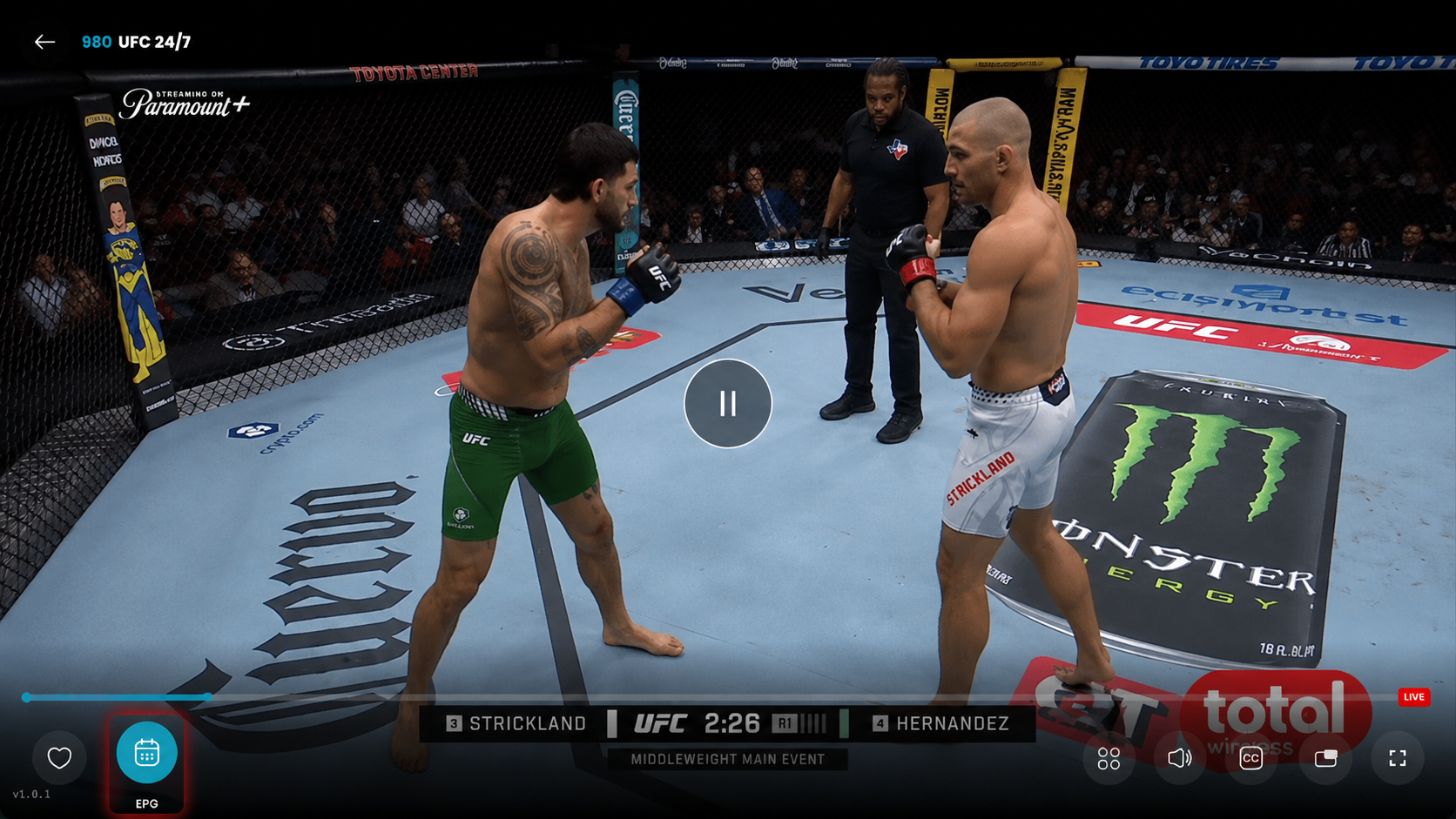
Browse available schedules.
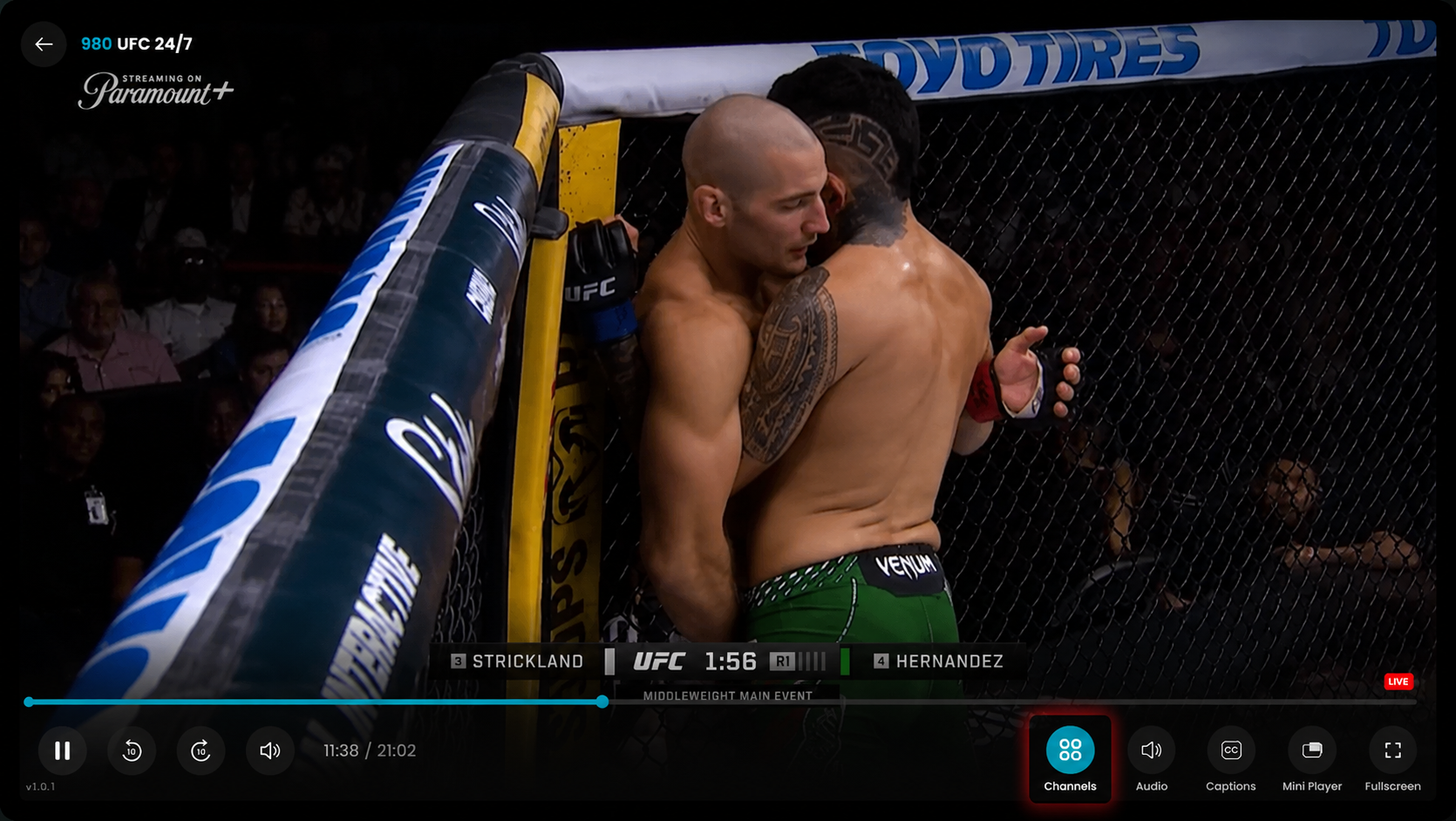
Click on the Channels icon while playing the video.
After clicking, the channel list will open, where you can browse and switch channels.
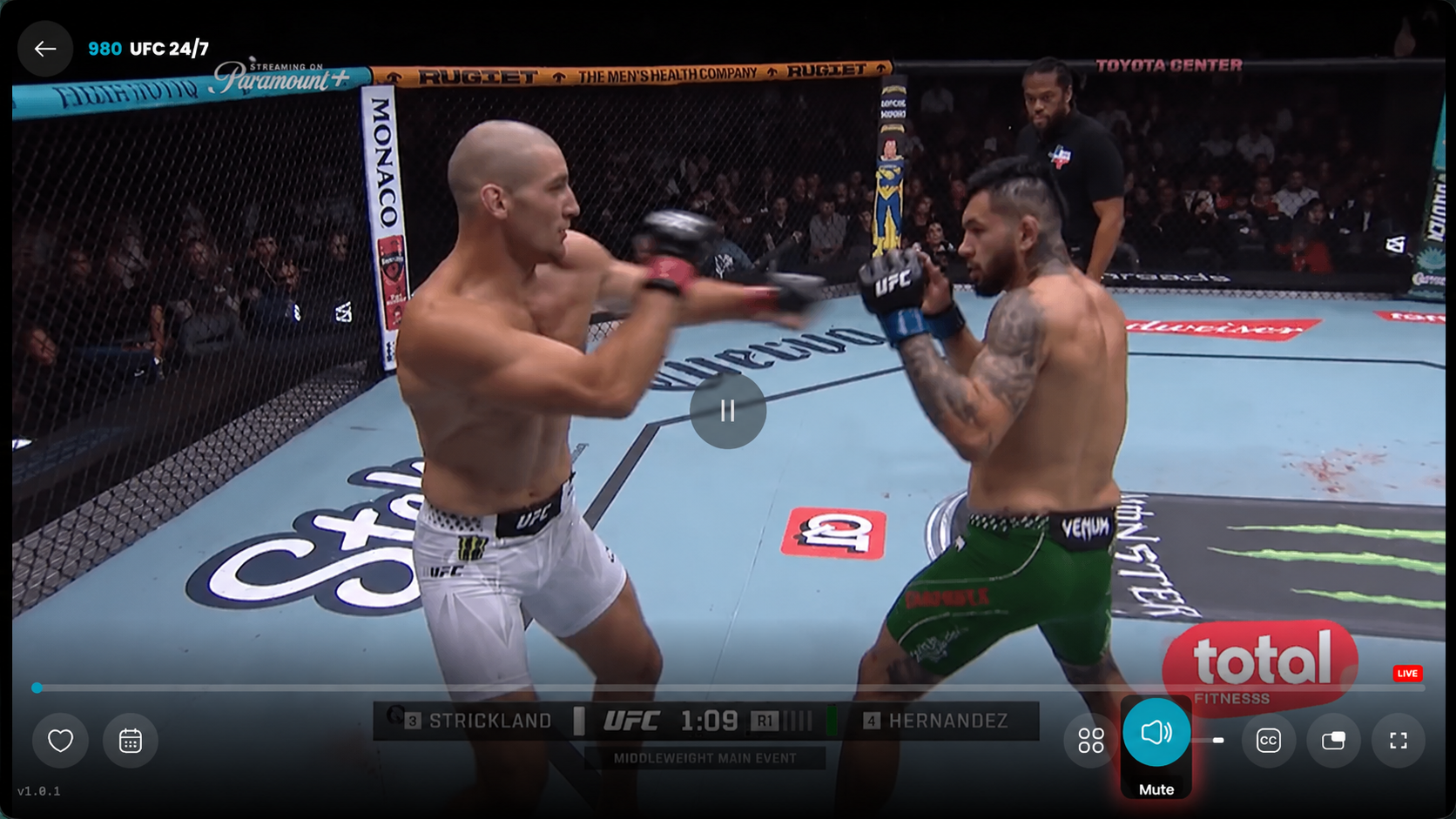
Click on the Mute icon located at the bottom-right corner of the player. This will instantly turn off the audio of the currently playing channel.
Click on the Subtitles (CC) icon in the player controls to turn on captions.
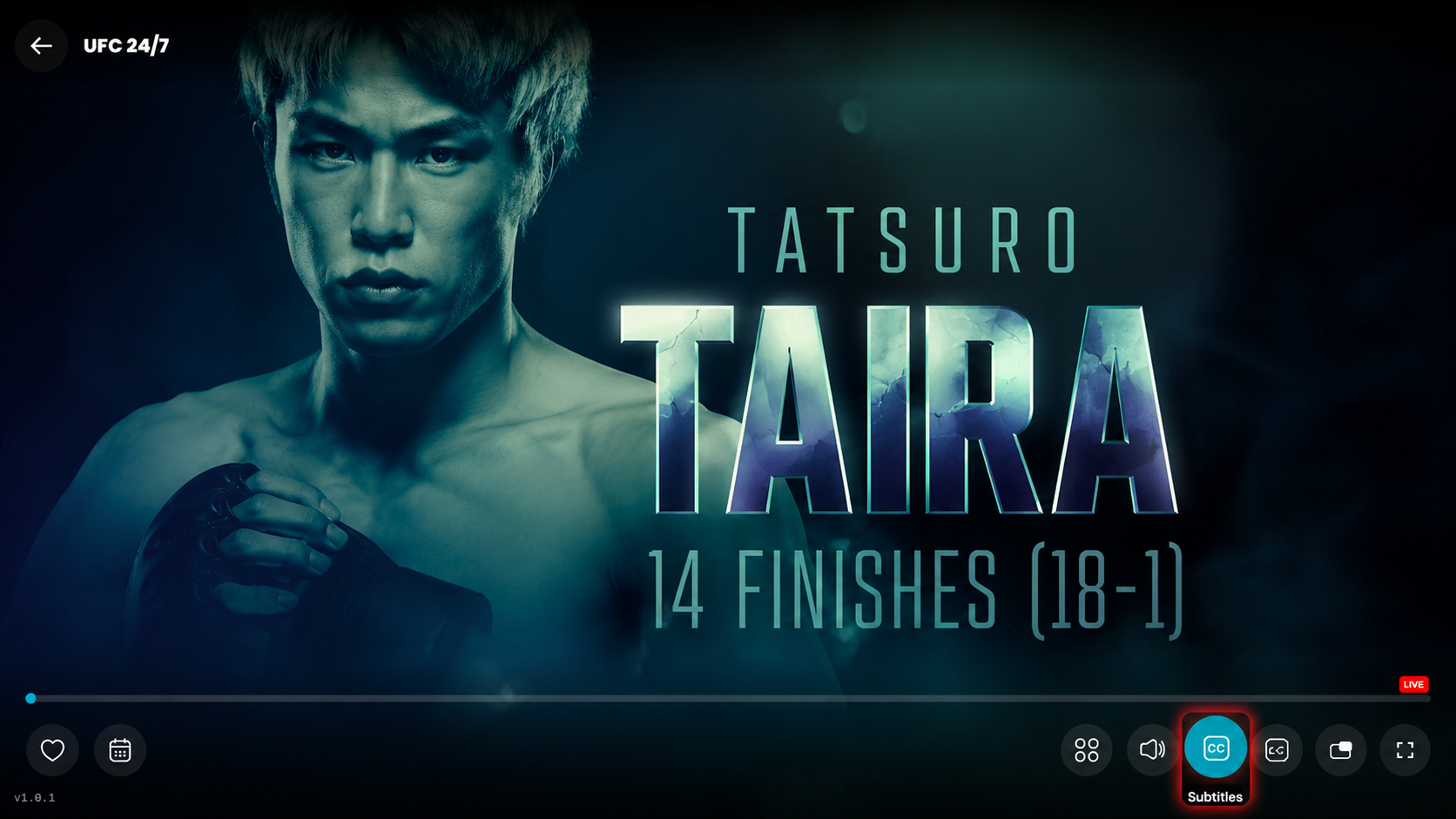
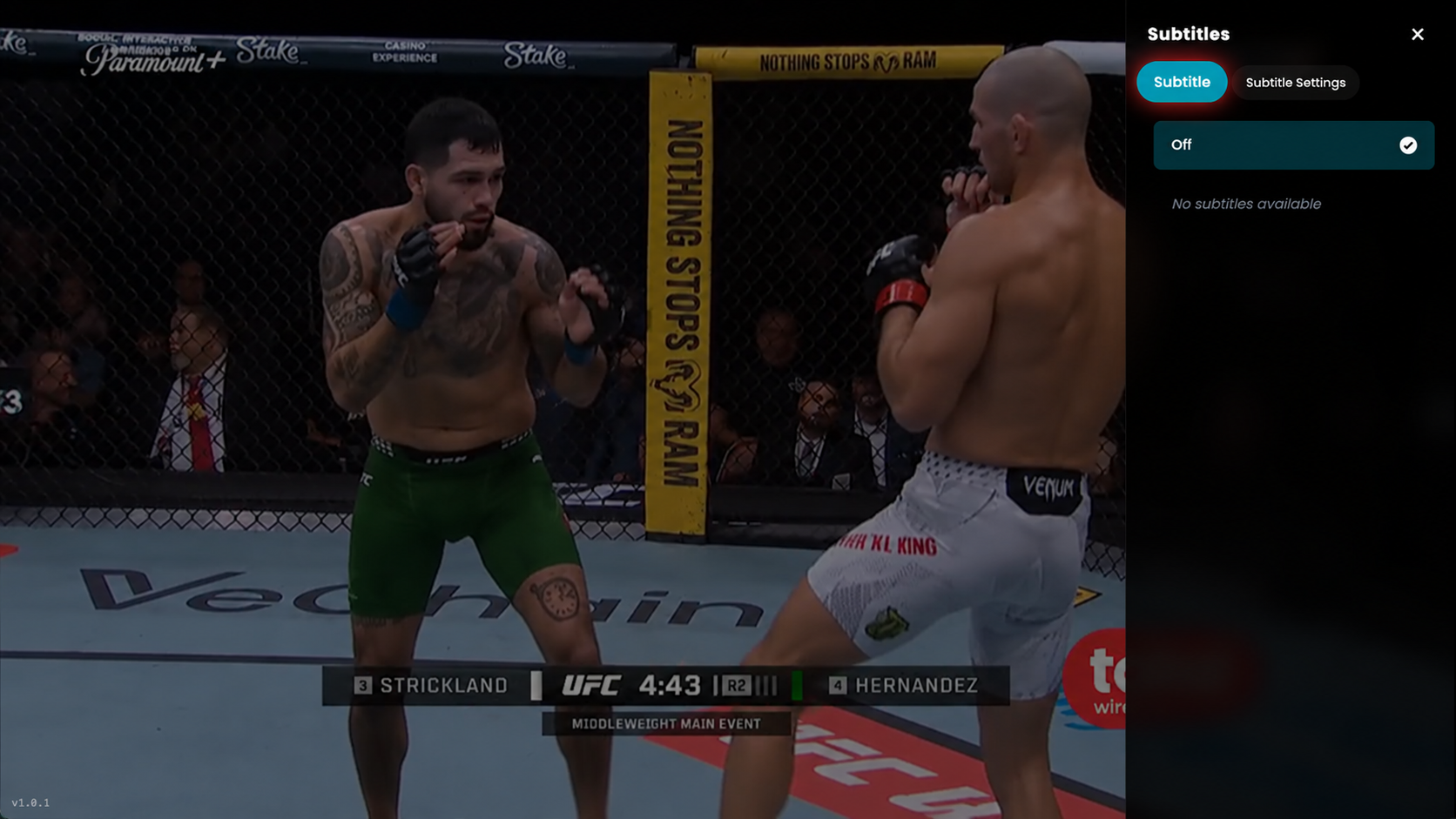
Select the Subtitle Option after clicking on the Subtitles (CC) icon, and choose the subtitle option from the panel to manage or enable subtitles.
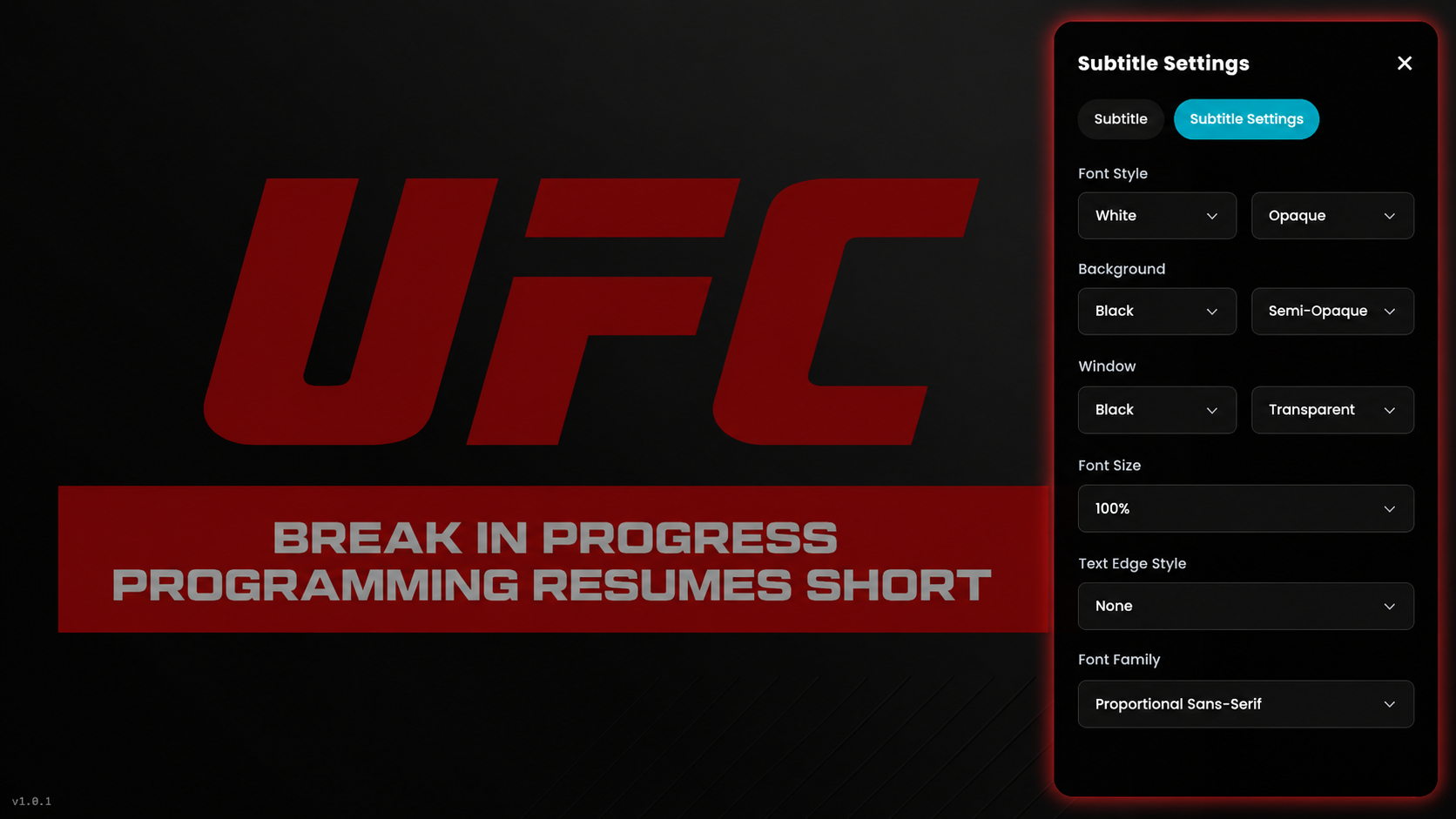
Click the Subtitle Settings option to customize subtitles, including font style, size, background, and appearance.
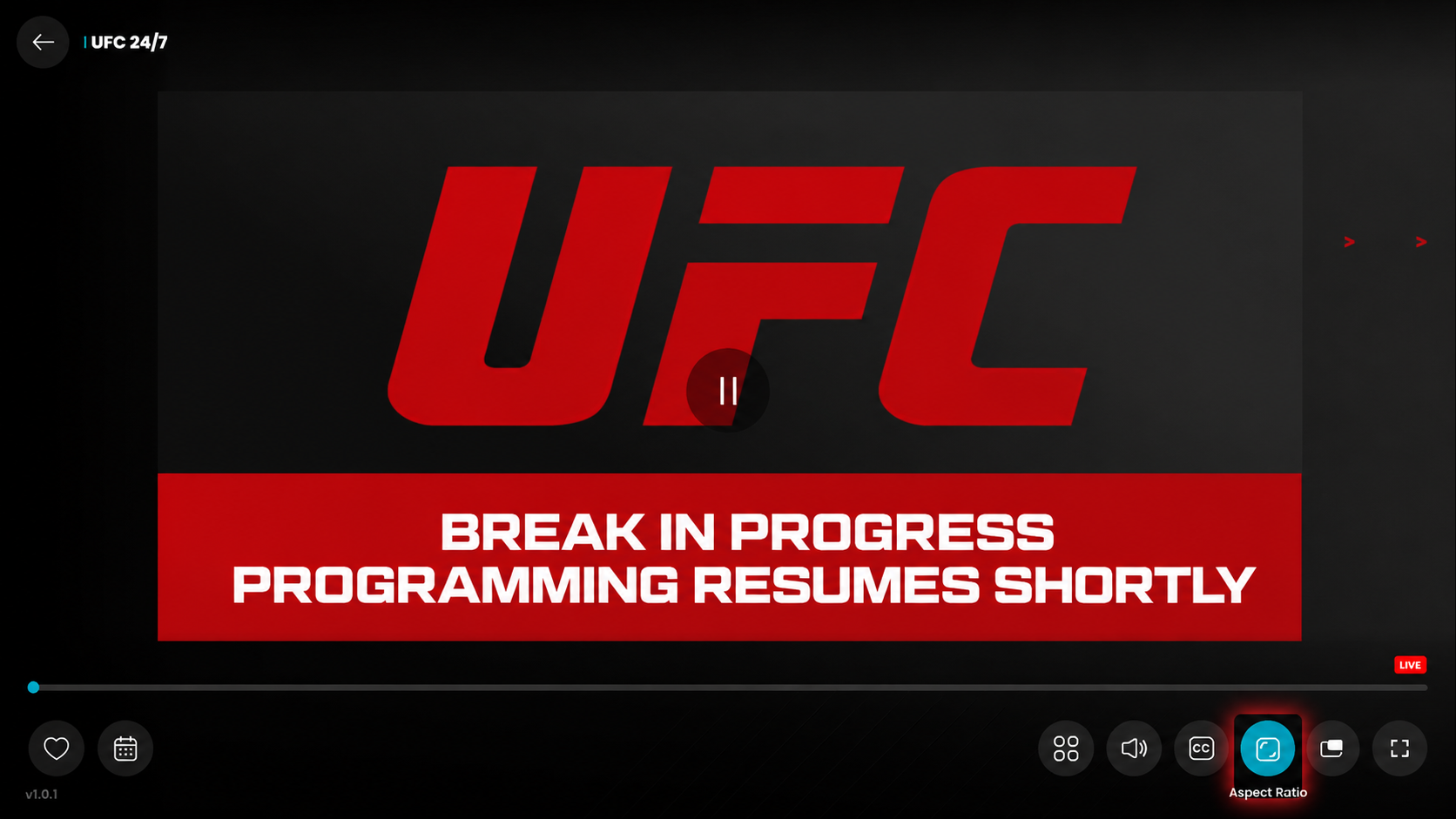
Click on the aspect ratio icon in the player controls to adjust the screen size and viewing format. (e.g., Zoom, Fit, Fill, 16:9, 4:3, 21:9)
Click on the PiP (Picture-in-Picture) icon to watch the video in a small floating window while using other features.
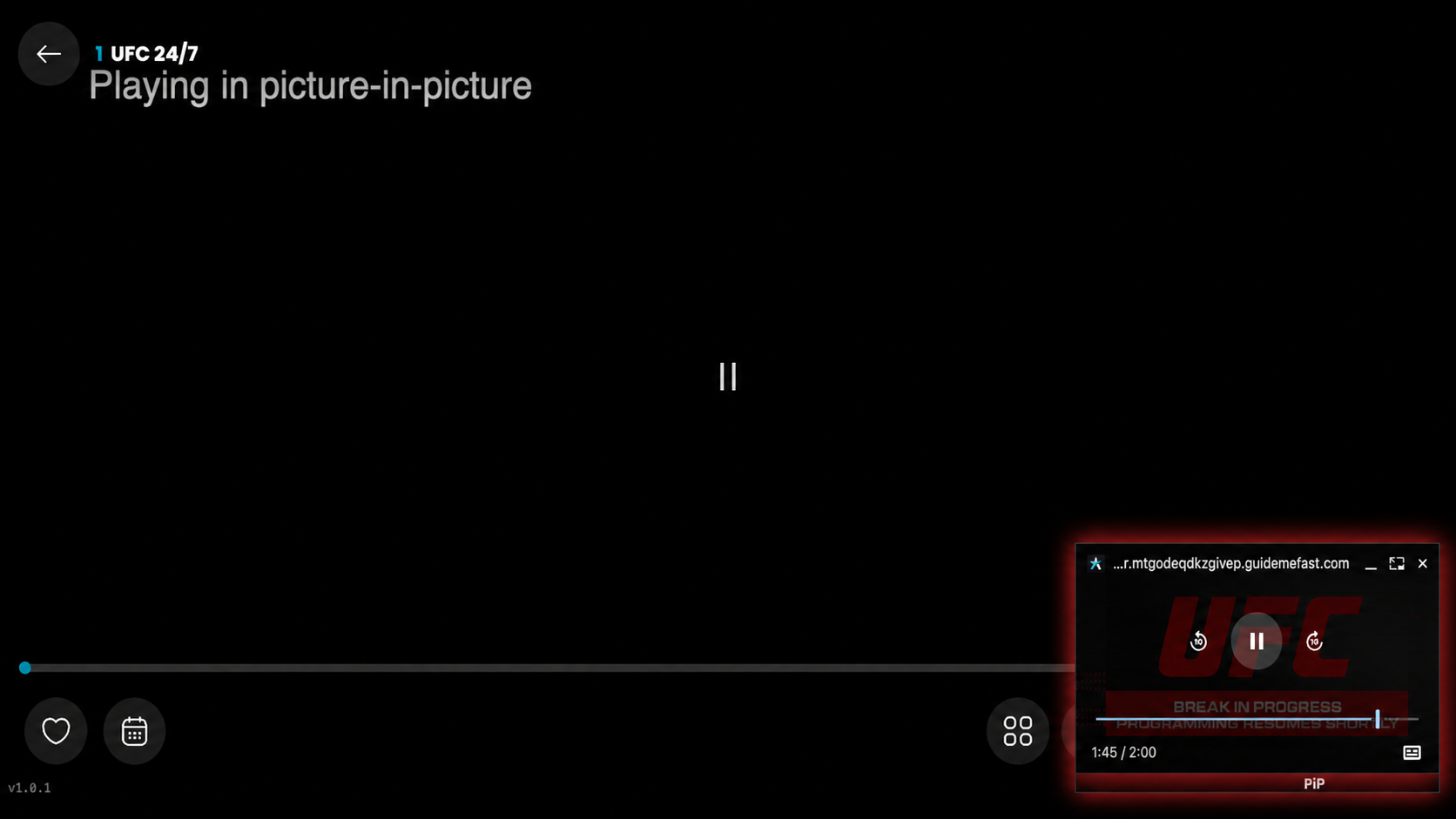
After enabling PiP, the video will play in a small floating window on the screen, allowing you to continue watching while using other features.
Click the full-screen icon to expand the video player to full-screen.