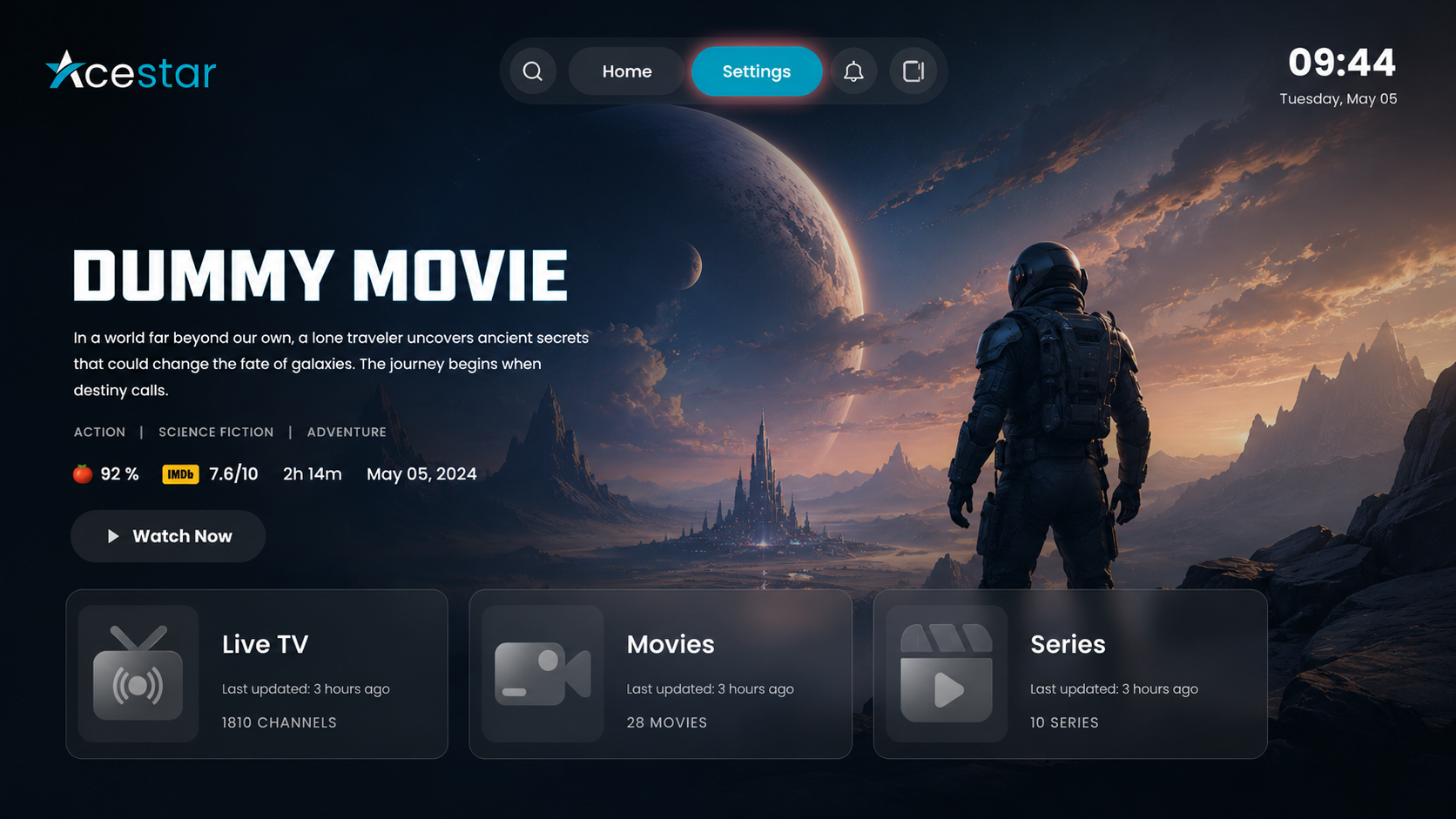
Click on the Settings option from the top menu on the home screen to access app preferences.
Click on the Layout Settings option from the left-side menu.
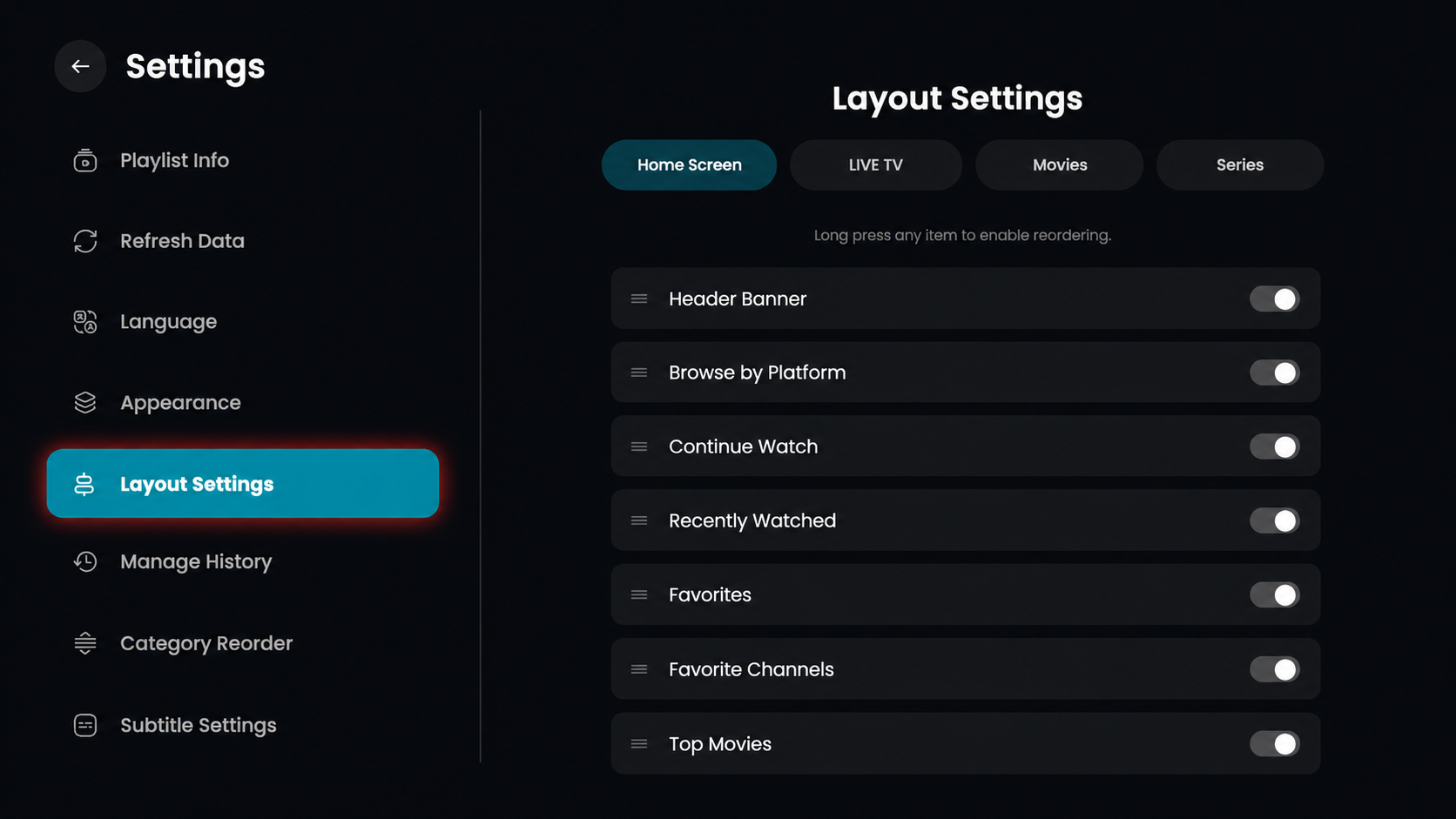
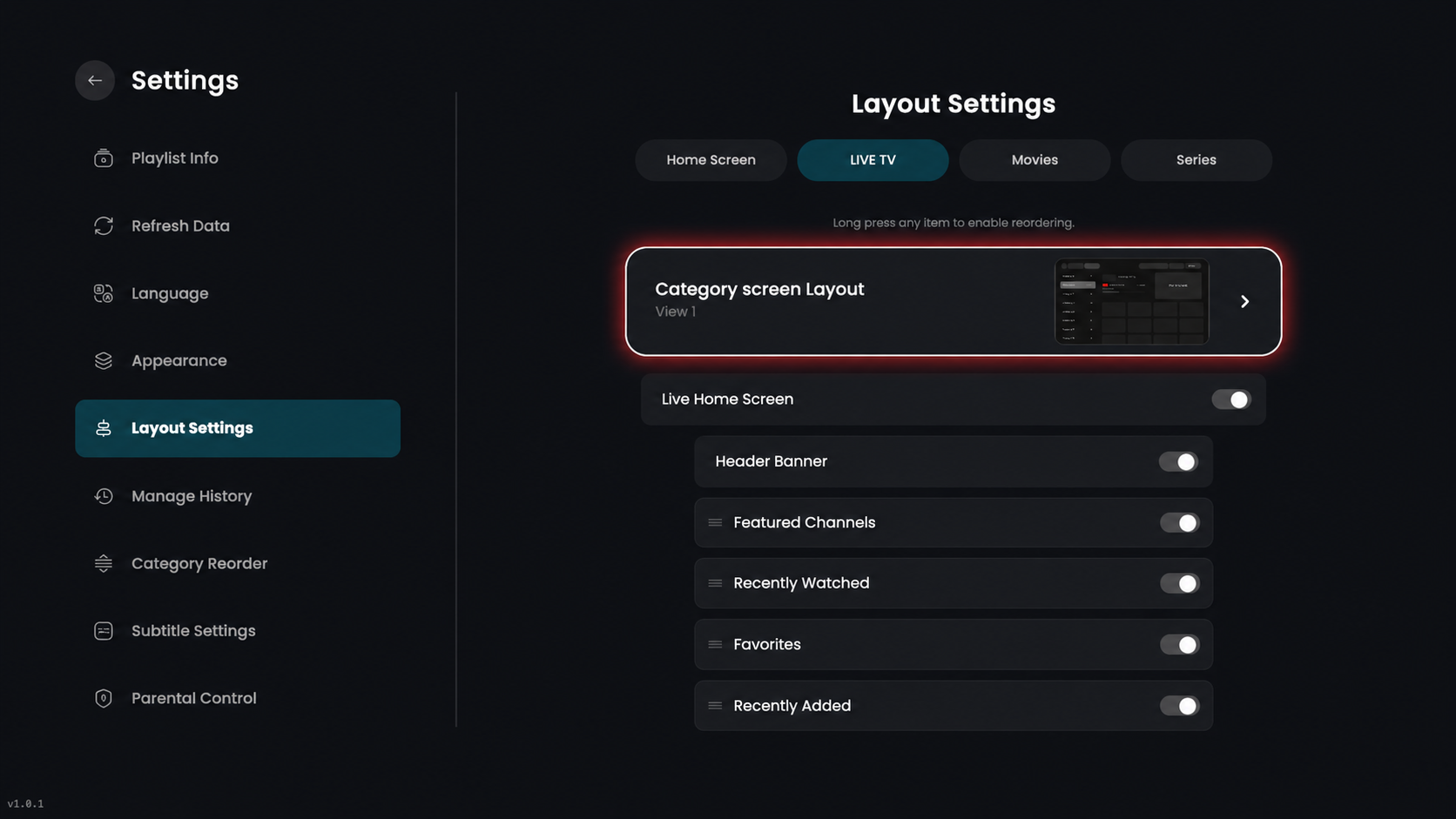
In the top section, click on Live TV to open Live TV layout settings.
Live Home Screen – Enable or disable the live home screen section.
Header Banner – Show or hide the top banner on the screen.
Featured Channels – Display or hide featured channels.
Recently Watched – Show or hide recently watched content.
Favorites – Enable or disable the favorites section.
Recently Added – Show or hide newly added content.
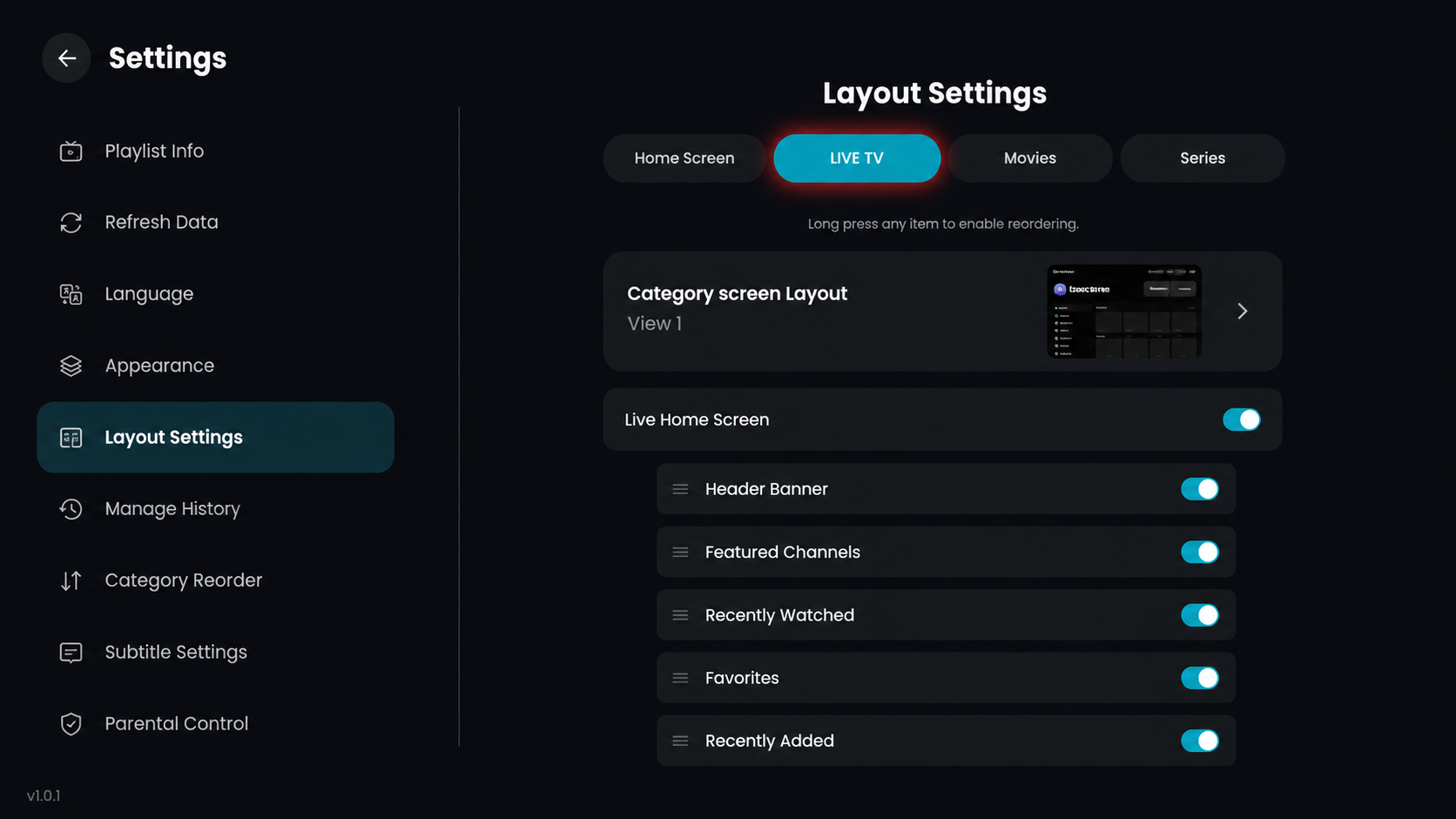
Click on Category Screen Layout to view or customize the category layout.
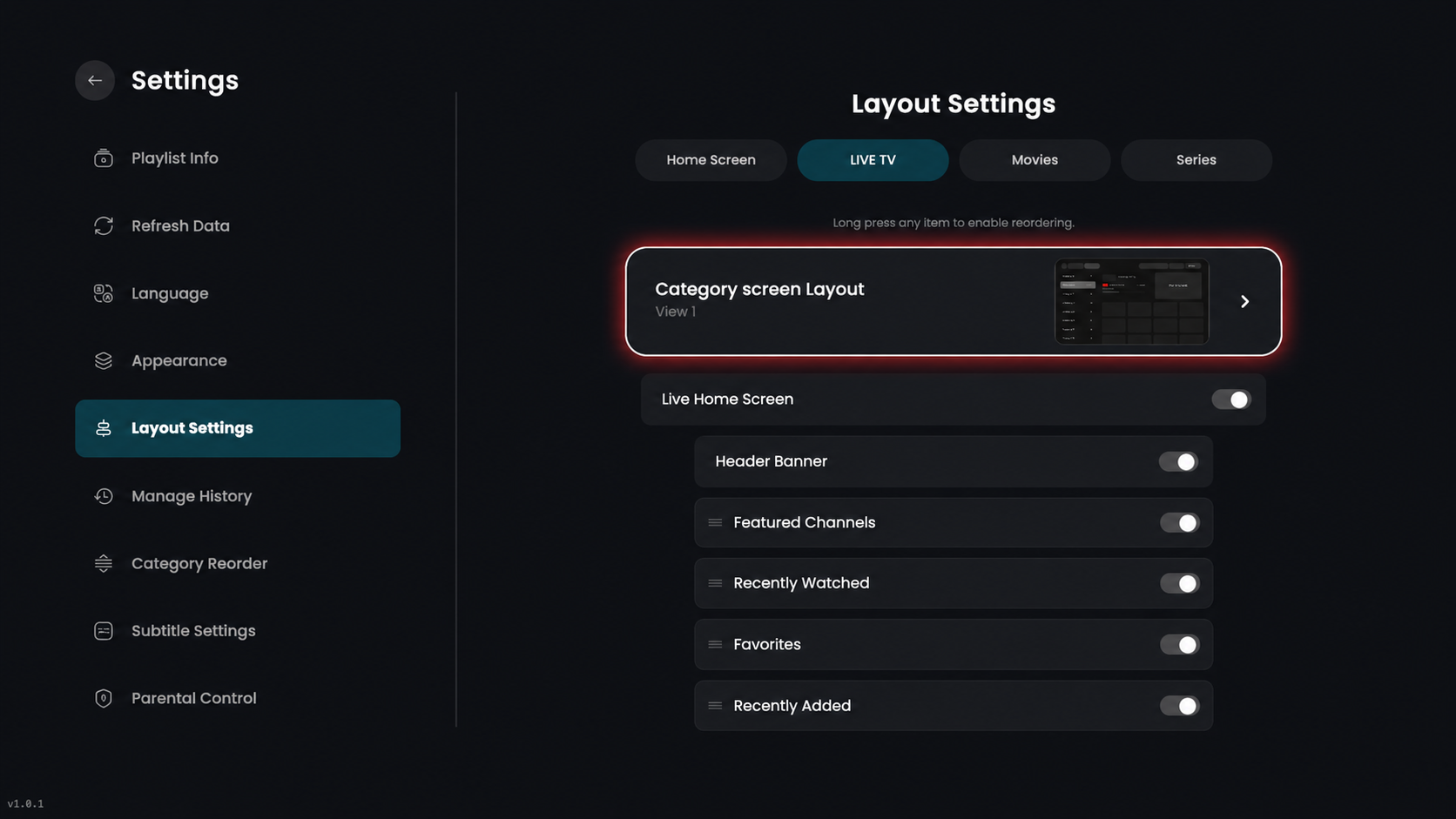
Click on any layout (e.g., View 01) to select it as your preferred category screen layout.
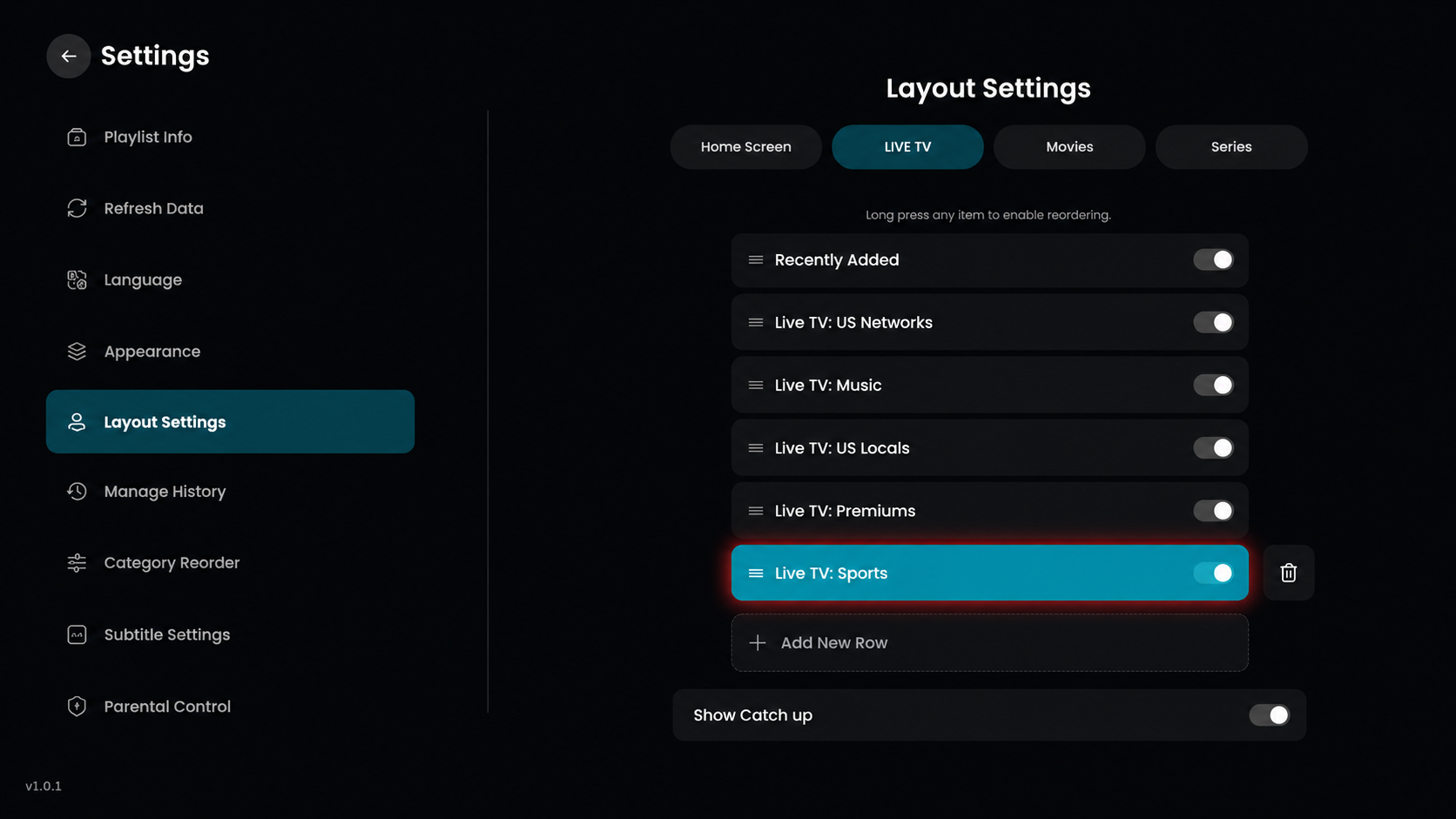
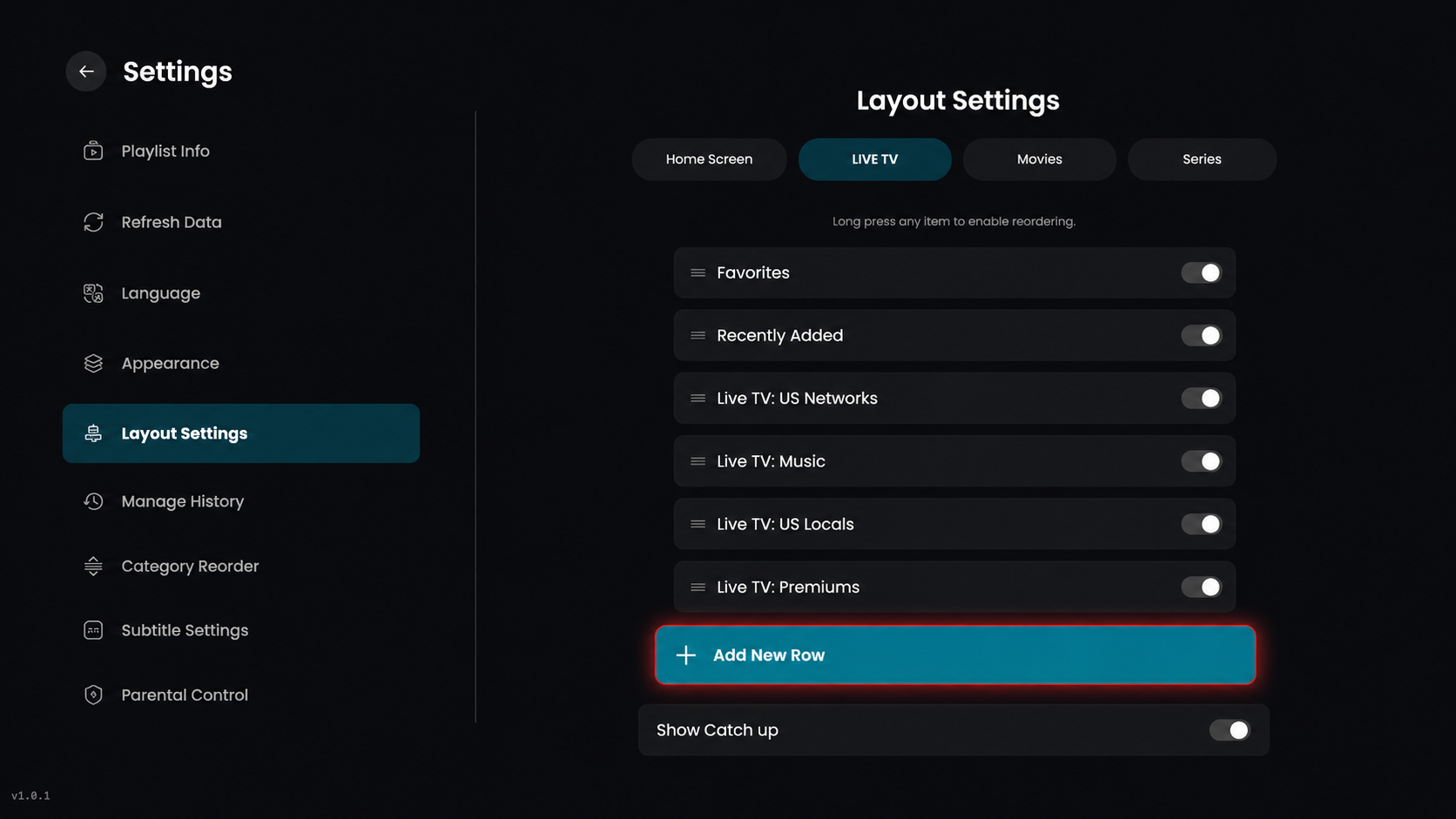
Click on the Add New Row button at the bottom of the list to create a new category or section in your Live TV layout.
From the sidebar menu, scroll through the list and click on the specific category you want to display on your dashboard, such as Sports, News & Weather, or Kids.
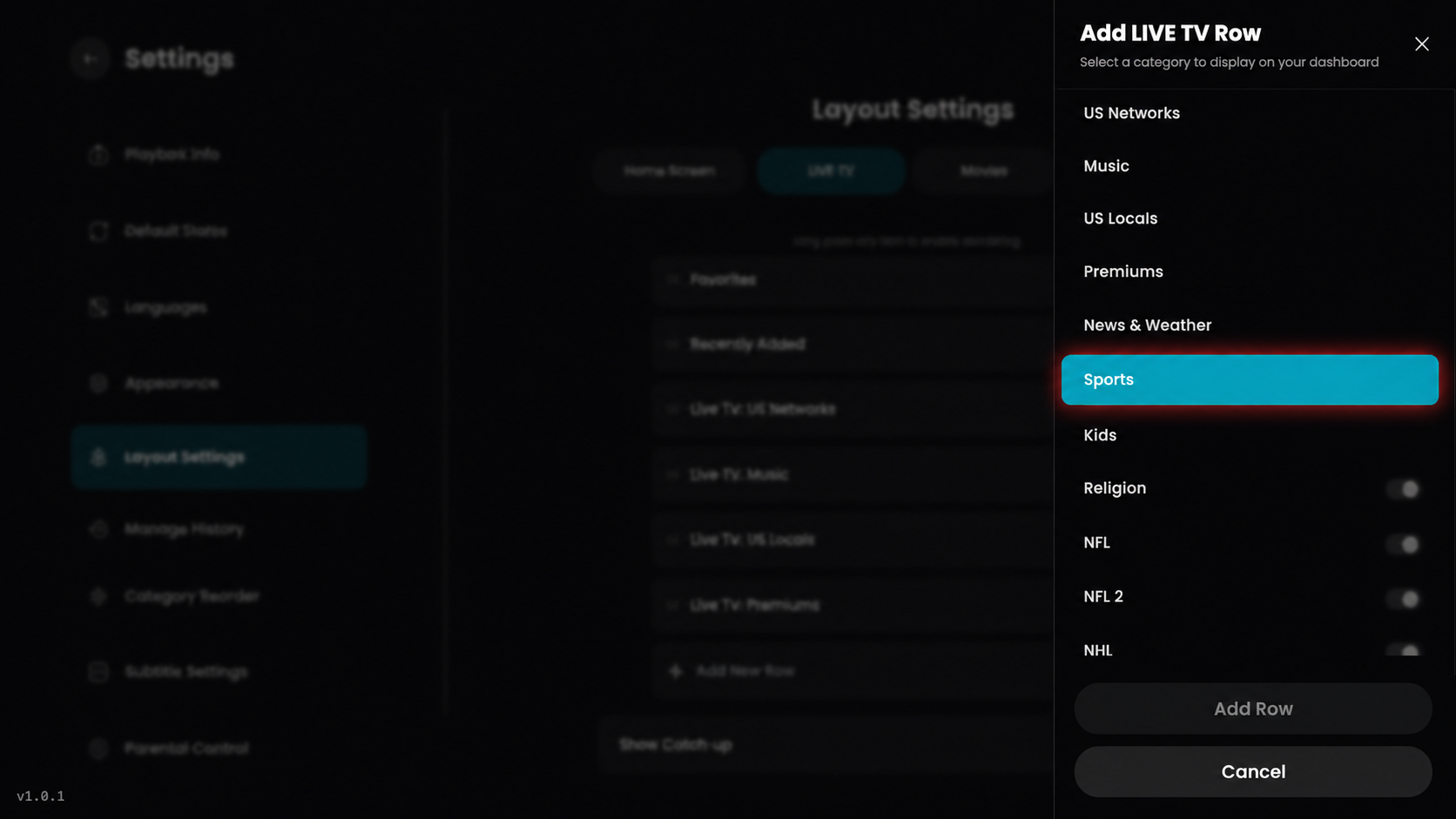
Once the category is selected, click the Add Row button at the bottom of the sidebar to officially add it to your Live TV layout.
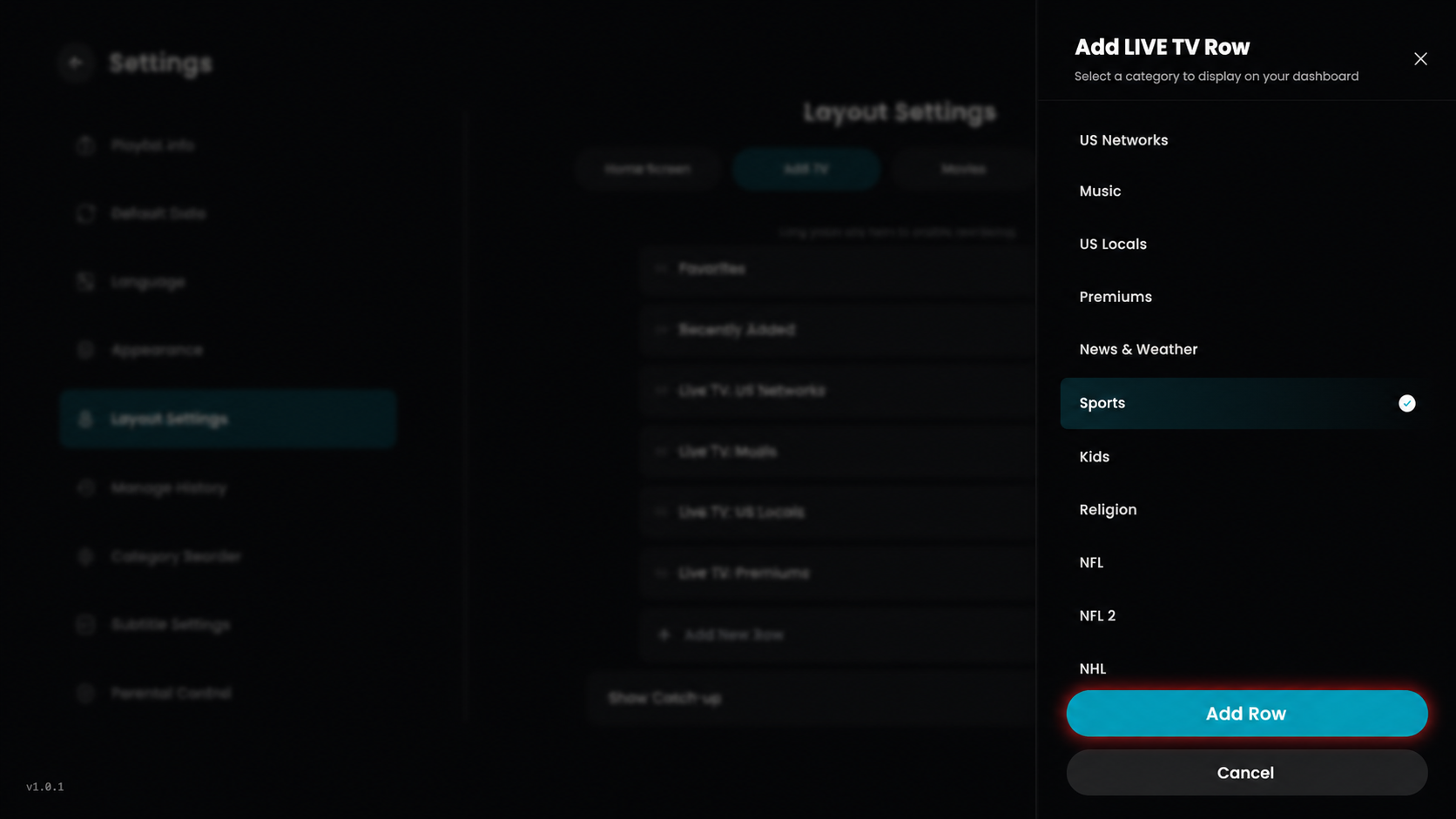
The selected category will be added as a new row (e.g., Live TV: Sports) in your layout.