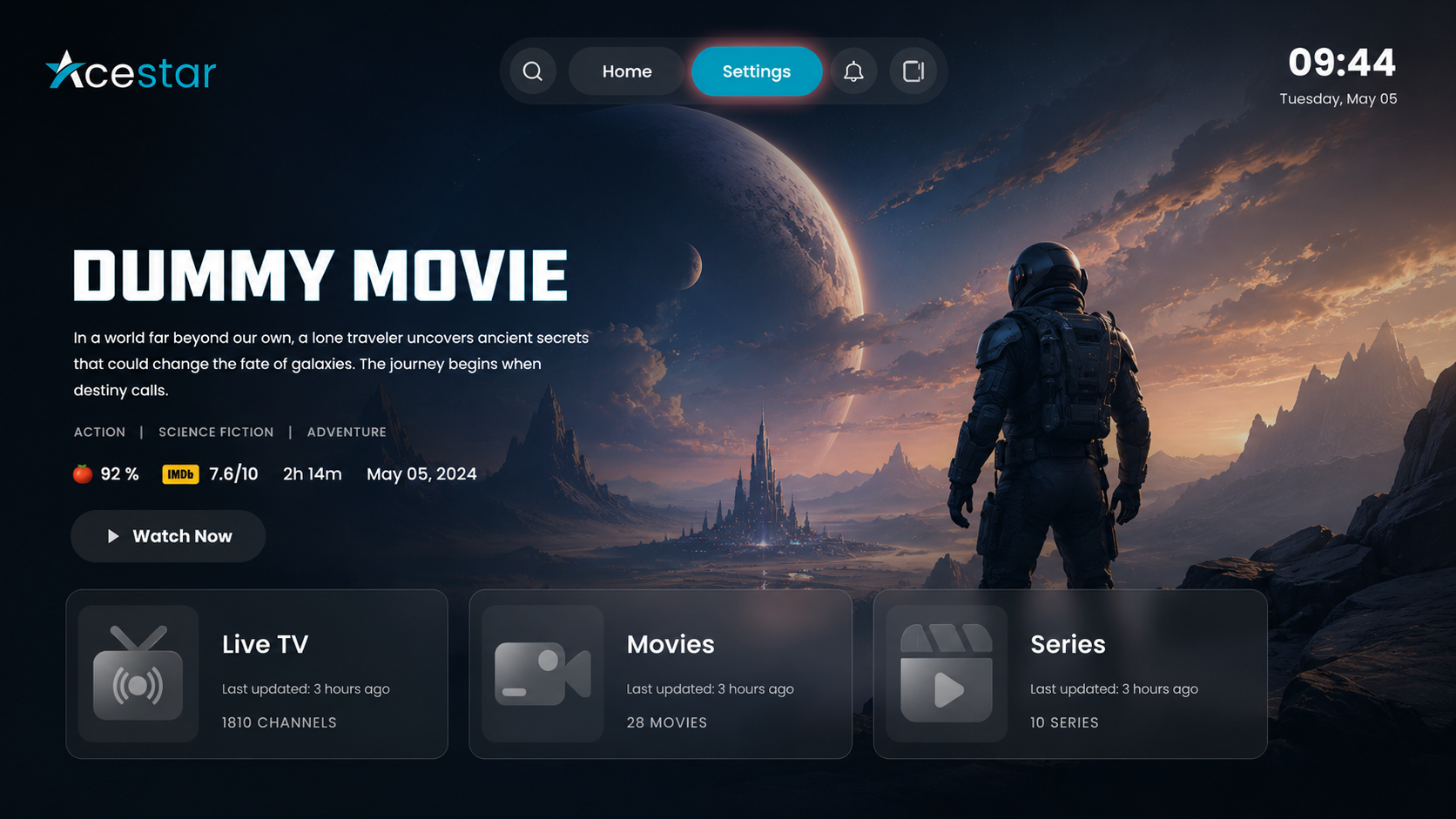
Click on the Settings option from the top menu on the home screen to access and manage app preferences and configurations.
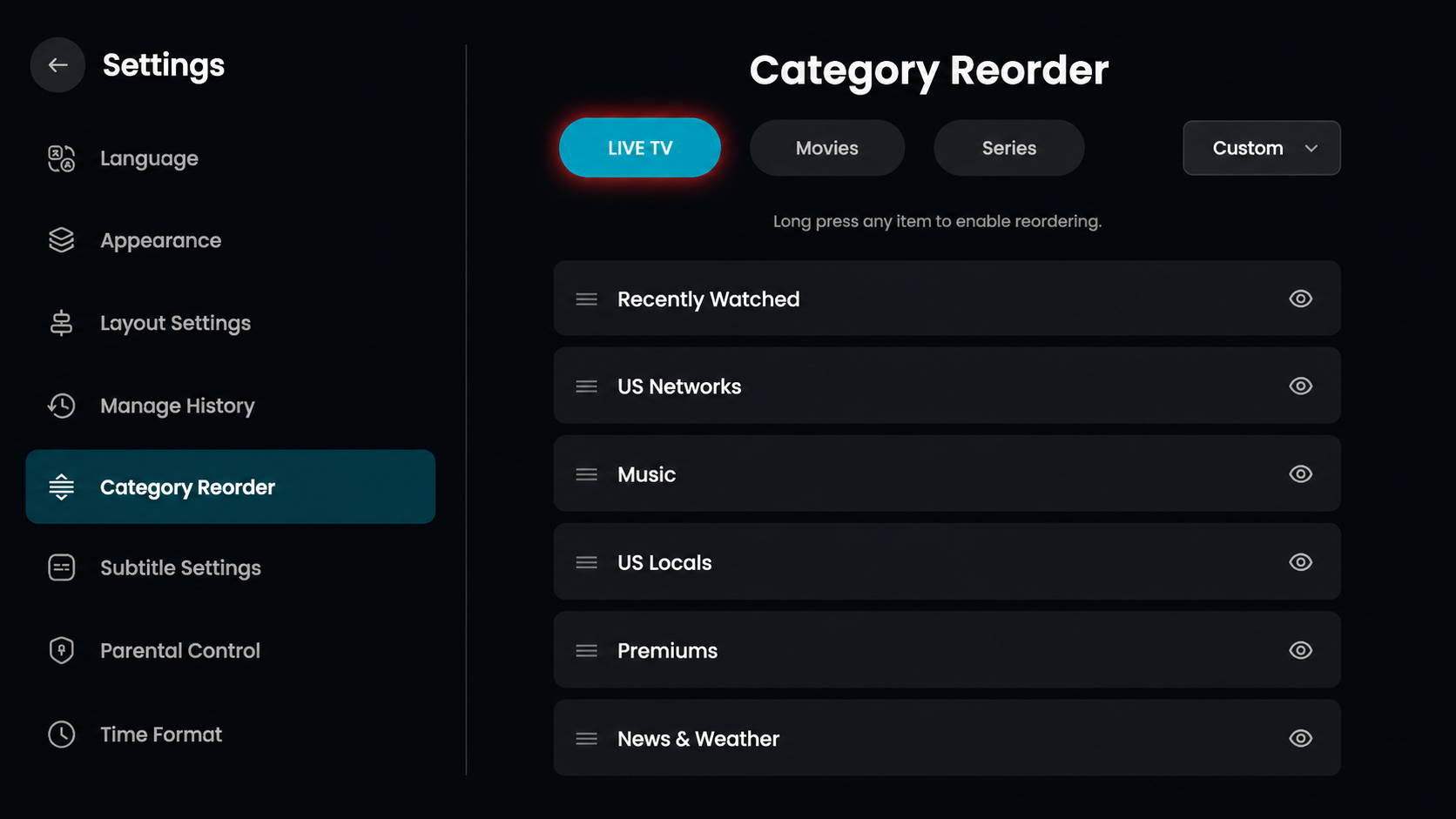
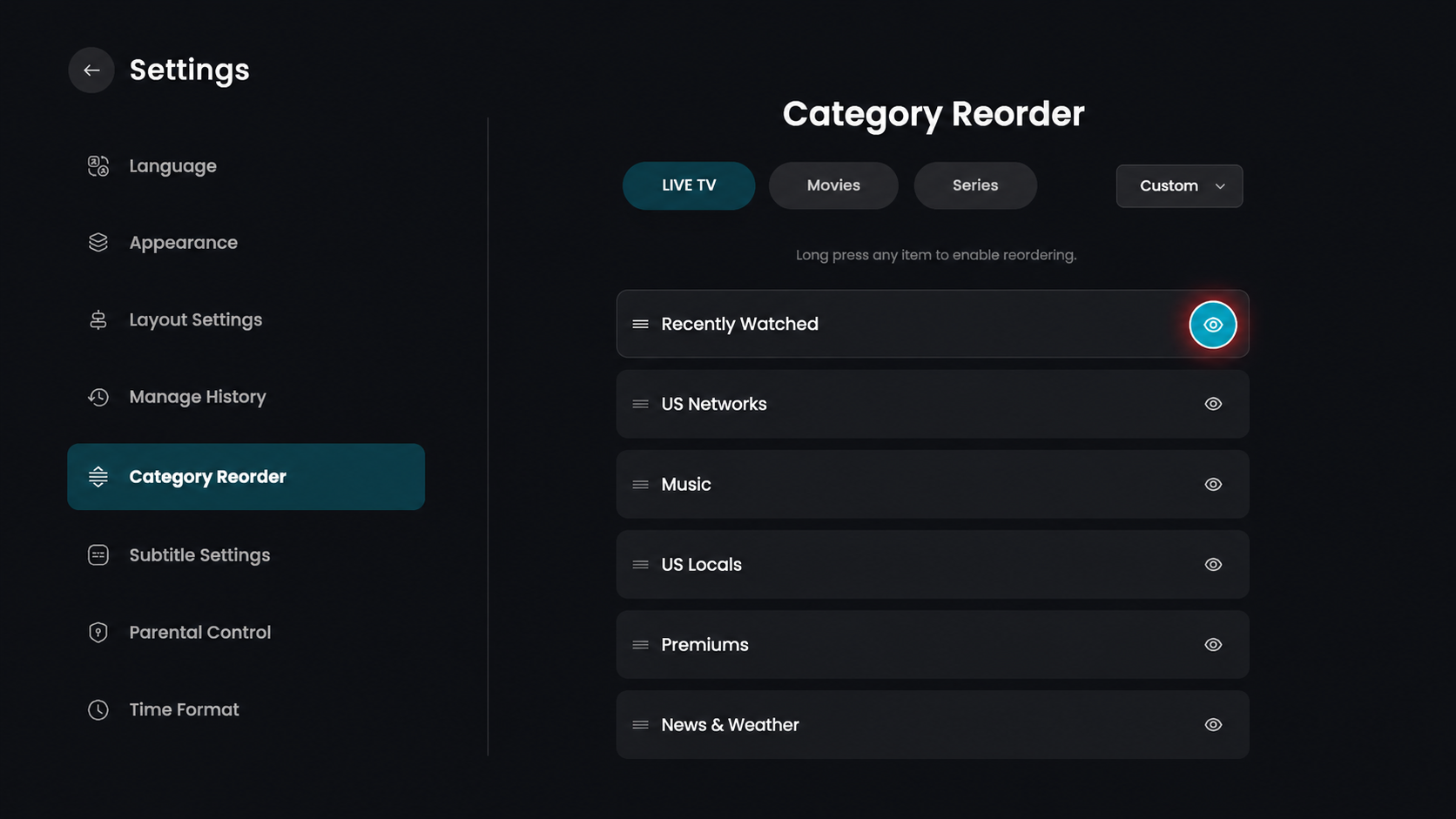
In the Category Reorder section, click on the LIVE TV tab at the top to manage the order of your television categories.
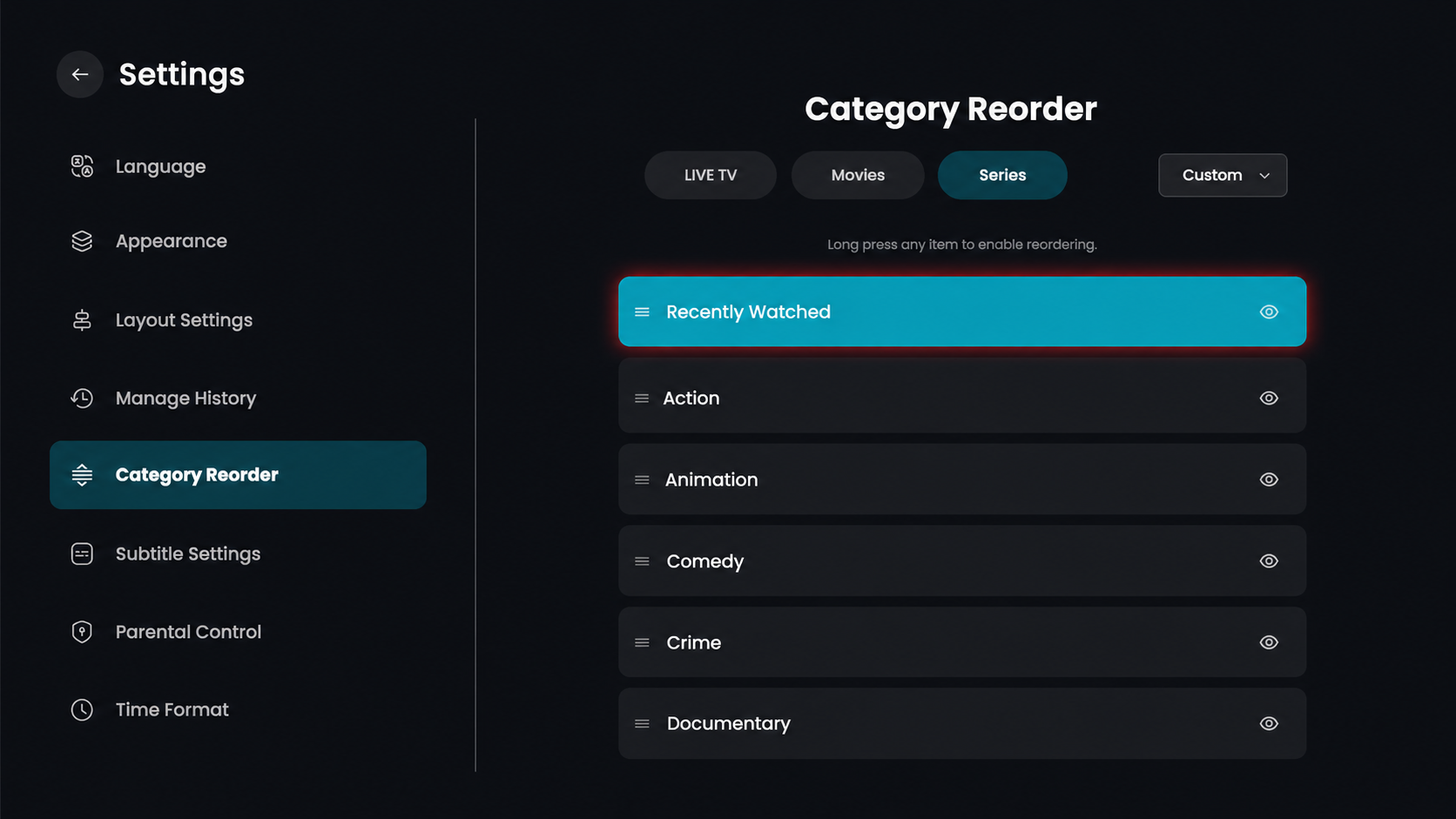
To change the position of a category, such as Recently Watched, long-press the item to enable reordering.
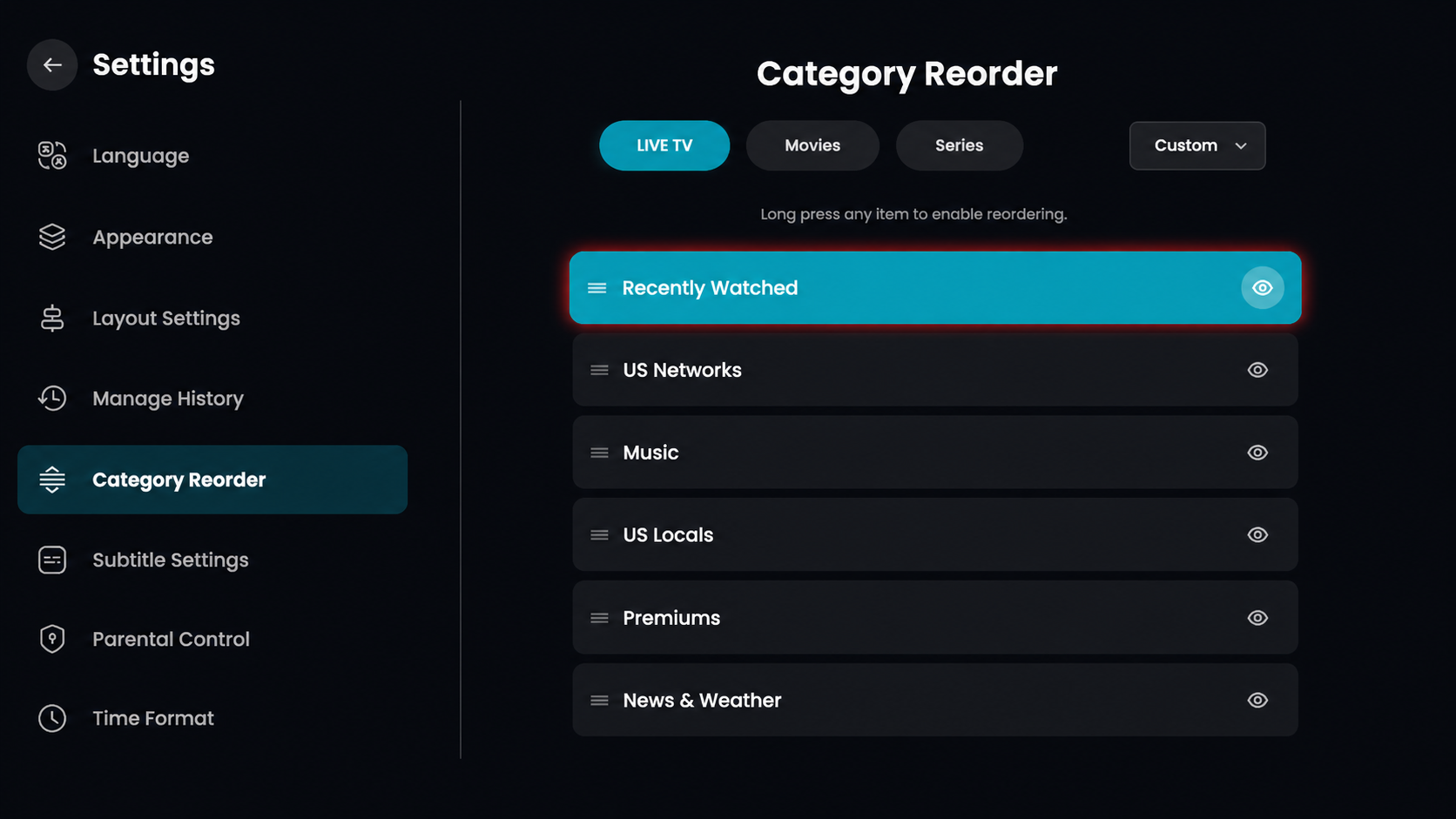
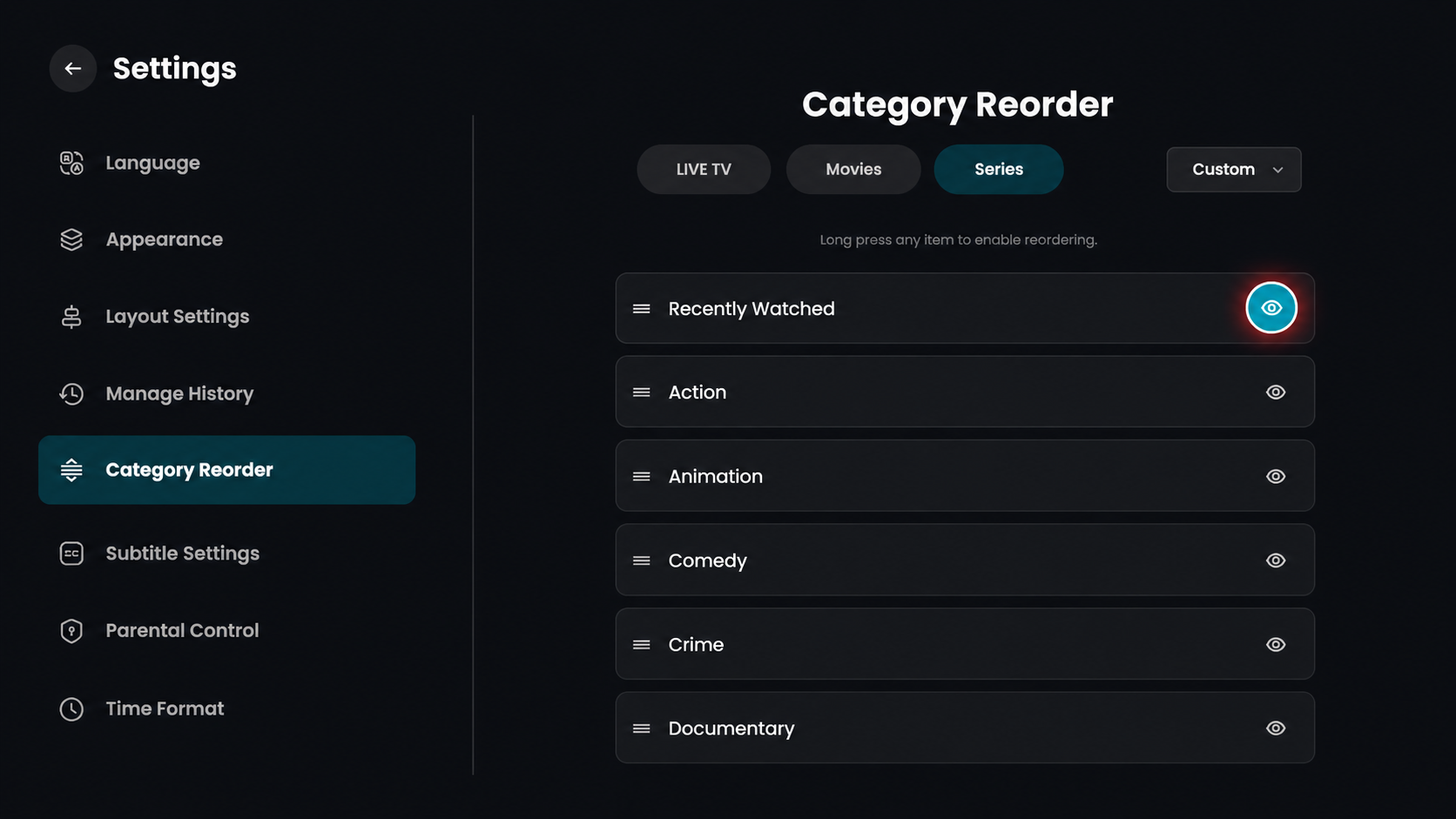
In the Category Reorder menu, locate the eye icon on the right side of a category, such as Recently Watched.
In the Category Reorder screen, click on the Movies tab at the top to manage how your movie genres and collections are organized.
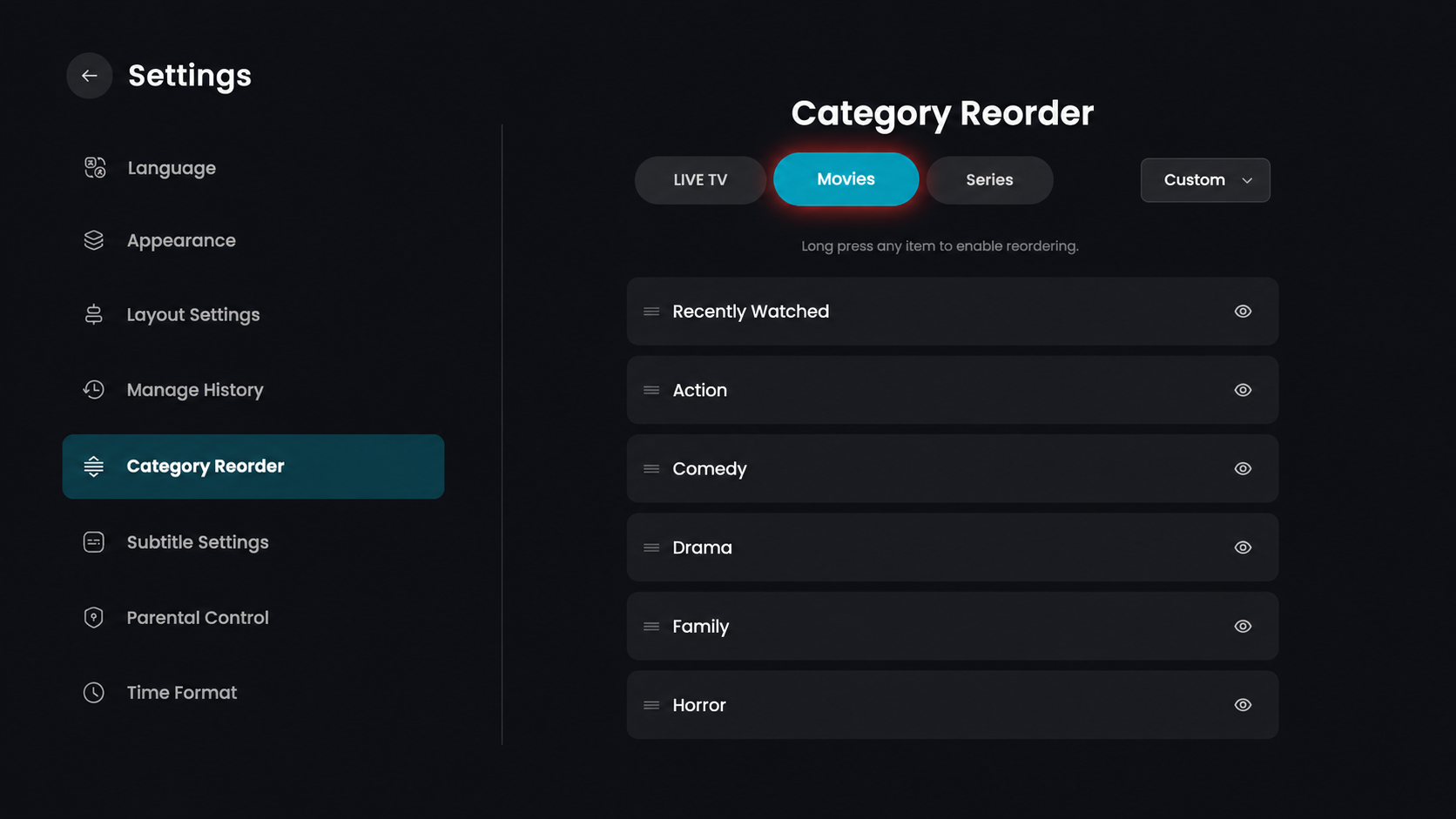
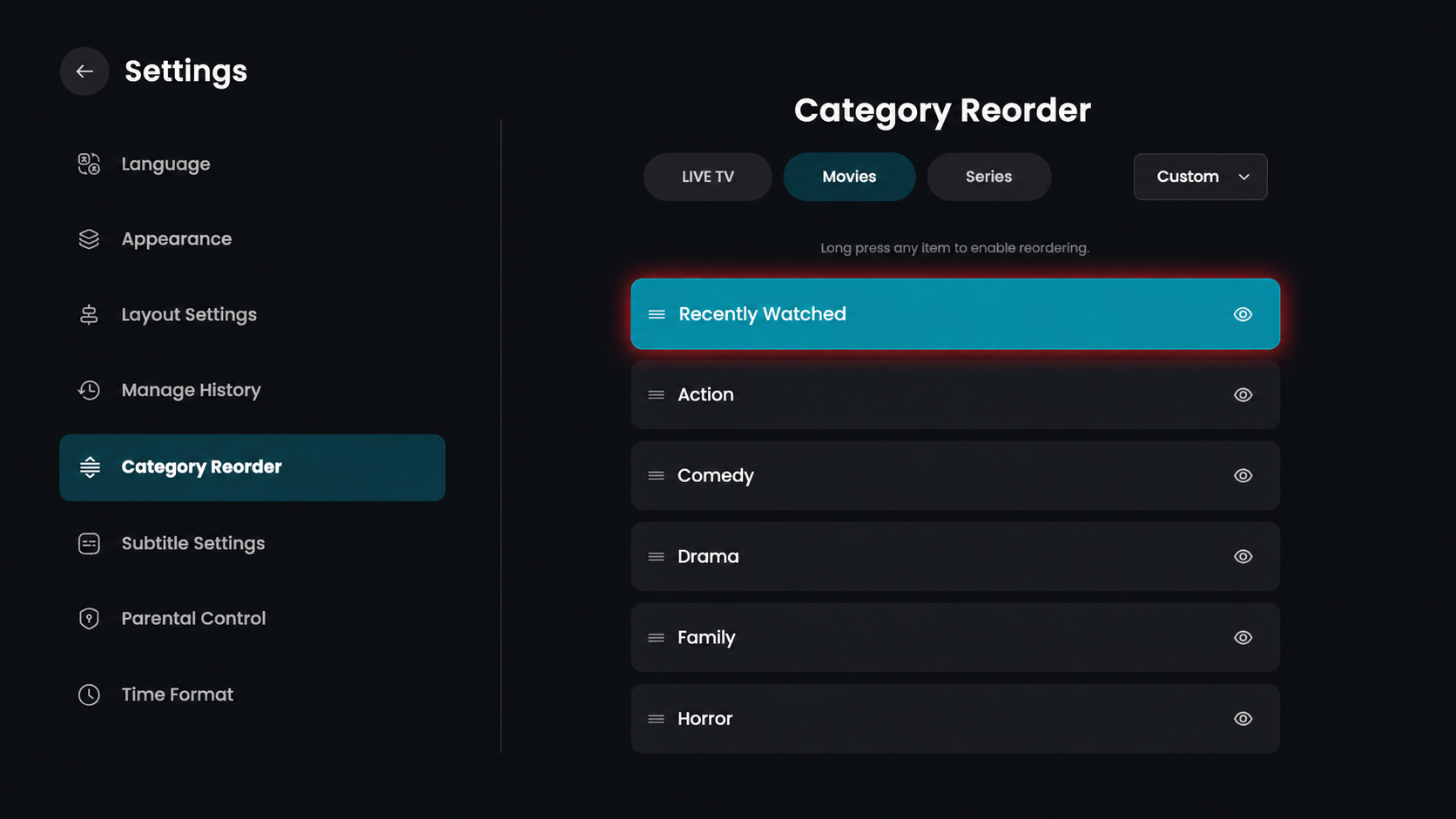
To rearrange your movie categories like Recently Watched, press and hold the item to activate the reorder mode.
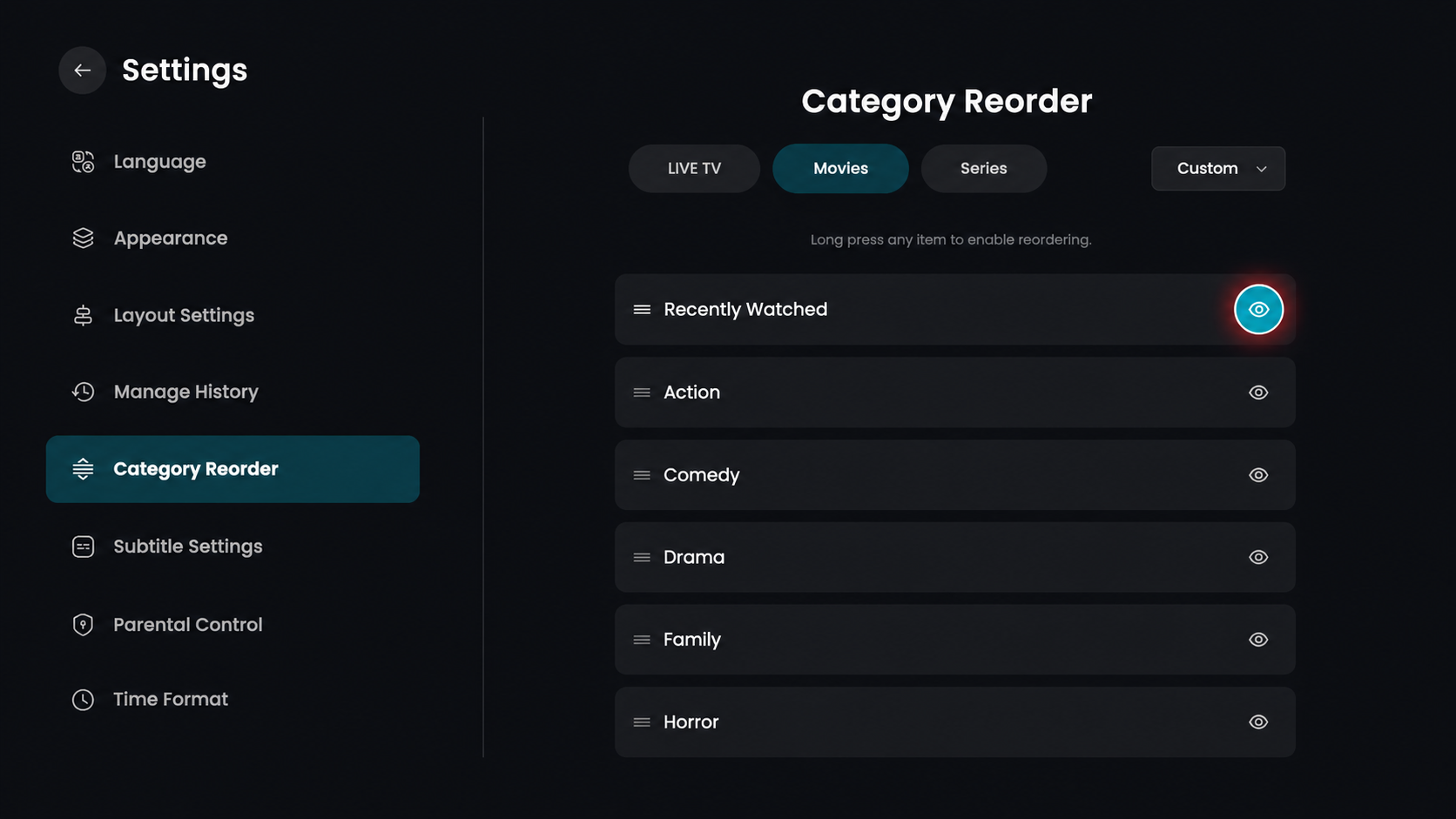
In the Category Reorder menu for Movies, locate the eye icon on the right side of a specific genre, such as Recently Watched.
In the Category Reorder screen, click on the Series tab at the top to manage the organization of your TV show and series categories.
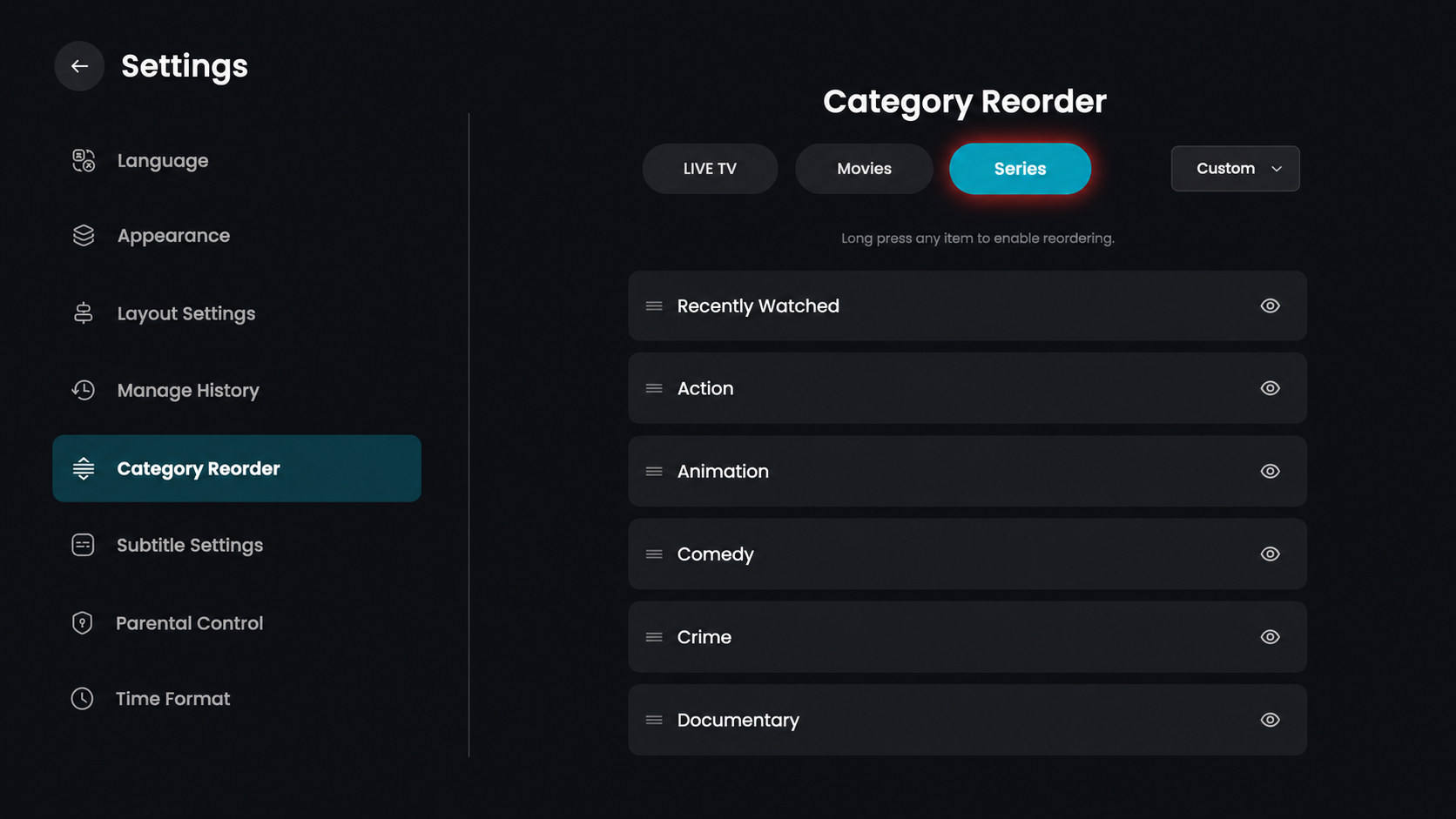
To change the position of a specific series category, such as Recently Watched, long-press the item to enable the reordering functionality.
In the Category Reorder menu for Movies, locate the eye icon on the right side of a specific genre, such as Recently Watched.
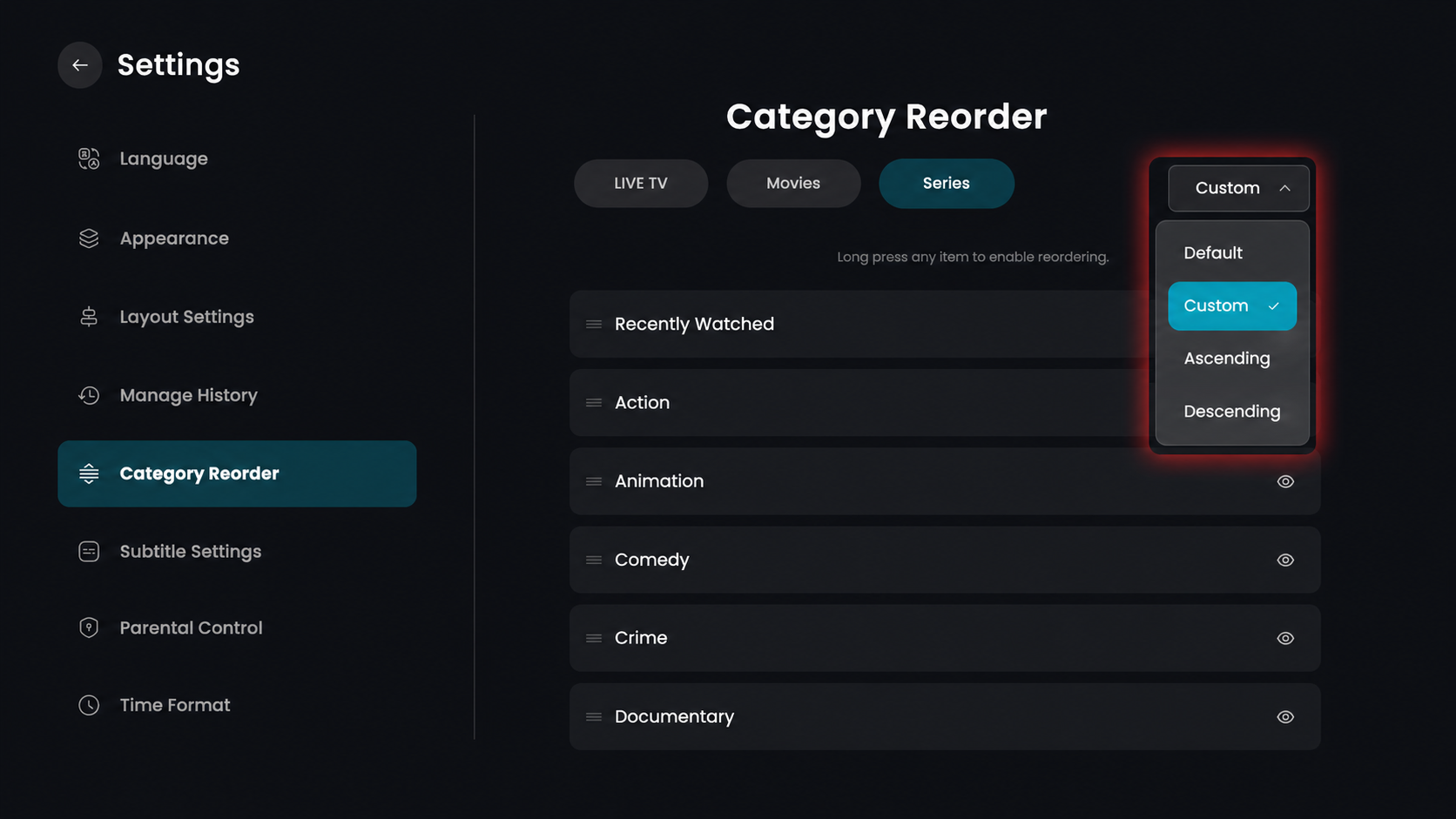
In the Category Reorder screen, click on the Custom button located in the top right corner to open the sorting options menu.
Default – Resets the categories to their original system order.
Custom – Allows you to manually reorder categories by long-pressing and dragging them.
Ascending – Automatically sorts the categories in alphabetical order (A–Z).
Descending – Automatically sorts the categories in reverse alphabetical order (Z–A).