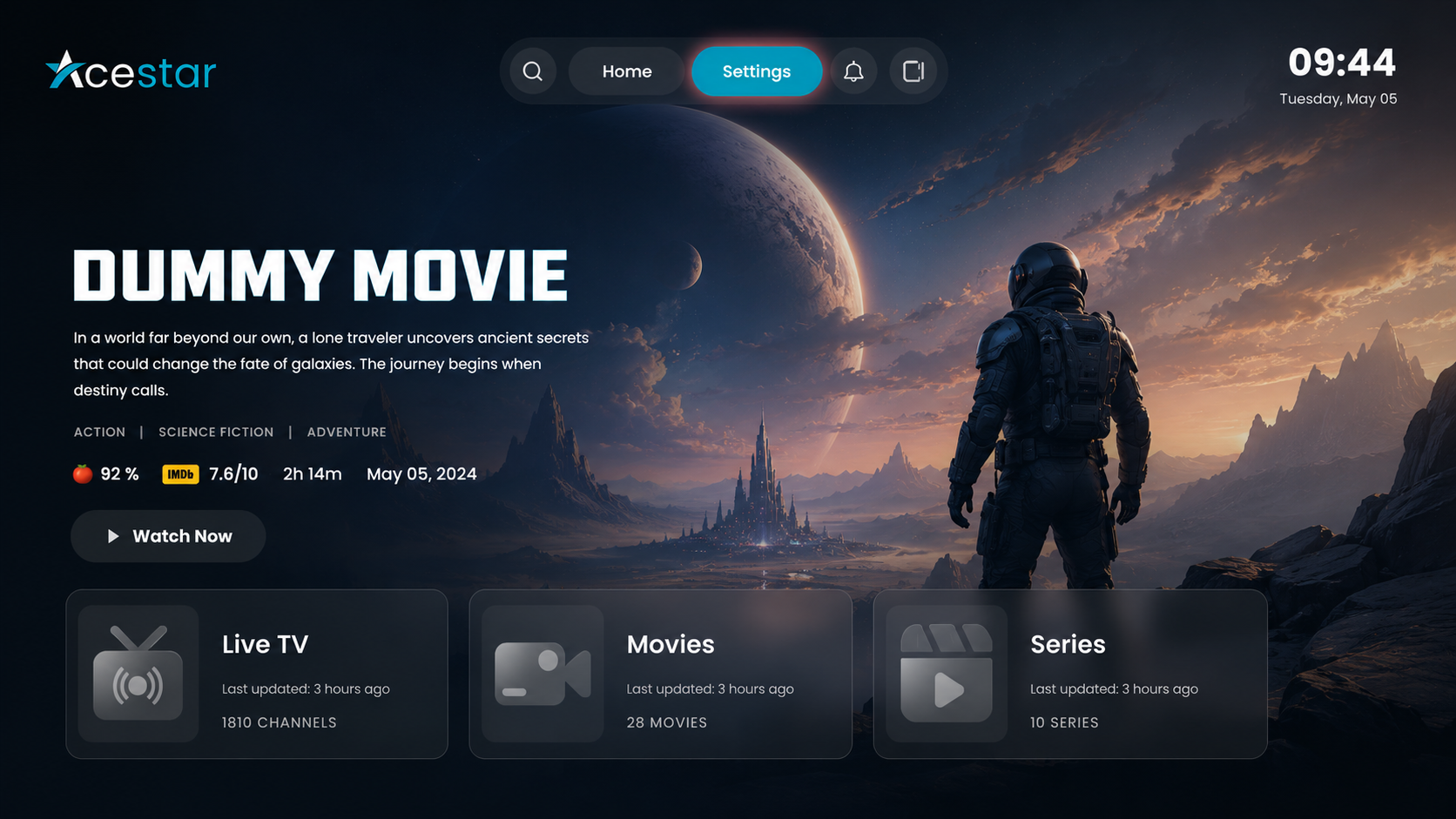
Step 1: Open Settings
Click on the Settings option from the top menu on the home screen to access and manage app preferences and configurations.
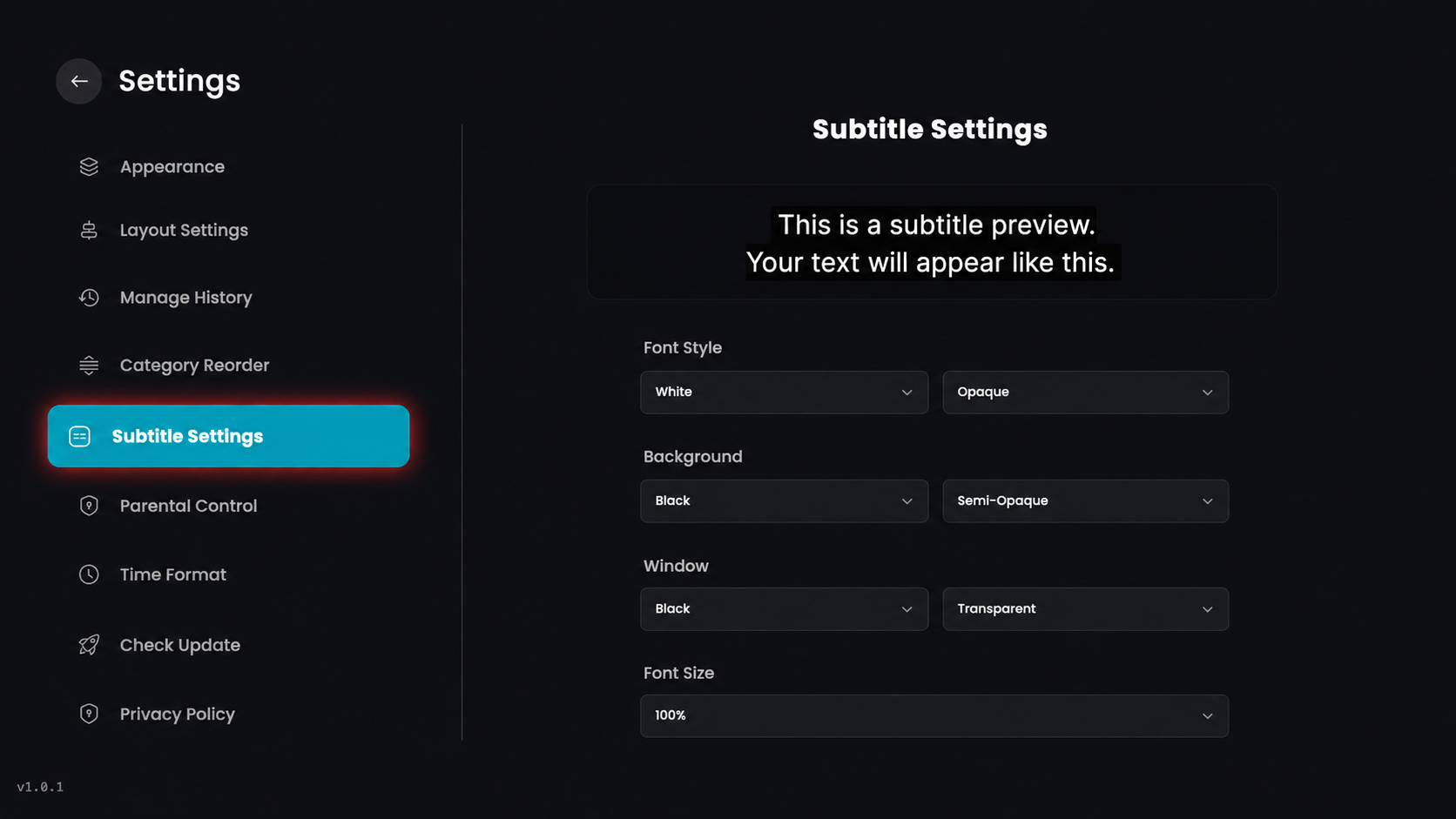
Step 2: Click on Subtitle Settings
From the settings menu on the left side of the screen, click on the Subtitle Settings option to customize how text appears during playback.
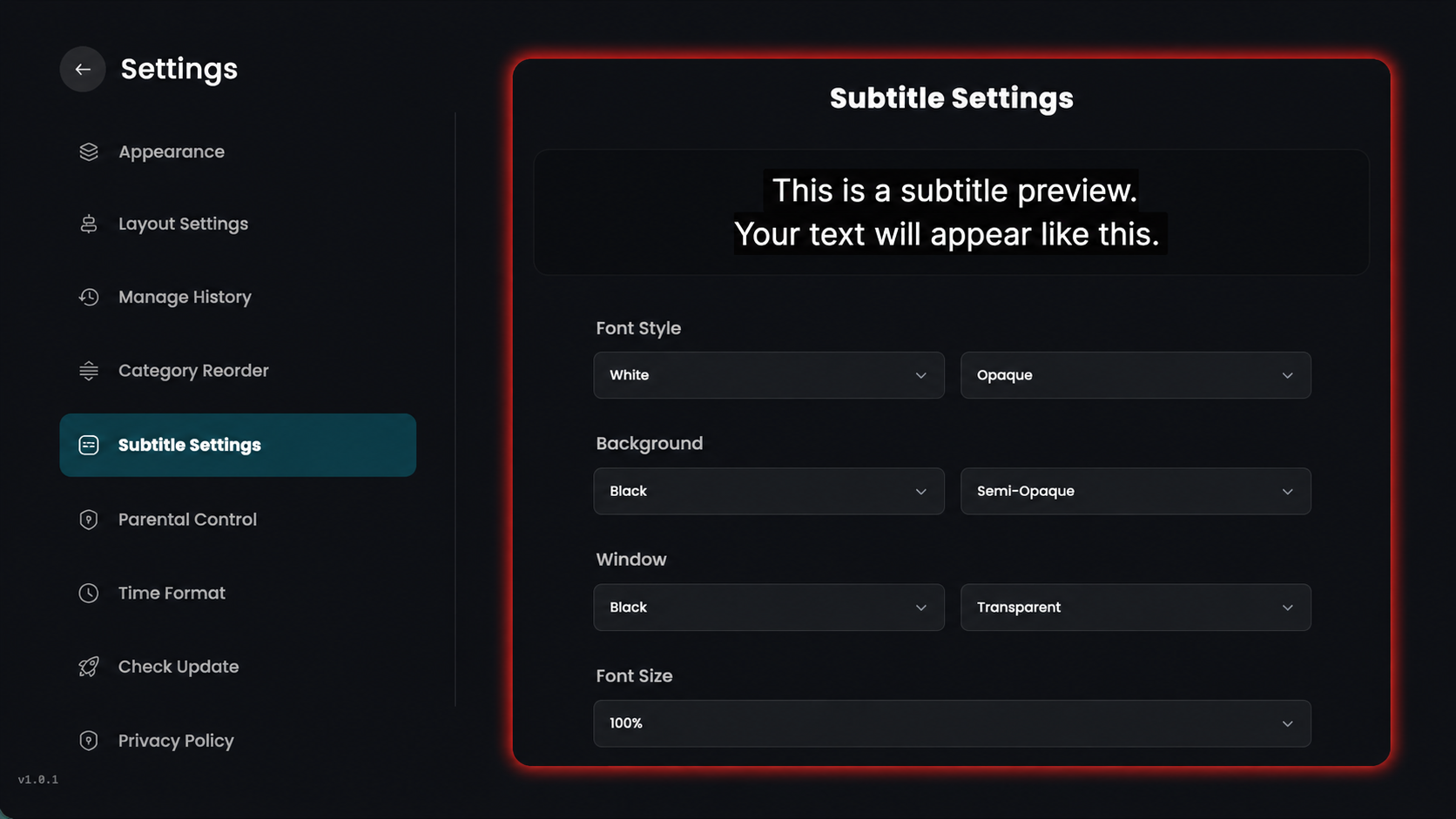
Step 3: Subtitle Customization
Access Settings: Click on Subtitle Settings from the main settings menu on the left side.
Set Font Style: Choose your preferred text color and opacity level from the Font Style dropdown menus.
Adjust Background: Use the Background section to select the color and transparency for the area directly behind the text.
Configure Window: Modify the Window settings to change the appearance of the larger subtitle container.
Scale Font Size: Click the Font Size dropdown at the bottom to adjust the text to your preferred size, such as 100%.
Preview Changes: Monitor the Subtitle Preview box at the top to see your updates in real-time before finalizing.
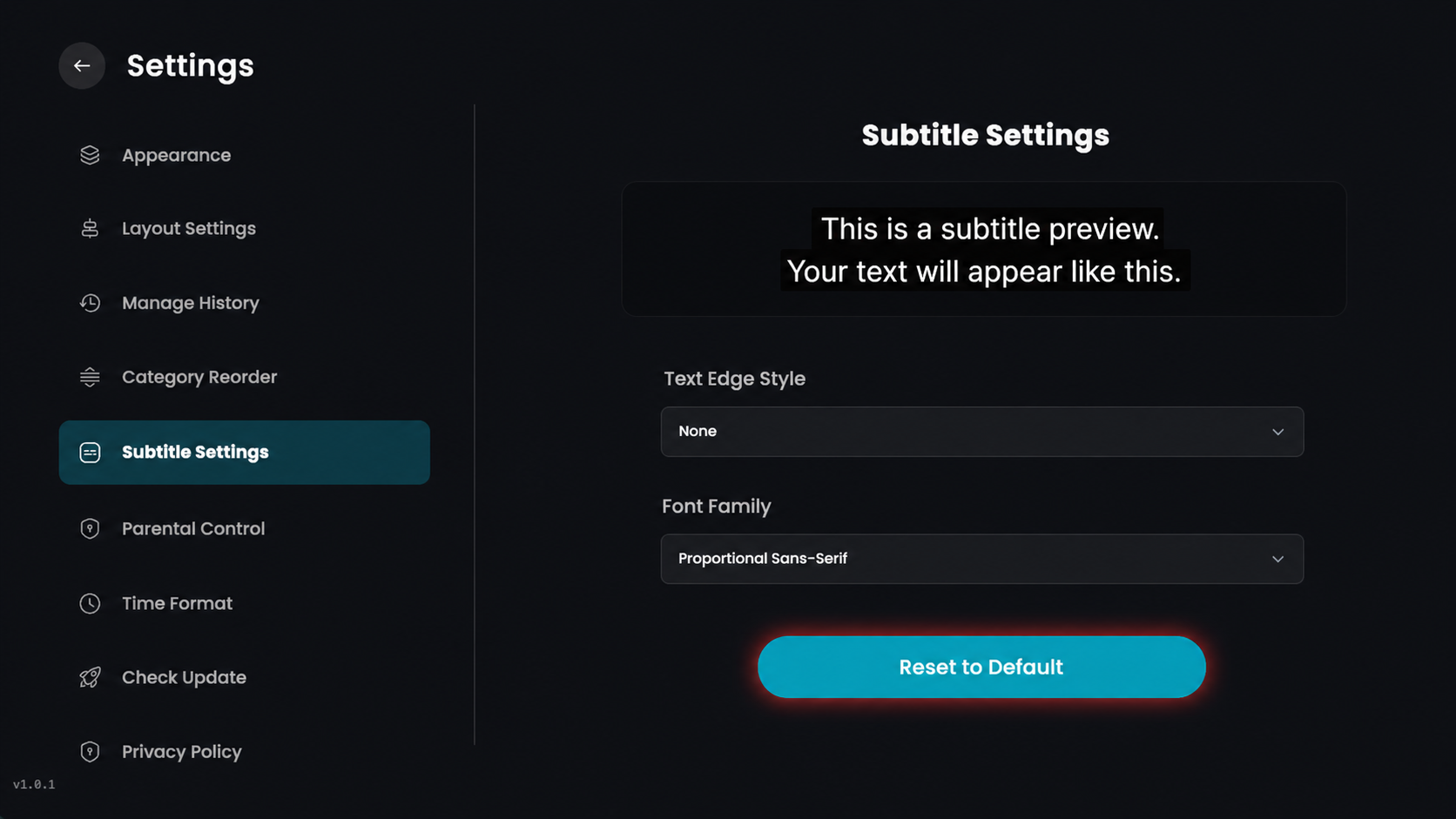
Step 4: Reset to Default
Click the Reset to Default button at the bottom if you want to clear all changes and return to the original settings.