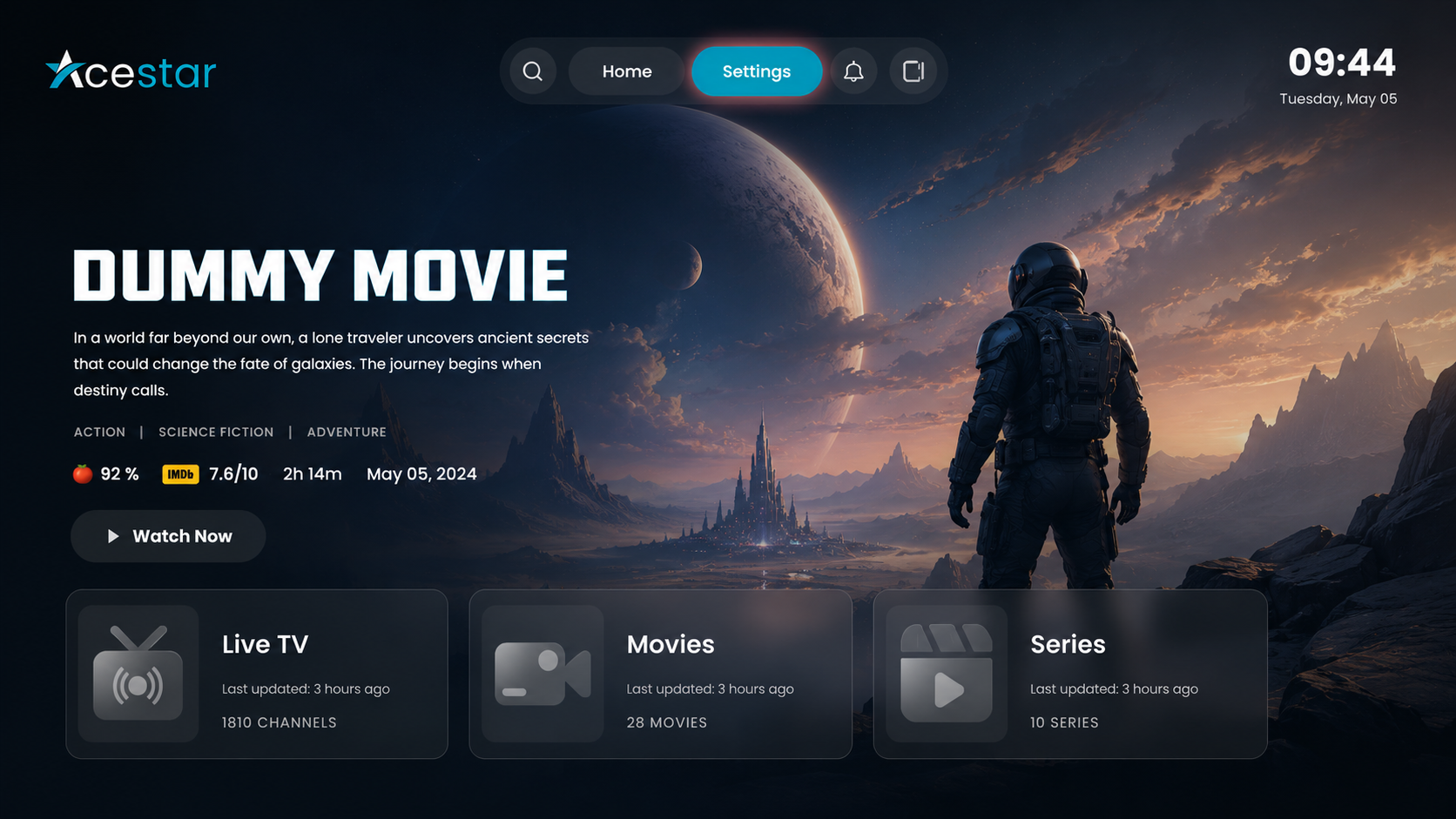
Click on the Settings option from the top menu on the home screen to access and manage app preferences and configurations.
From the settings menu on the left side, click on Parental Control to set up security for your content.
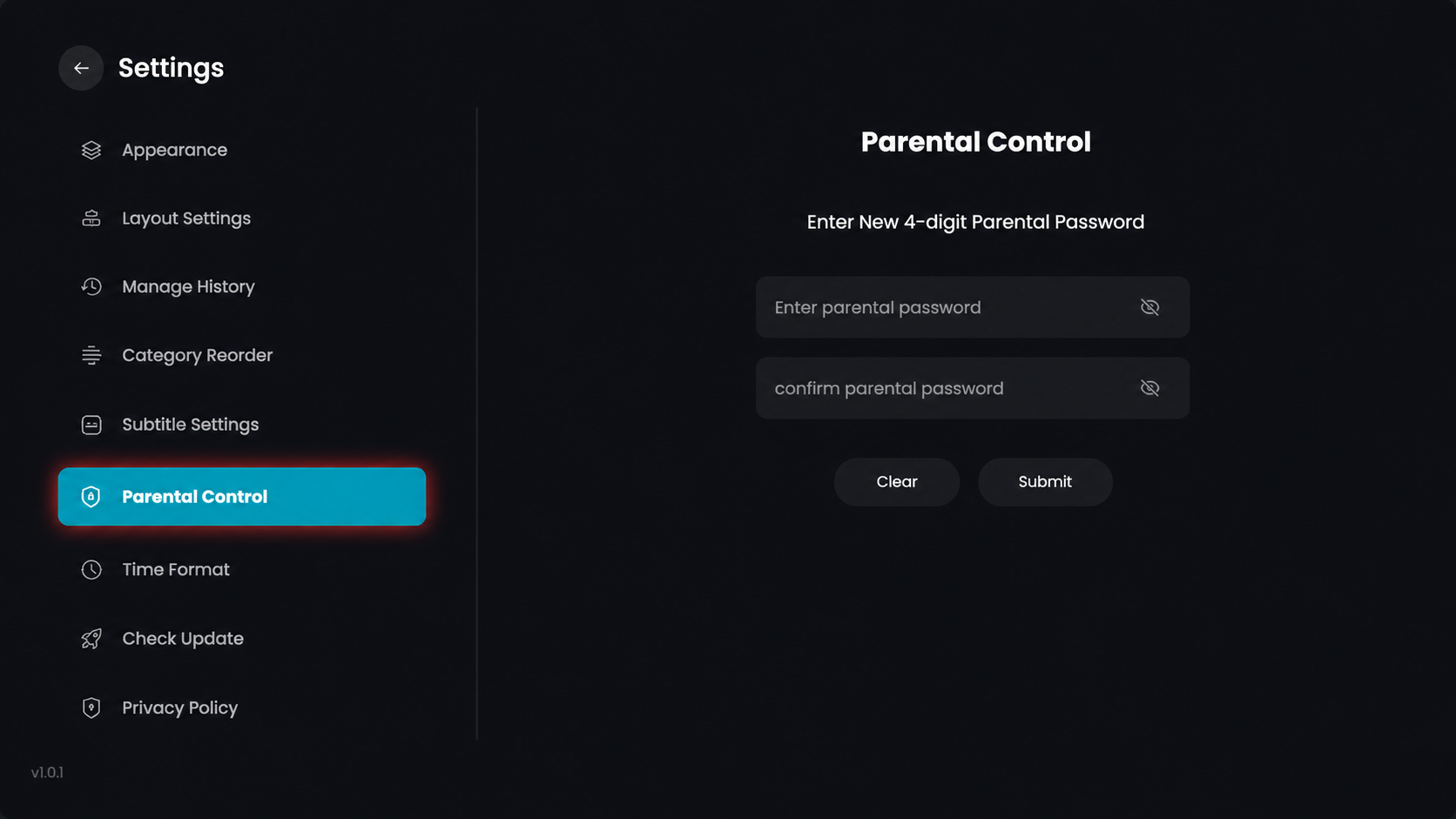
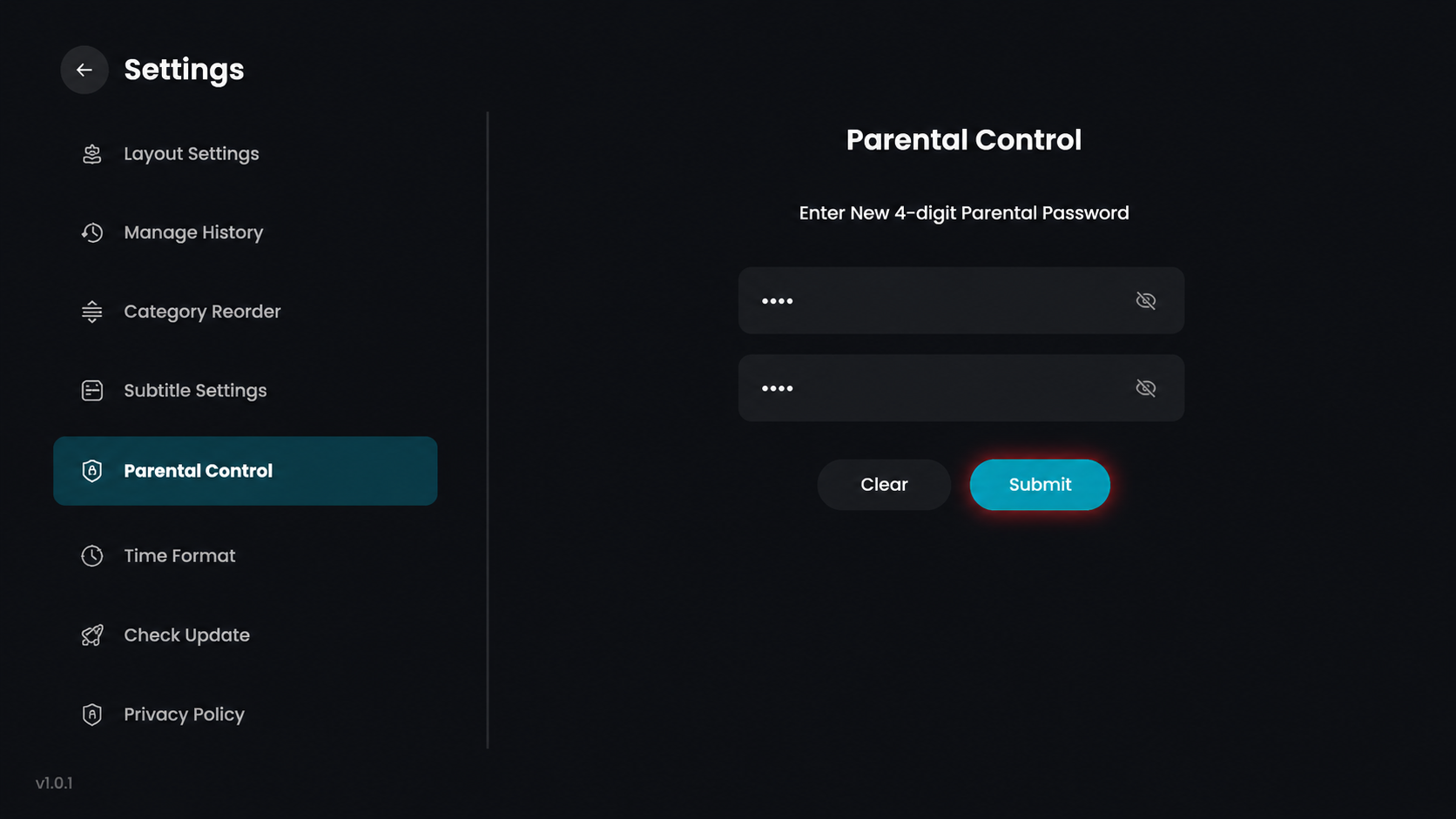
Enter your 4-digit parental password into both the "Enter parental password" and "Confirm parental password" fields, then click the Submit button to save it.
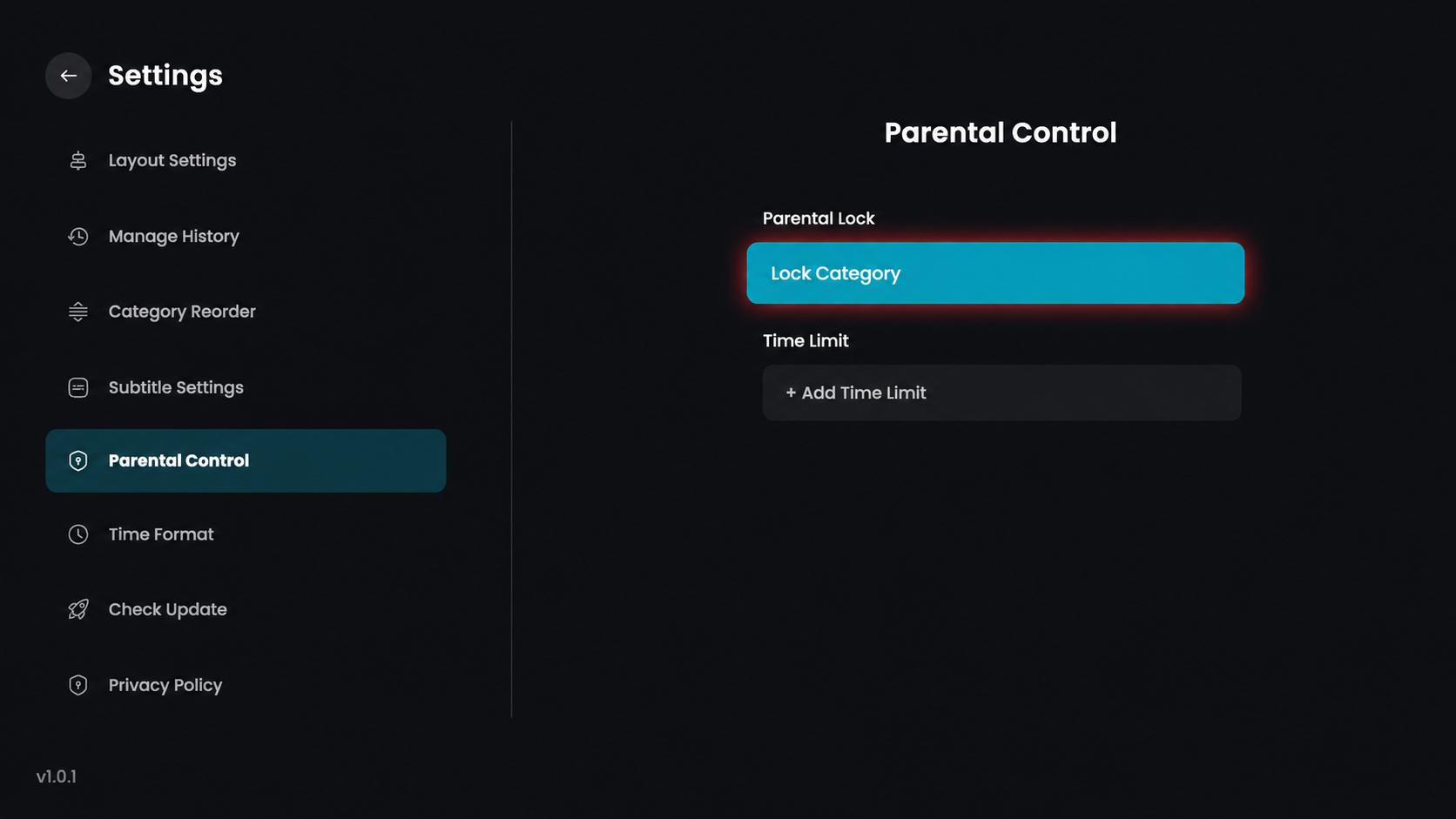
Within the Parental Control menu, click the Lock Category button to choose which content sections you wish to restrict with your password.
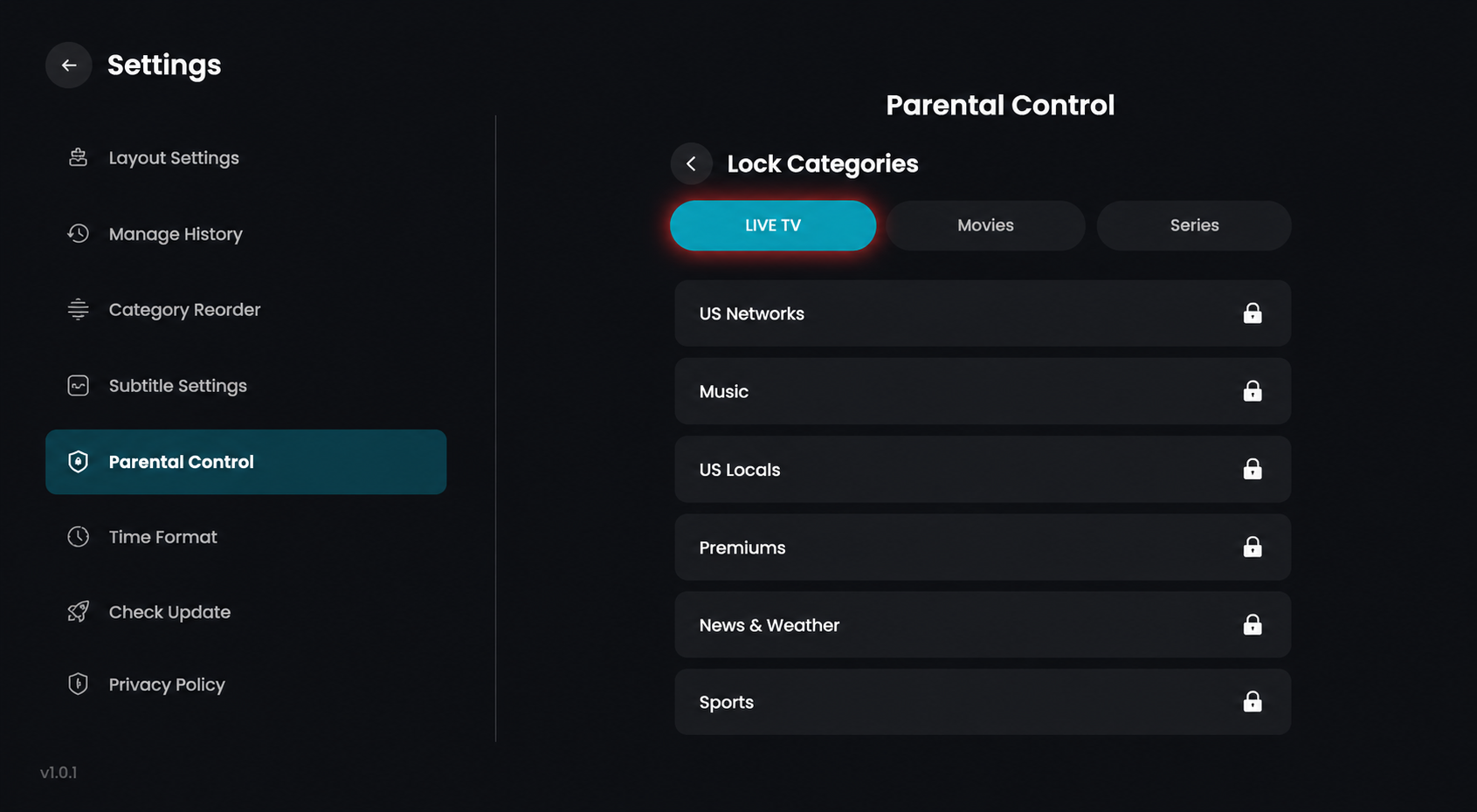
In the Lock Categories menu, ensure the LIVE TV tab is selected to view the list of available channel groups.
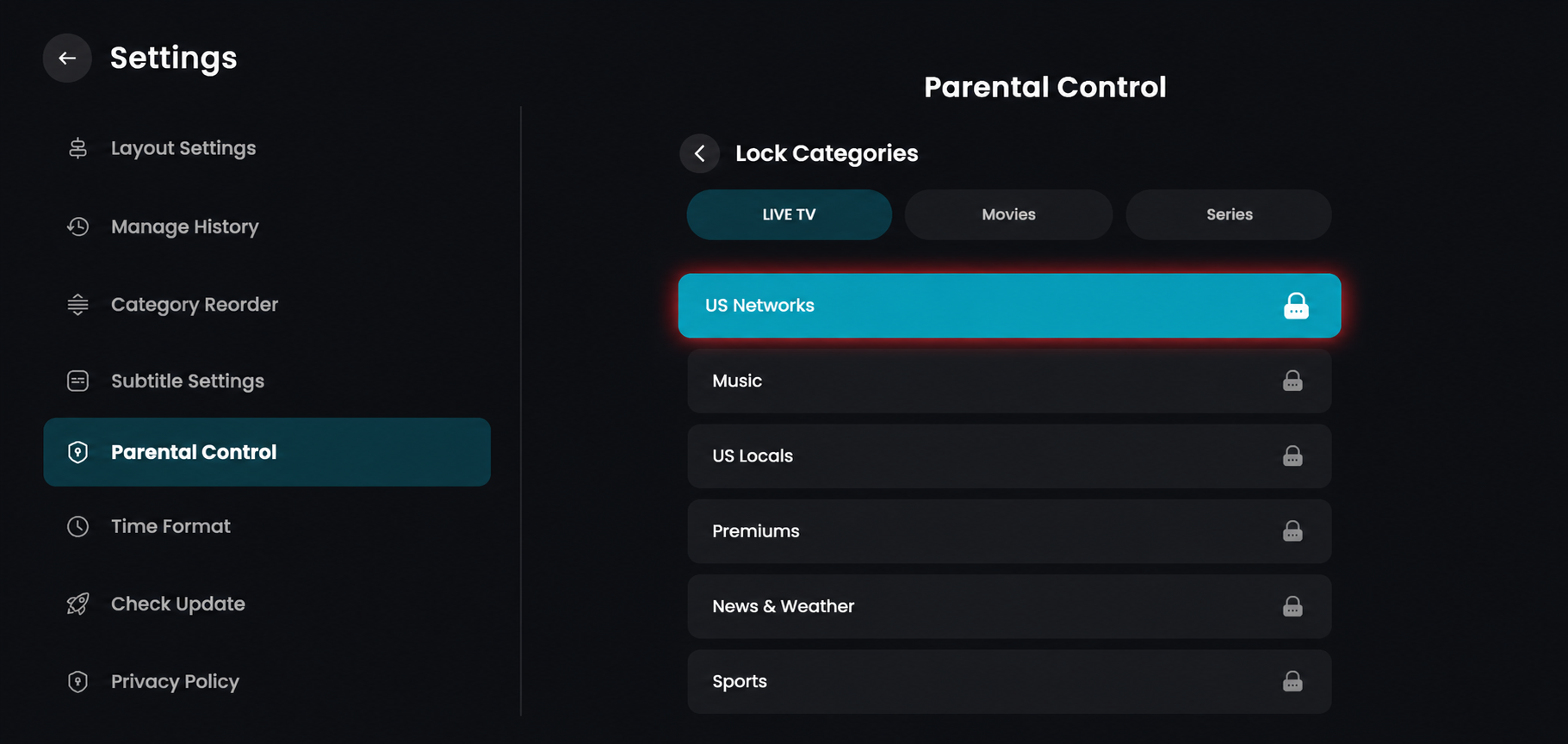
In the Lock Categories menu under the LIVE TV tab, click on the specific category you want to restrict, such as US Networks.
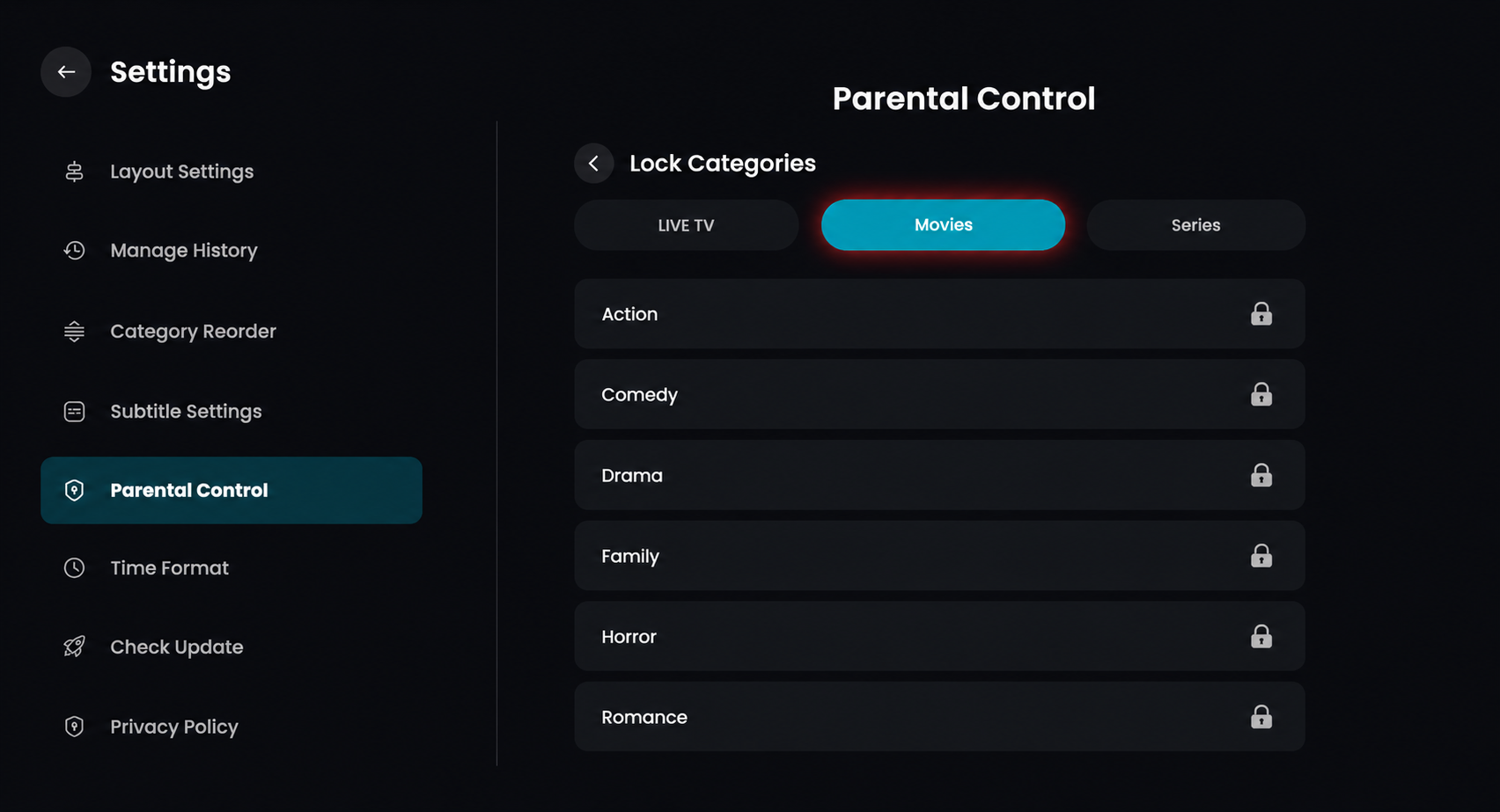
In the Lock Categories menu, click on the Movies tab to view the list of film genres.
In the Lock Categories menu under the Movies tab, click on the specific genre you wish to restrict, such as Drama.
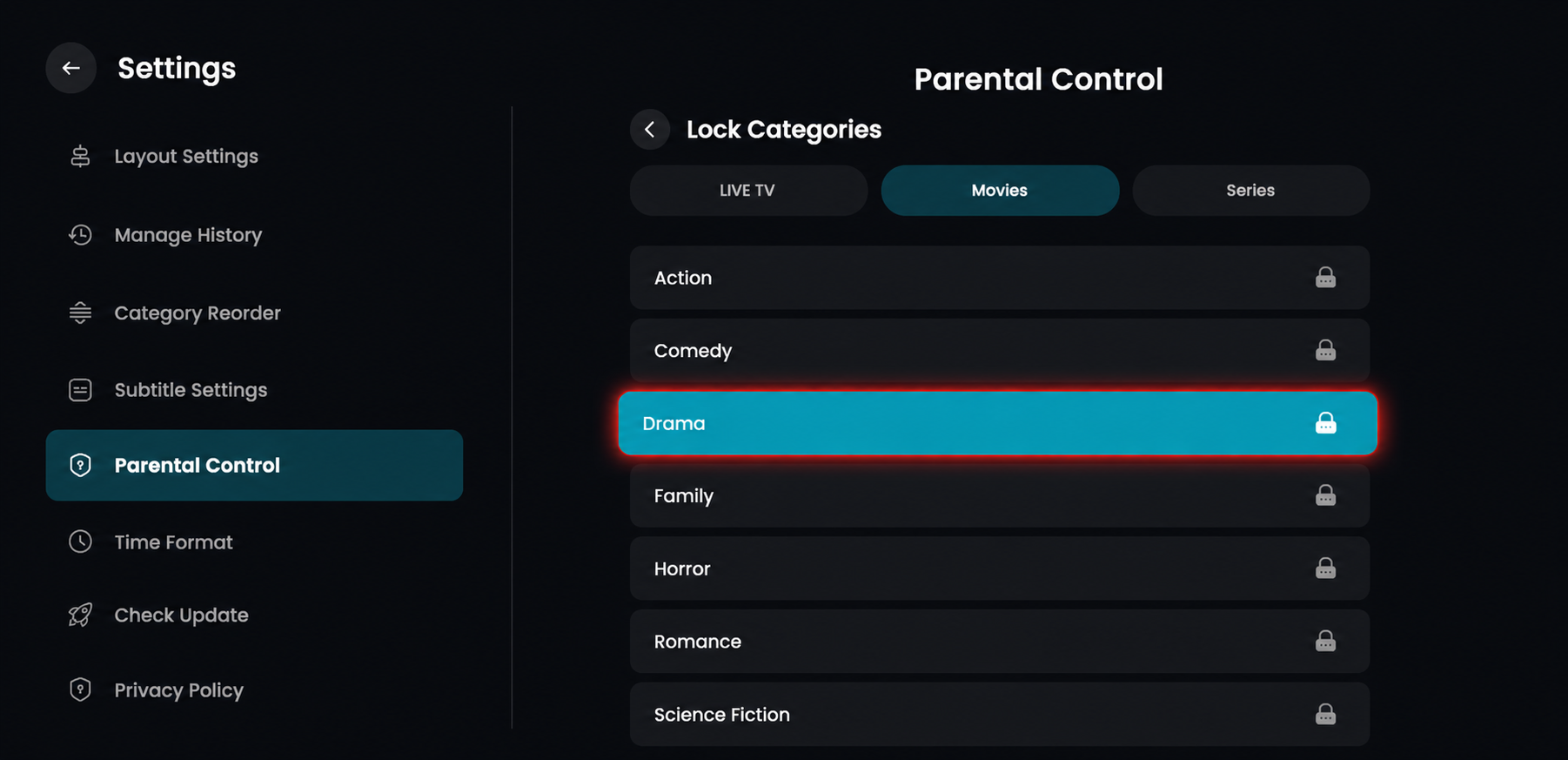
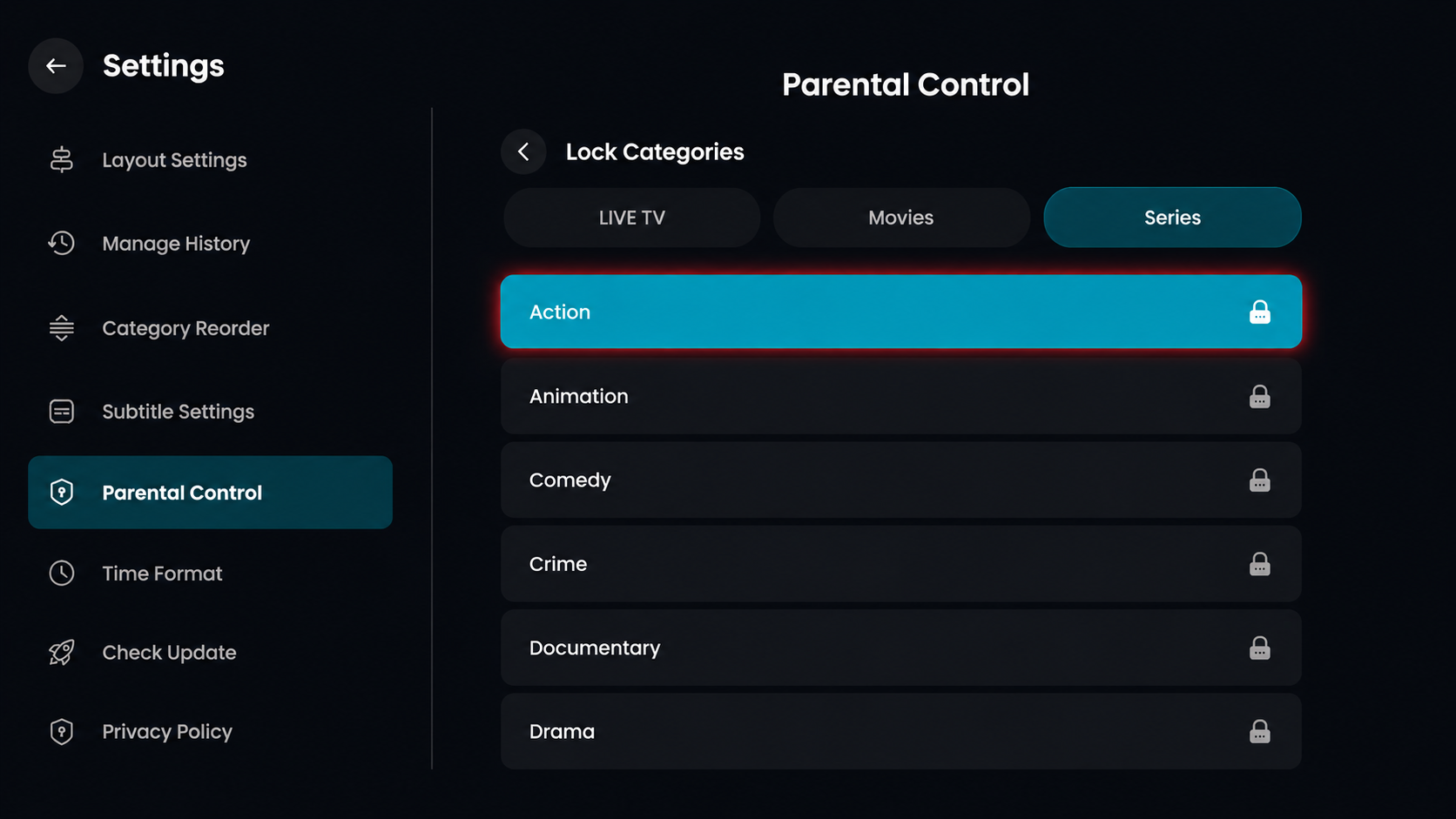
In the Lock Categories menu, click on the Series tab to view the list of available show genres.
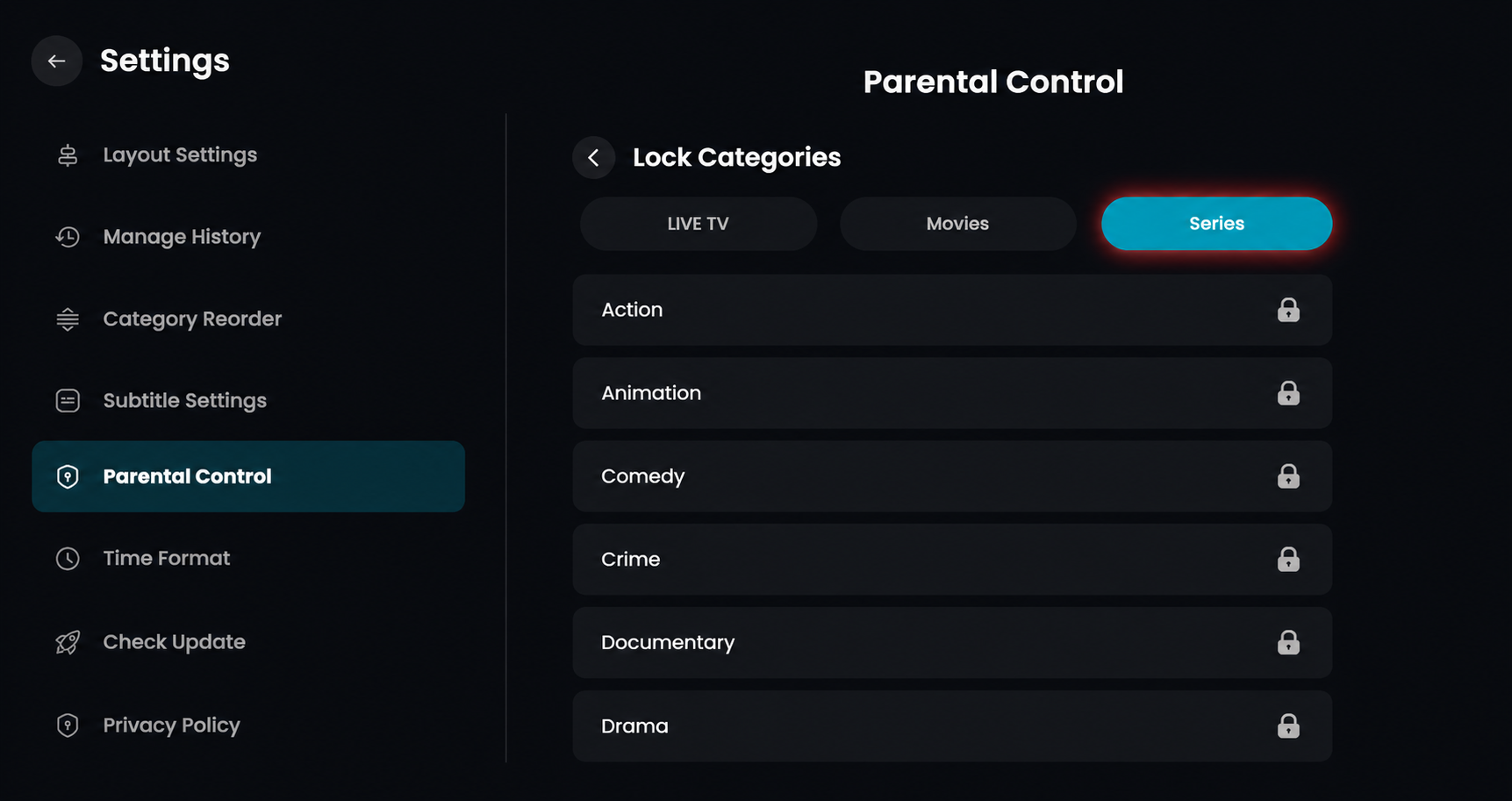
In the Lock Categories menu under the Series tab, click on the specific genre you wish to restrict, such as Action.