On the login screen, click on the Scan QR Code option.
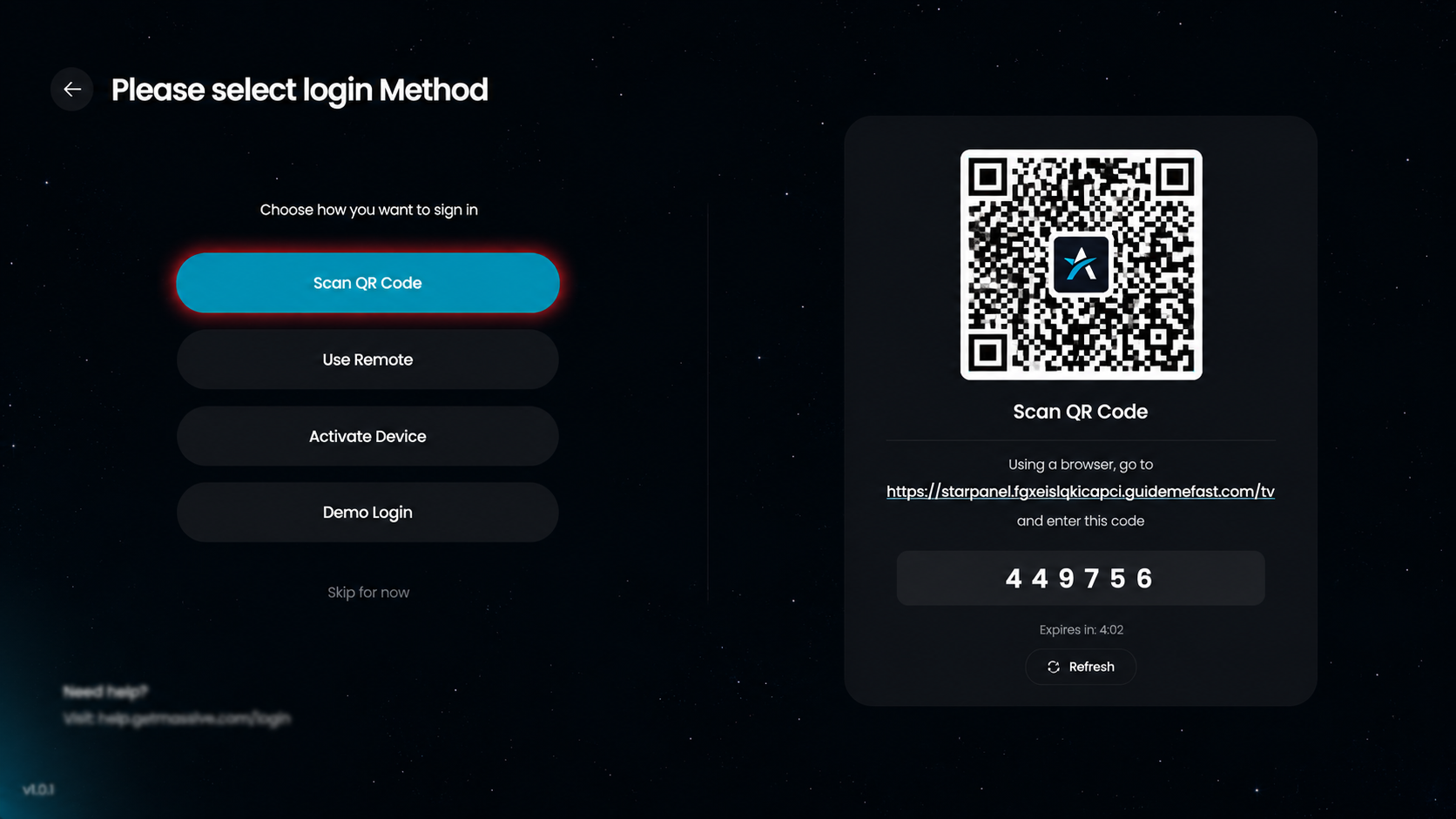
Use your mobile device to scan the QR code displayed on the screen.
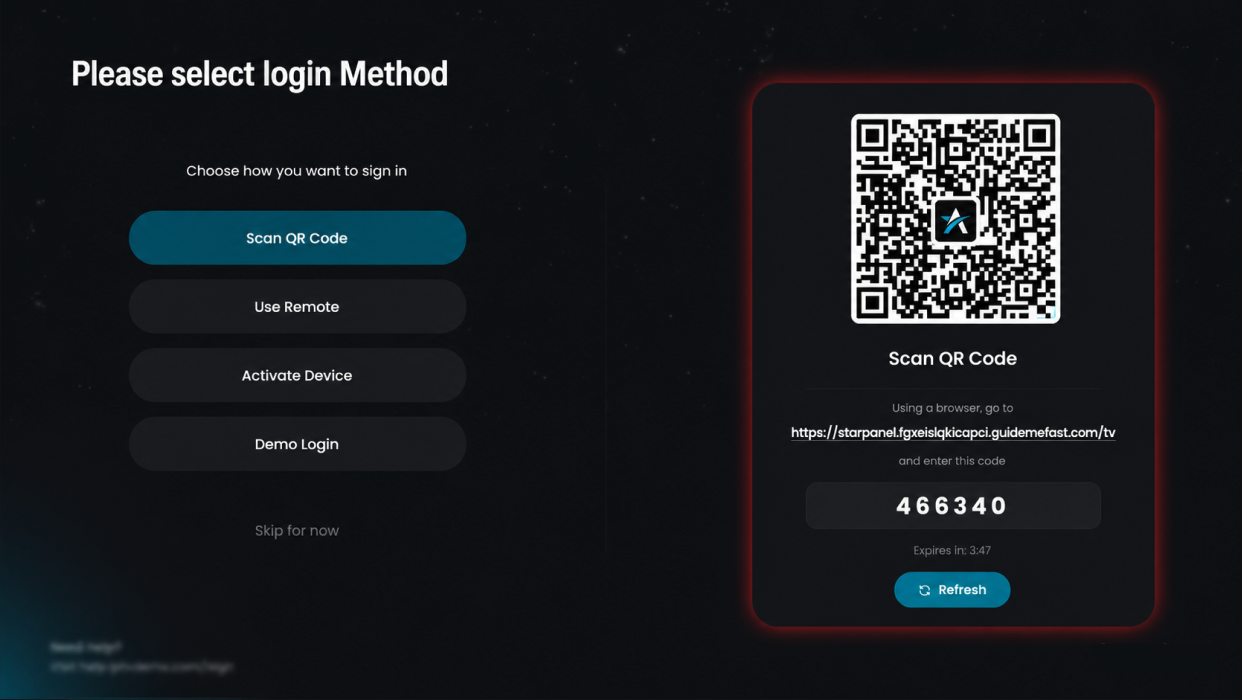
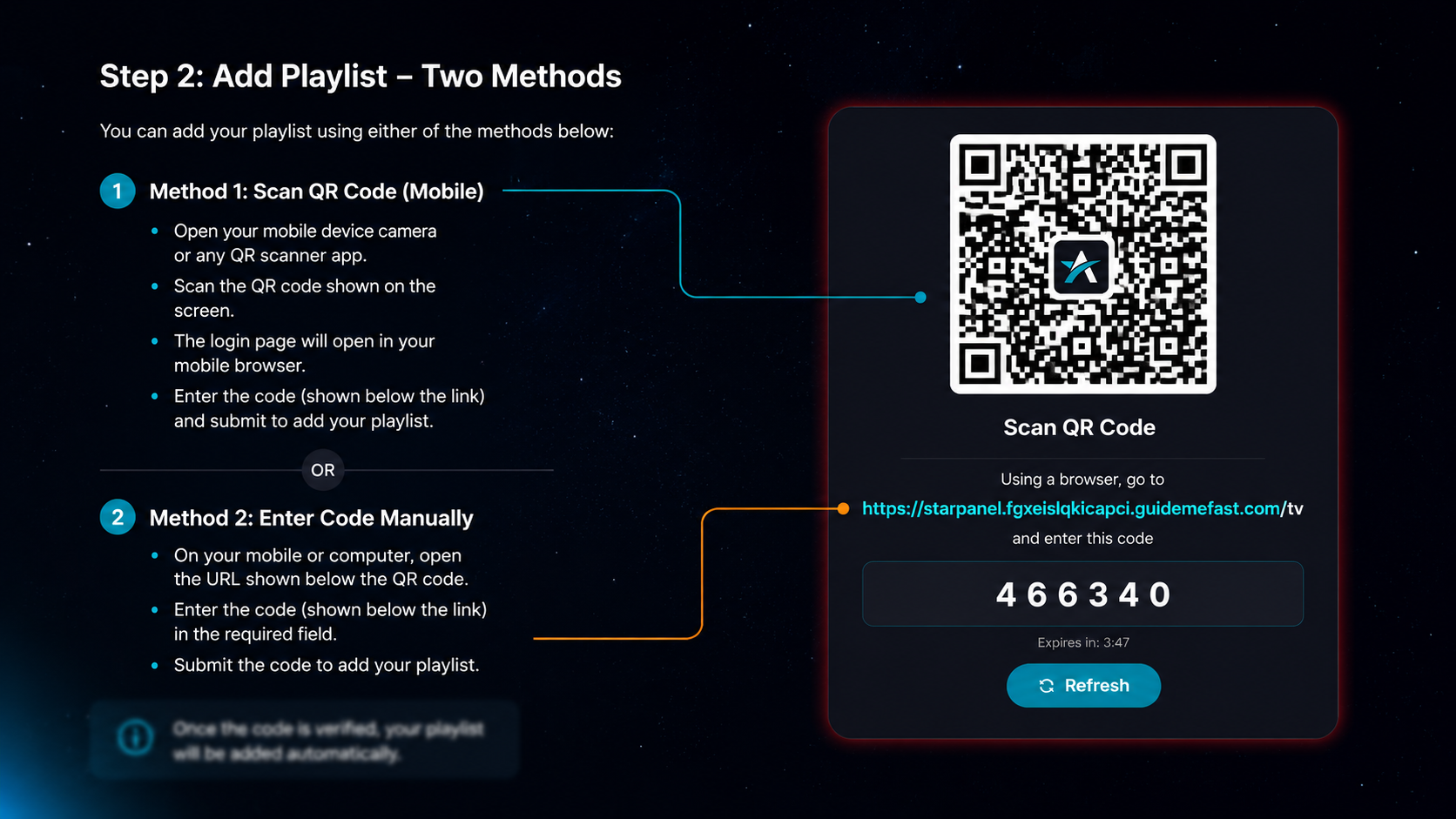
You can add your playlist using either of the following methods:
Open your mobile device camera or any QR scanner app.
Scan the QR code displayed on the TV screen.
A login page will open in your mobile browser.
Enter the code shown on the TV screen (below the link).
Submit the code to add your playlist.
On your mobile or computer, open the URL shown below the QR code.
Enter the code displayed on the TV screen in the required field.
Submit the code to add your playlist.
Enter the code displayed on your TV screen into the PIN input field.
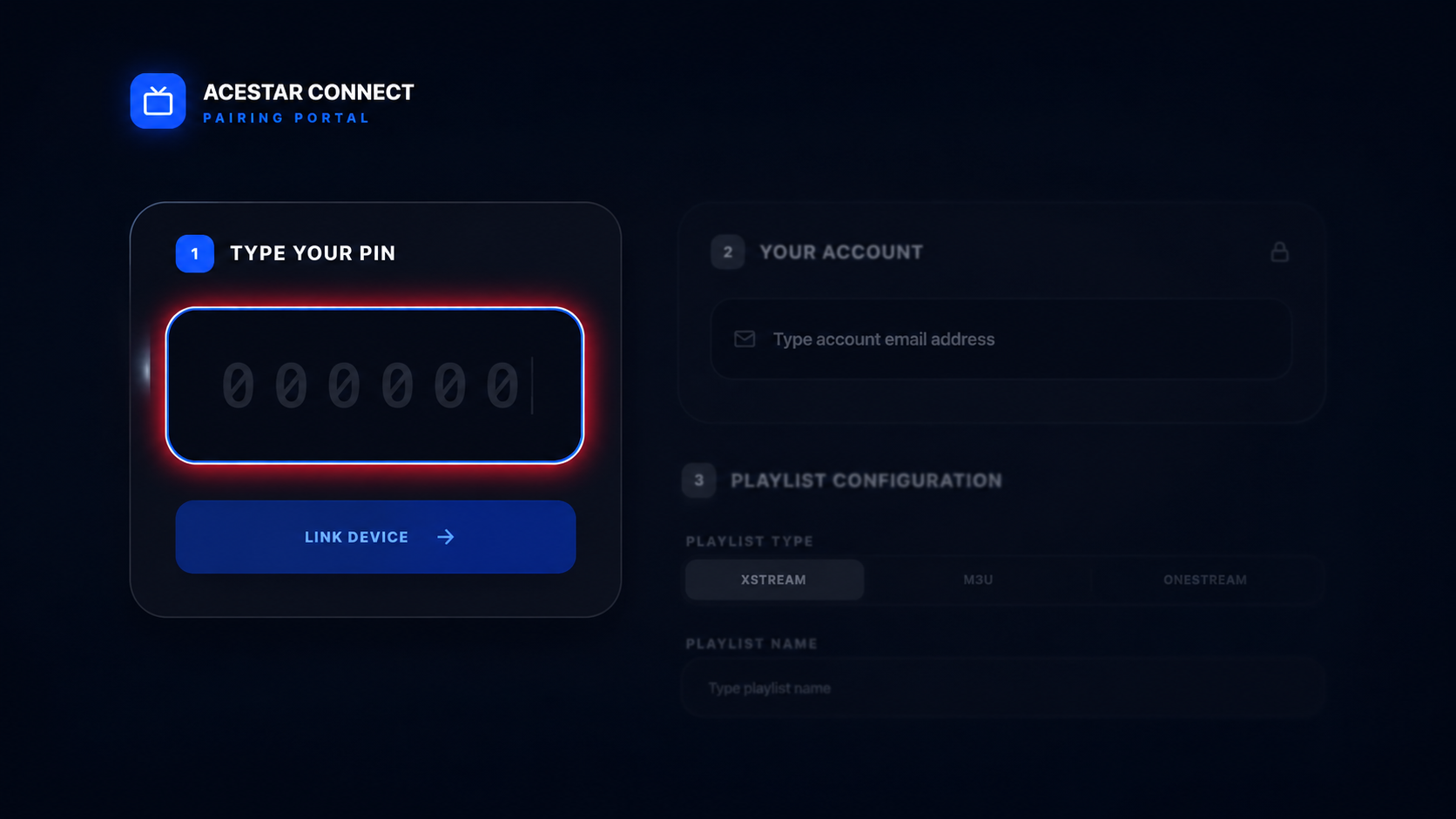
After entering the PIN code, click on the “Link Device” button to connect your TV with the portal.
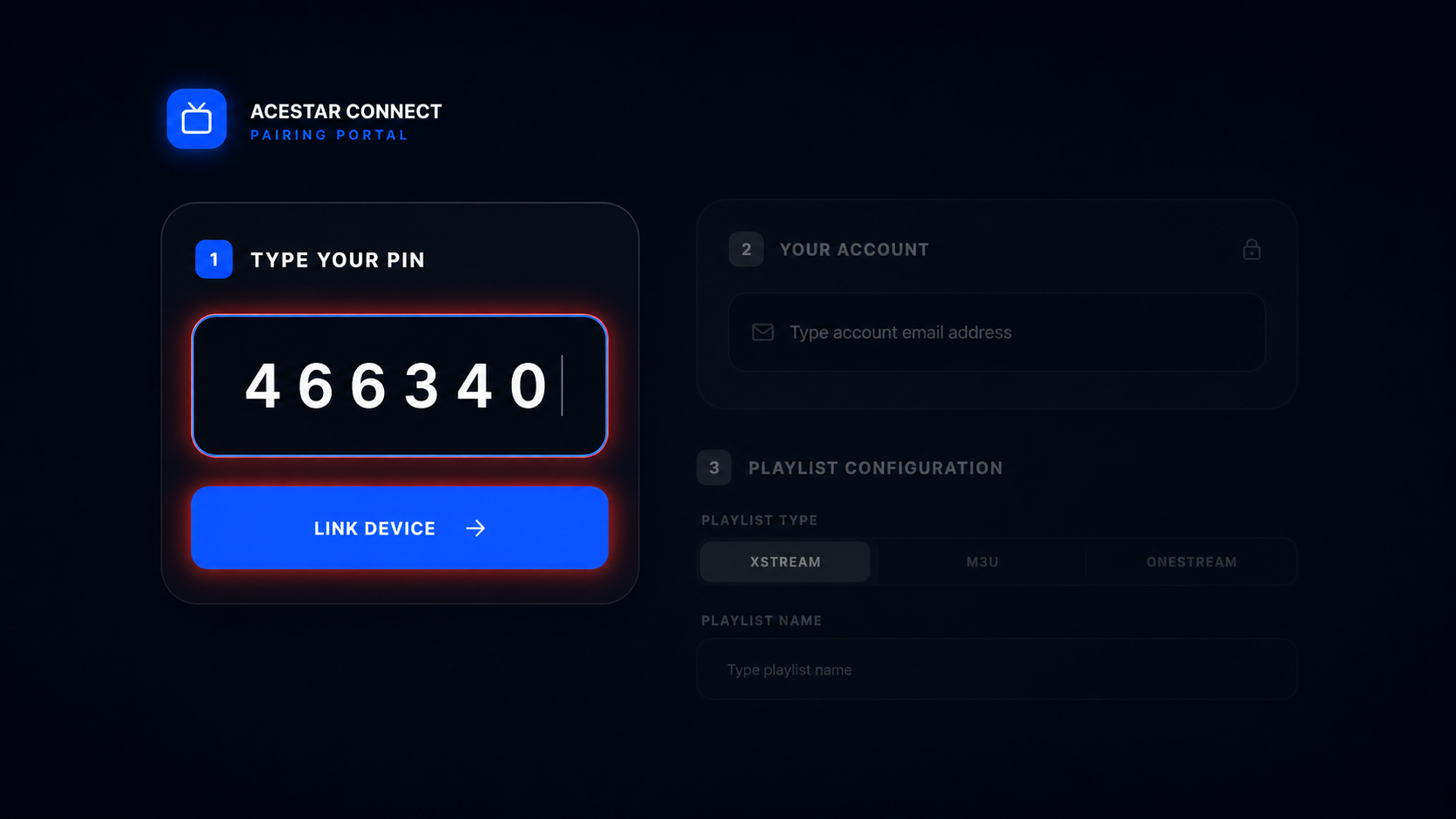
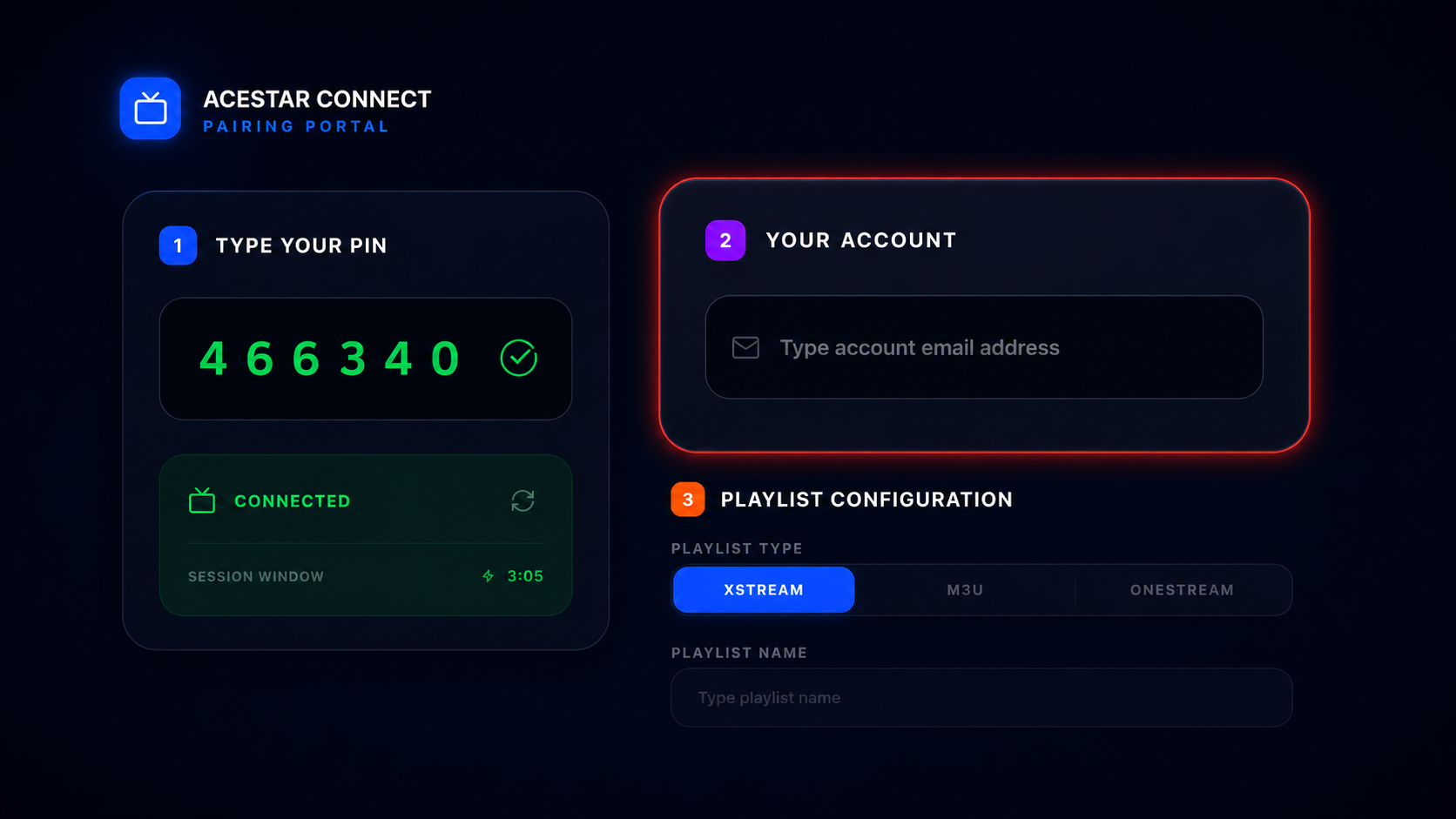
Once your device is successfully connected, move to the “Your Account” section.
Enter your account email address in the provided field to proceed further.
After entering your email address, make sure it is correct. If your account is already registered, it will be shown as an existing member.
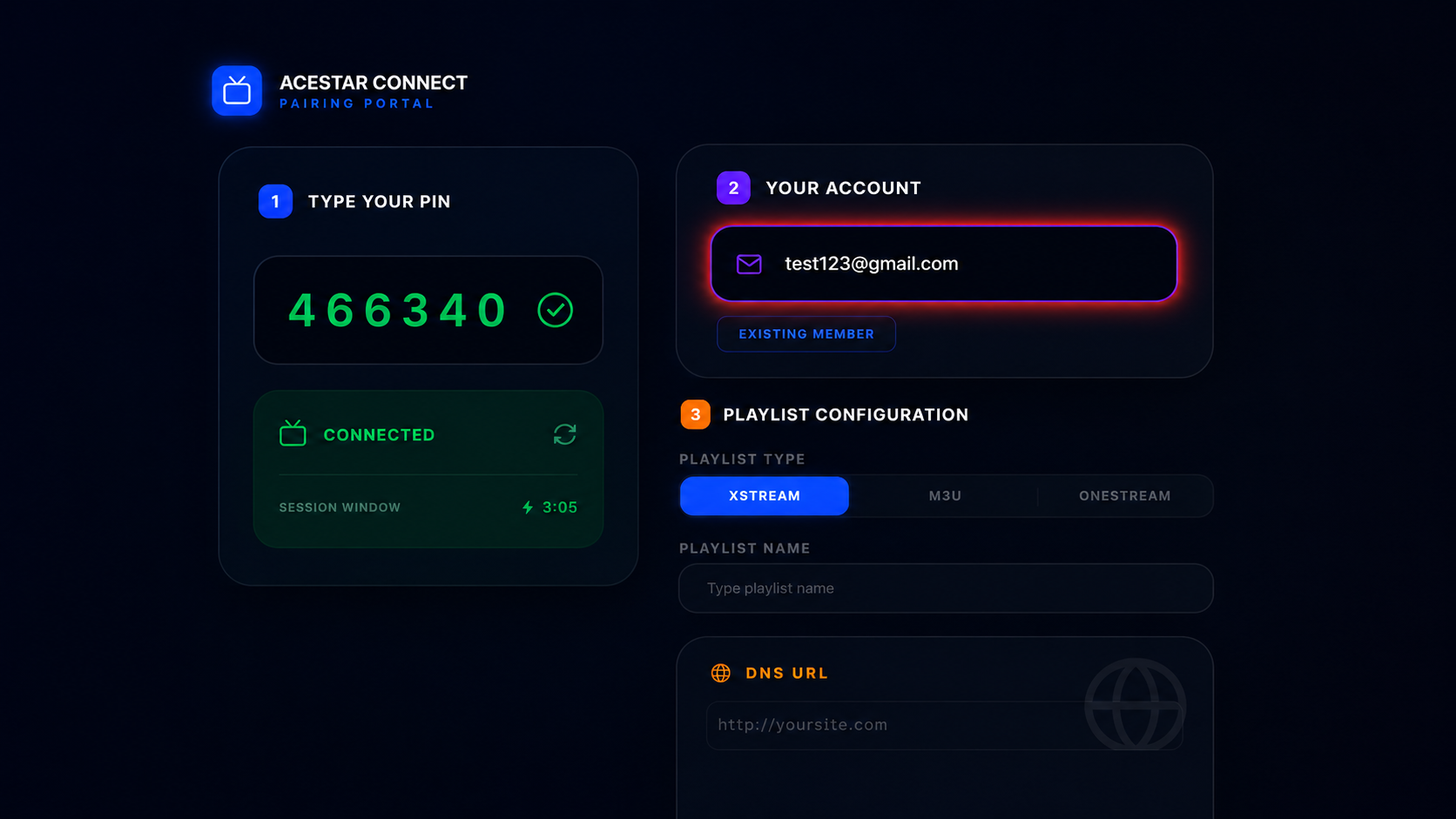
In the Playlist Type section, choose M3U from the available options.
Options available: Xstream / M3U / Onestream
Select M3U if you have an M3U playlist URL
This option is used when your provider gives you a direct playlist link
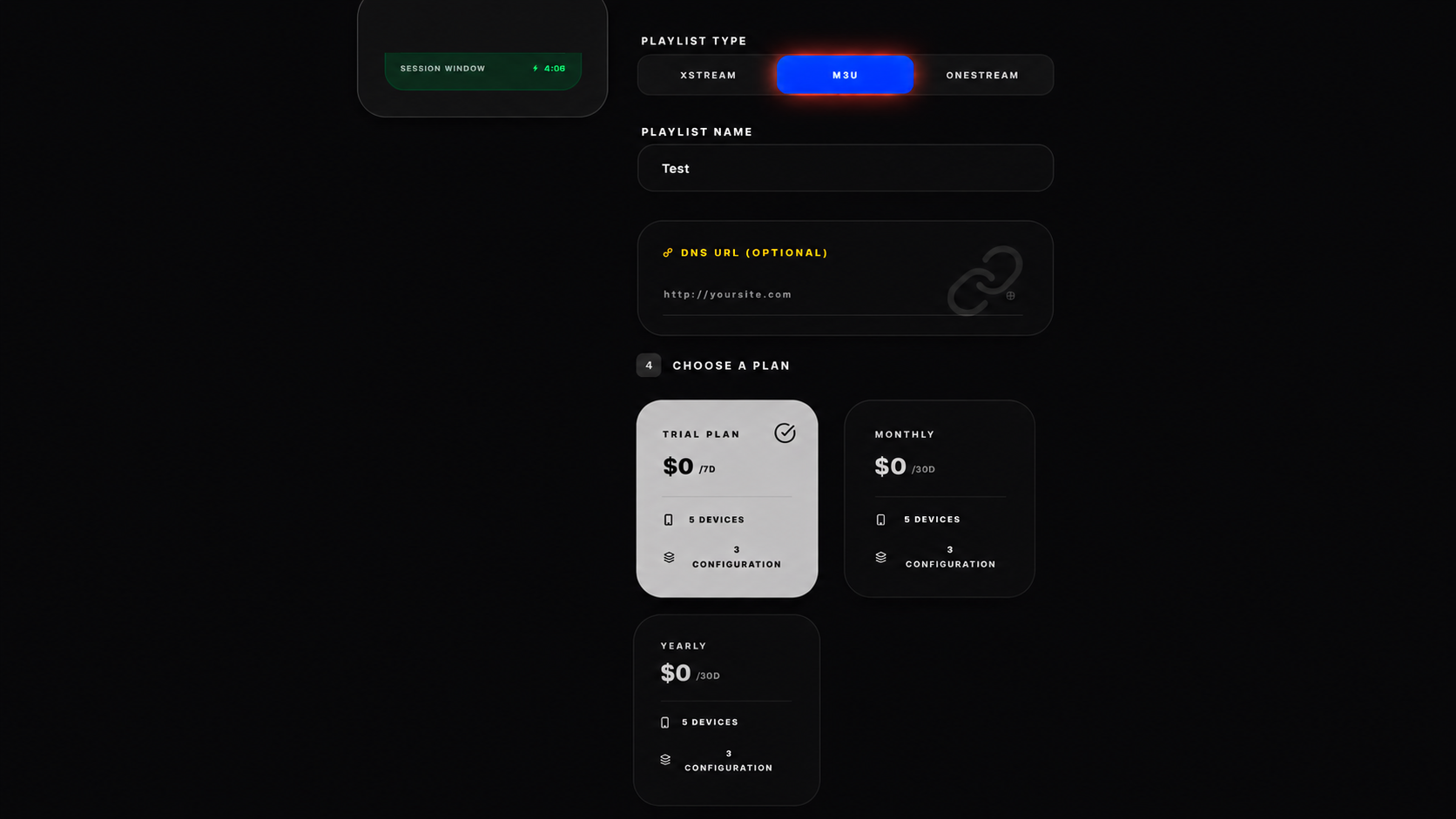
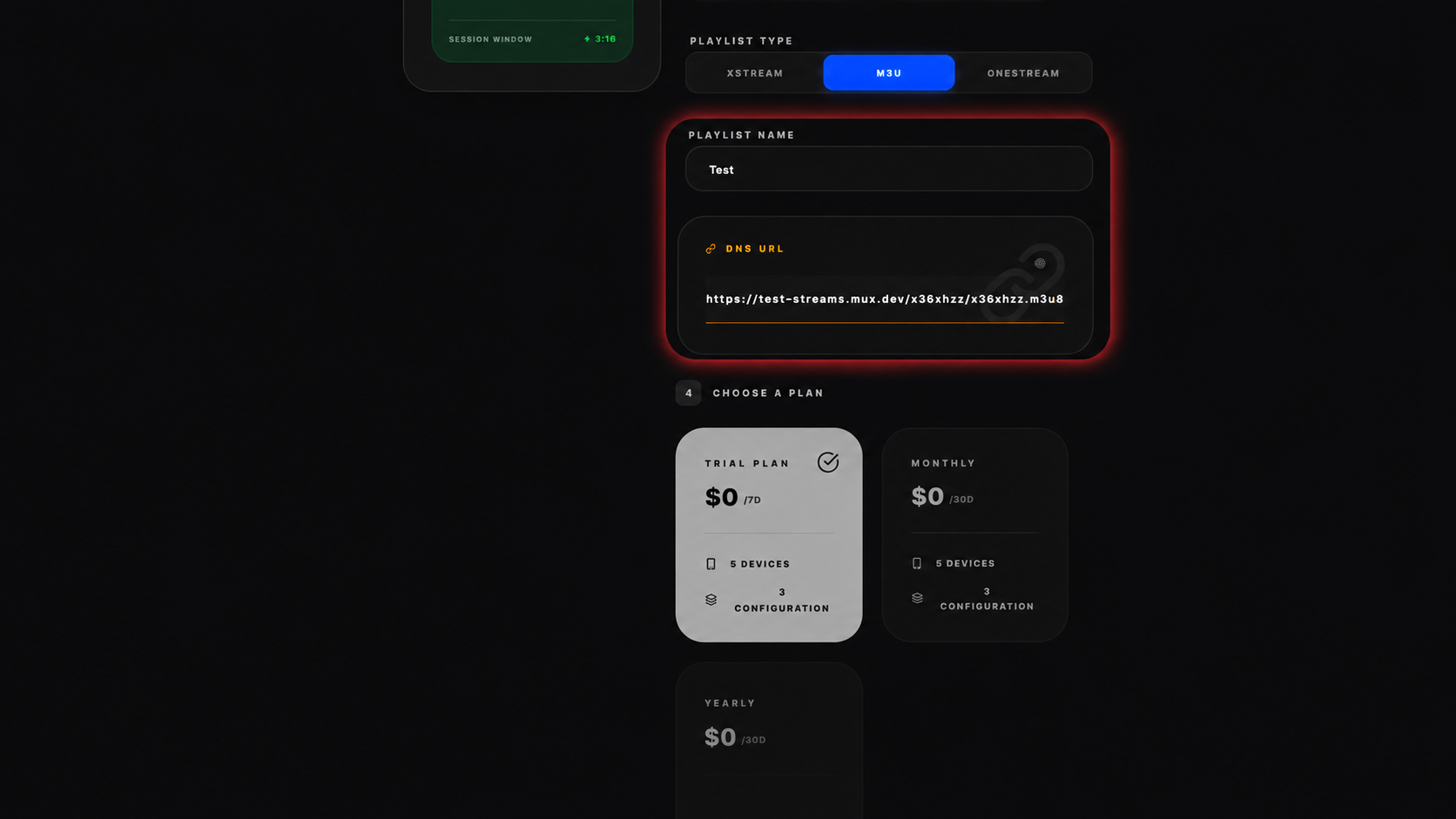
After selecting M3U, fill in the following fields:
Enter any name for your playlist
Example: Test, My IPTV, Live TV, etc.
Paste your M3U playlist link provided by your service provider
Example format: https://yourserver.com/playlist.m3u8
Make sure:
The link is correct
No extra spaces are added
It starts with http:// or https://
Click on your preferred plan.
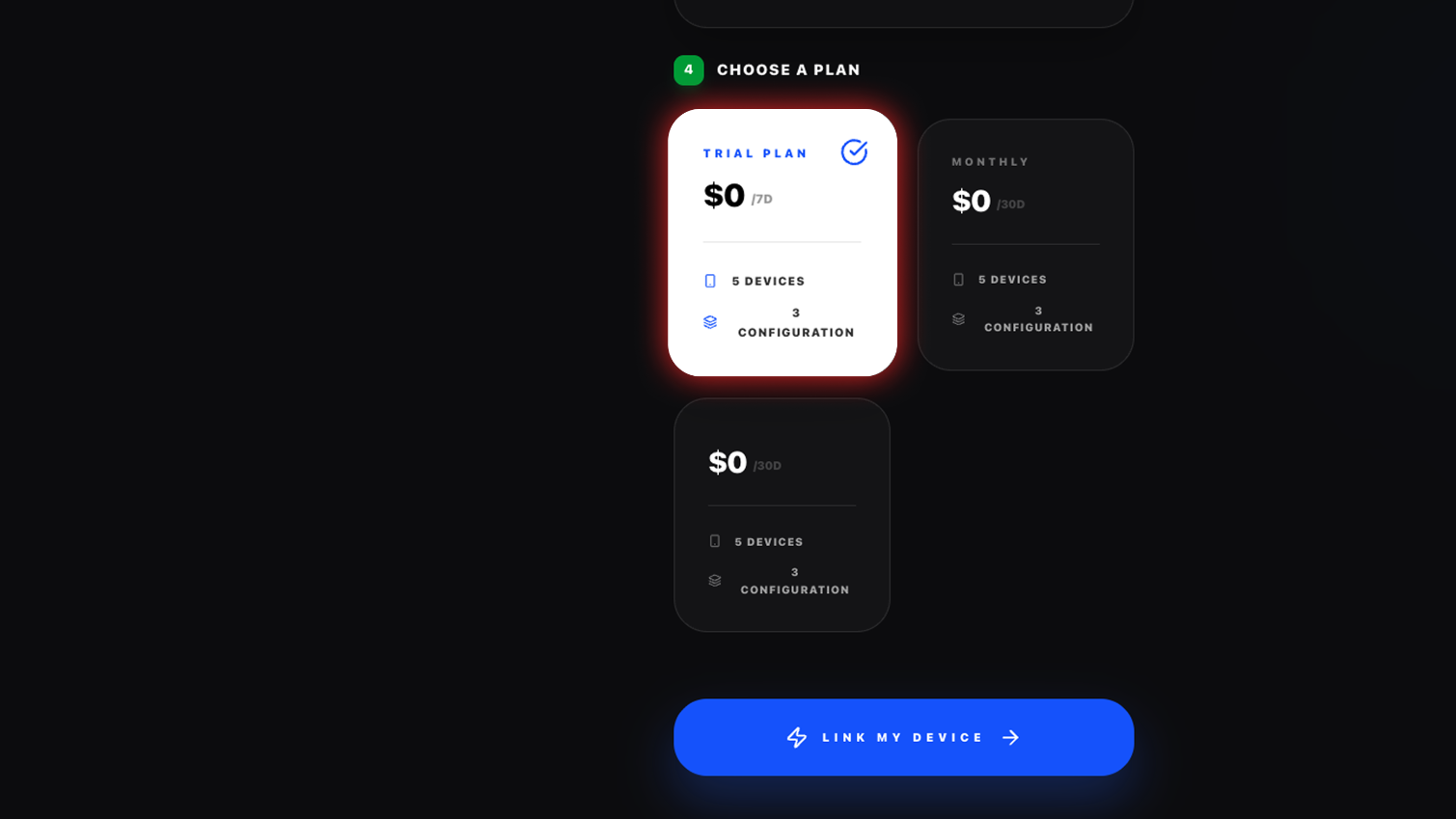
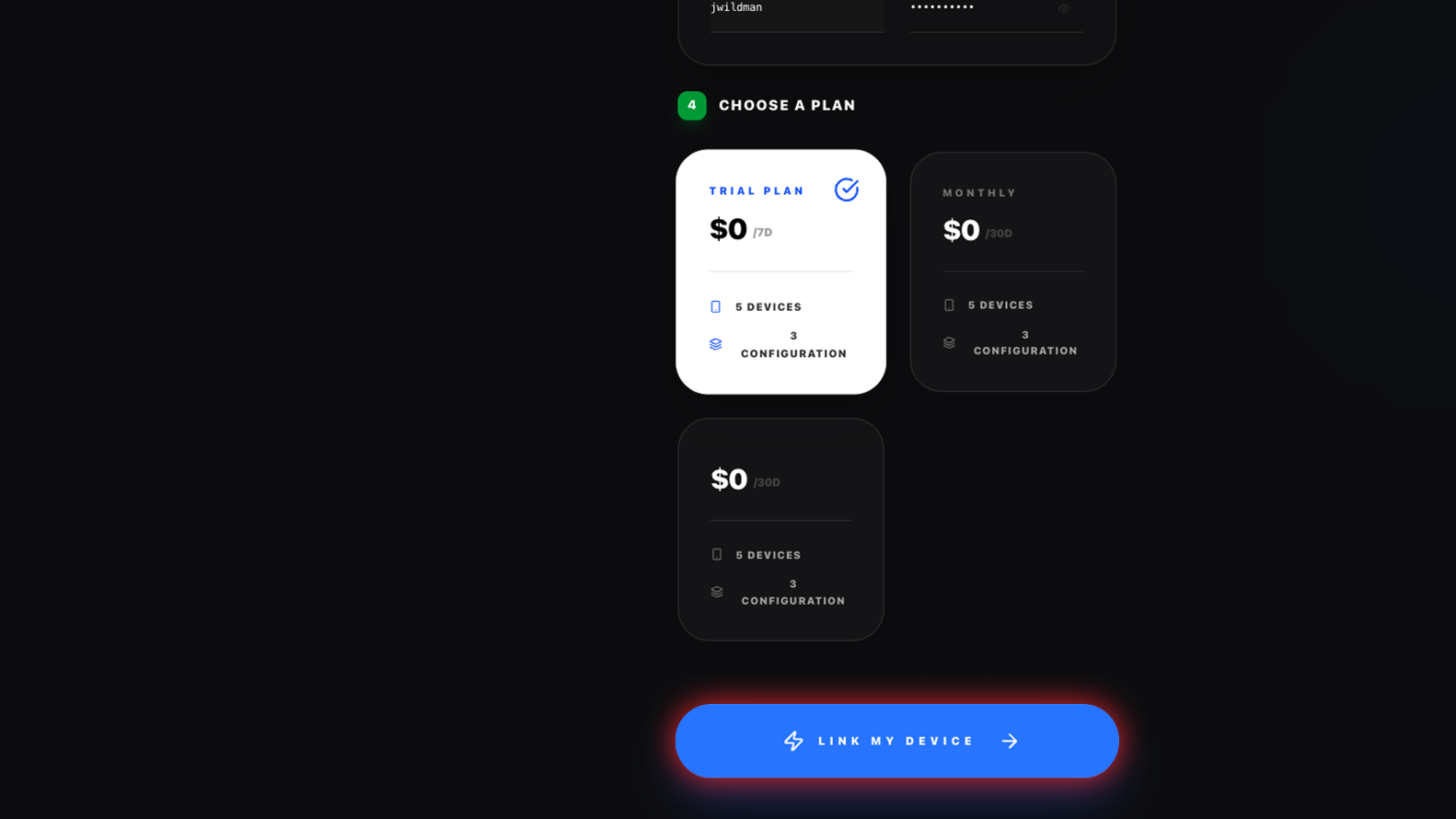
Click on the “Link My Device” button
This will connect your device to the playlist
Your setup will be completed instantly
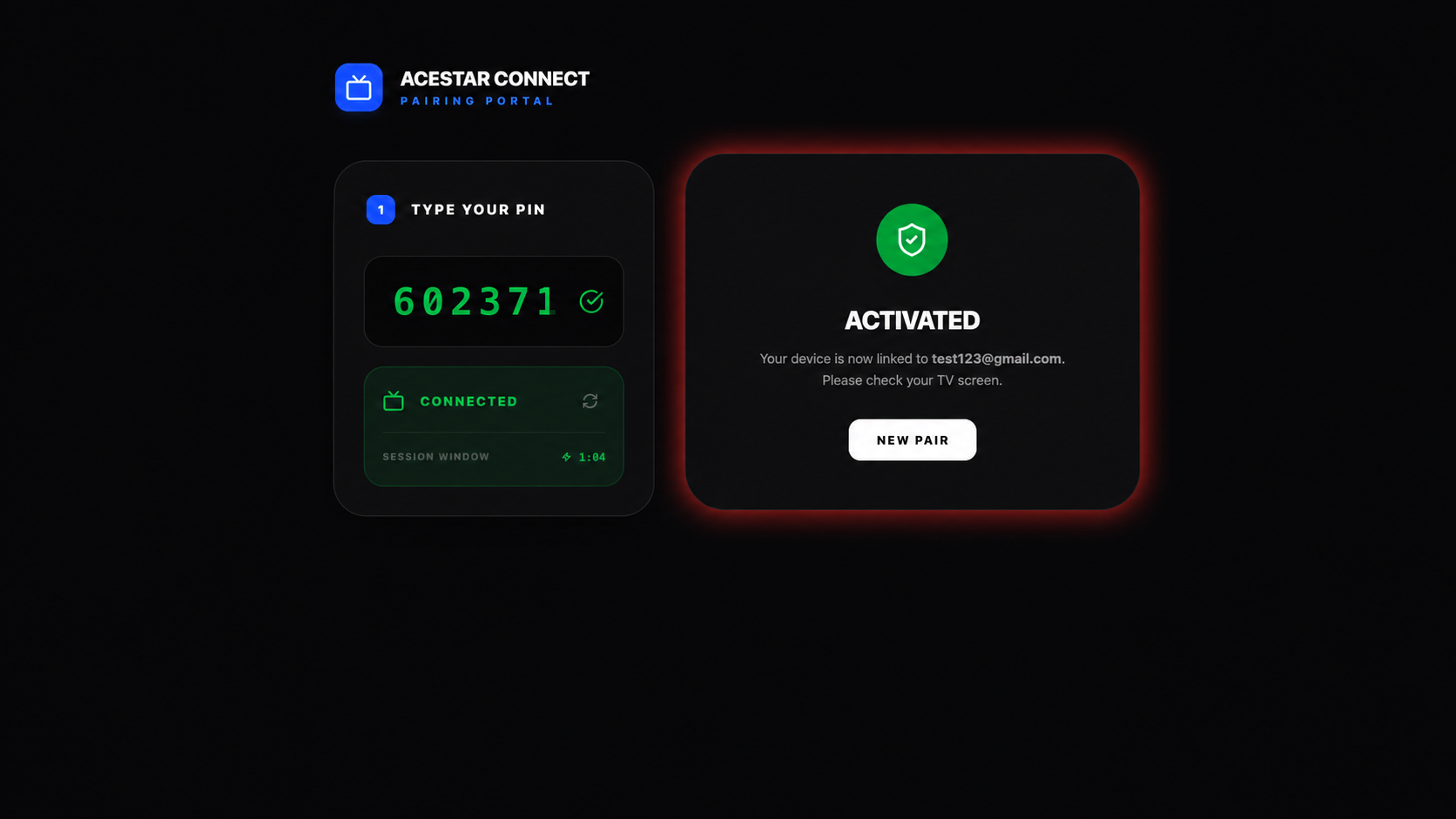
Once you complete the linking process, you will see this confirmation:
Your PIN is verified, and the device shows as connected
The screen displays "Activated," confirming successful setup
Your device is now linked to your account (email shown on screen)
You can also click “New Pair” to connect again to the device