
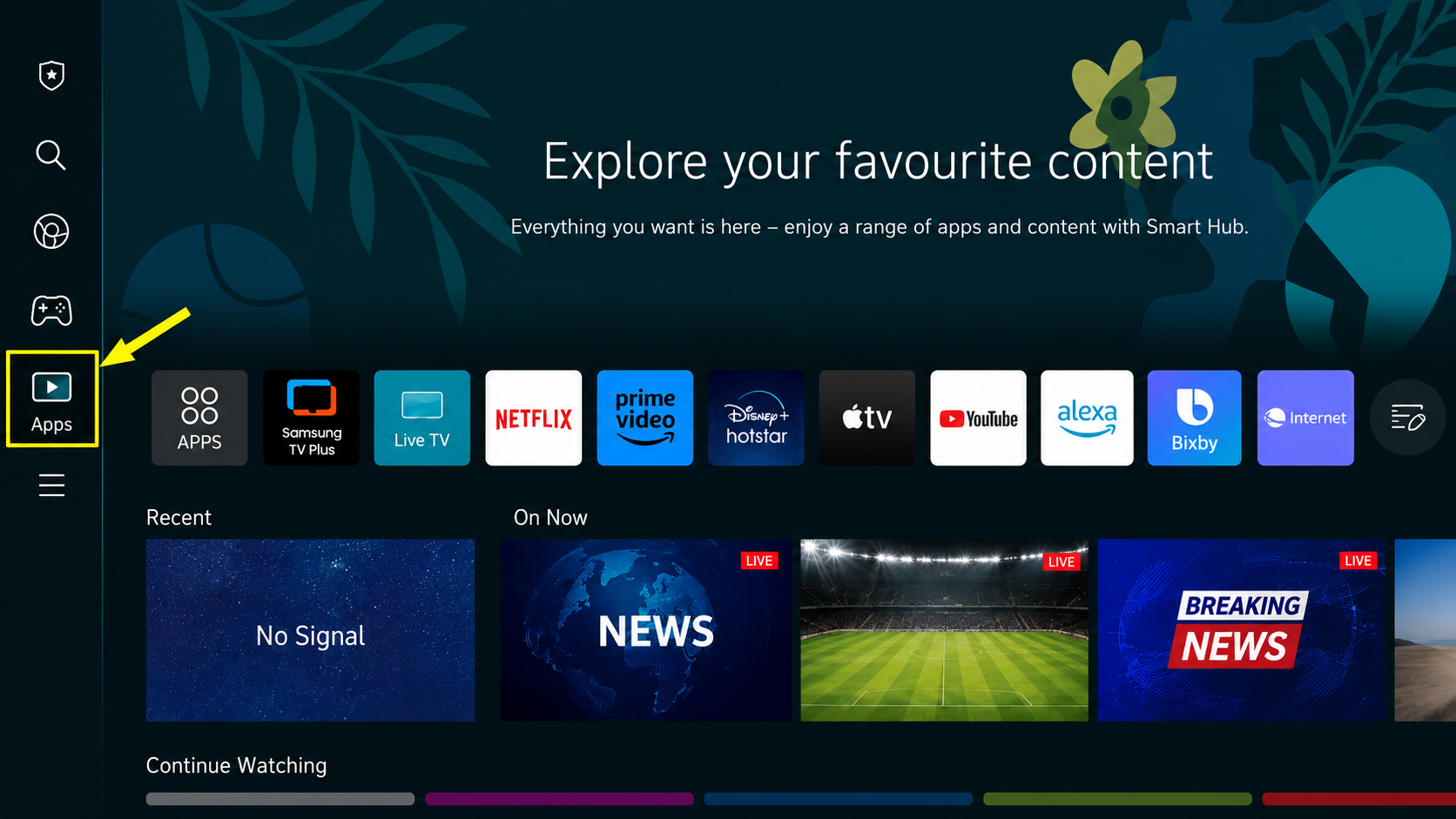
Step 1: Open Apps on Samsung TV
Open the Apps section from the Samsung TV Smart Hub.
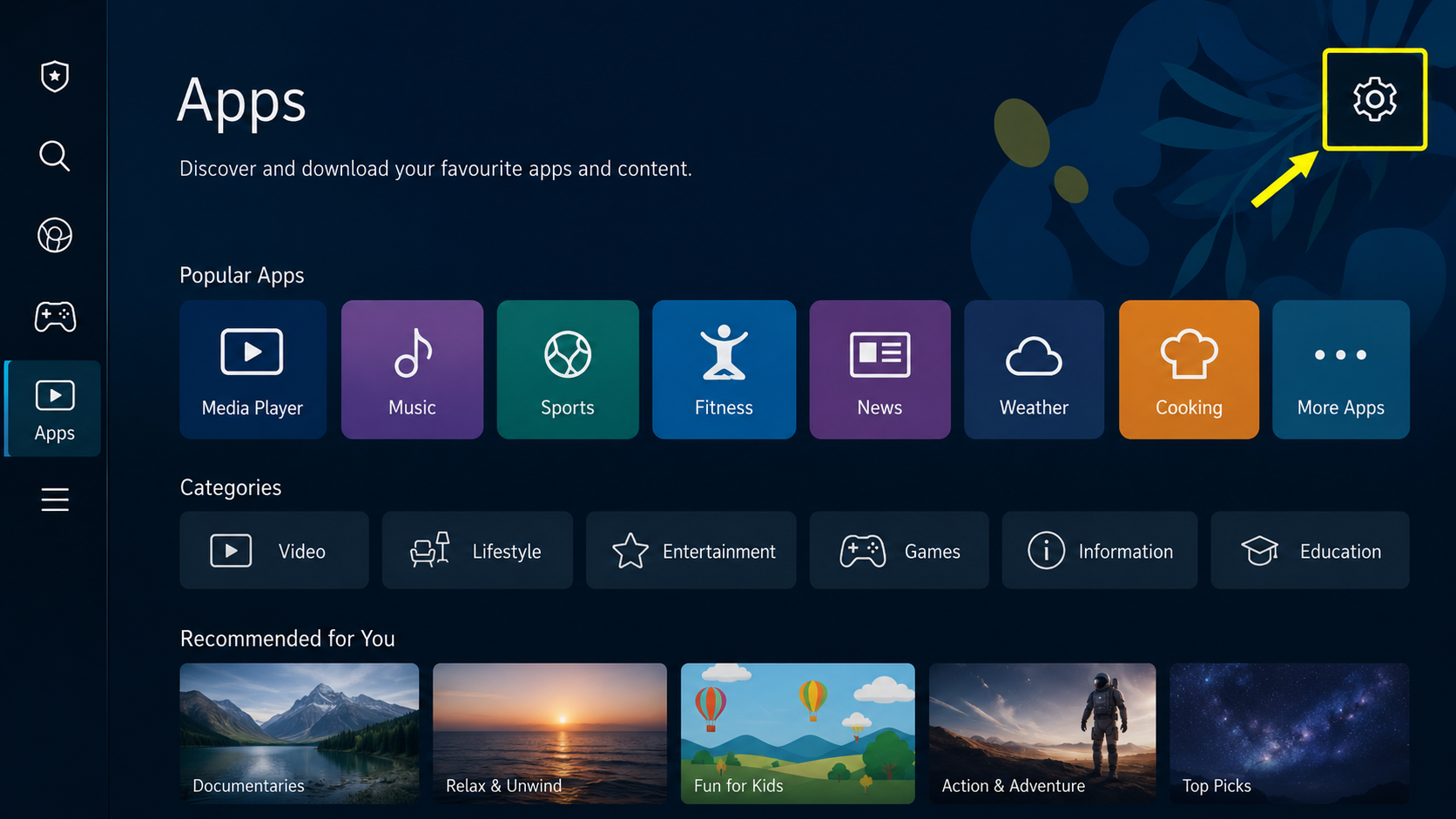
Step 2: Open App Settings
In the Apps screen, go to the Settings icon.
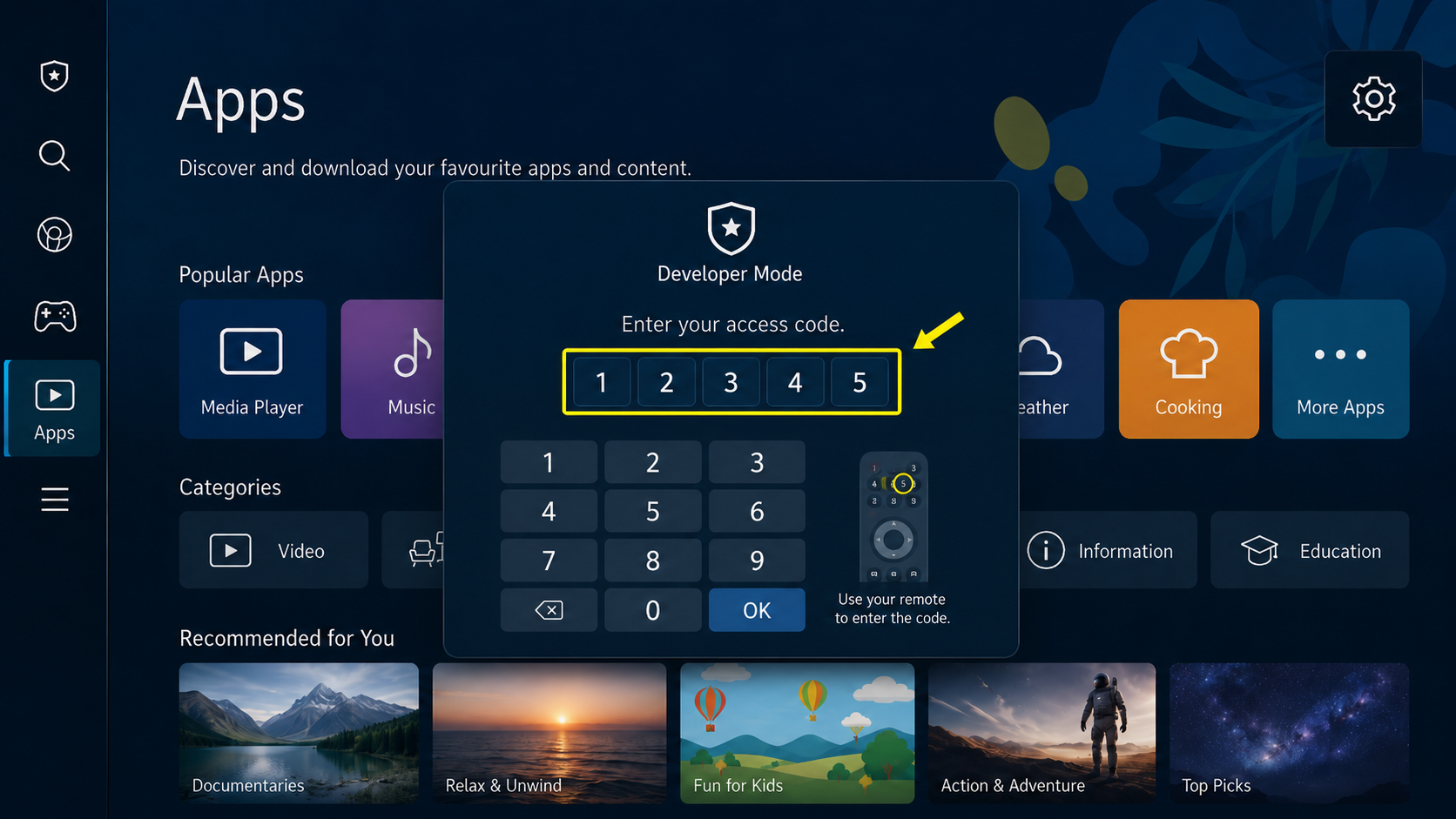
Step 3: Enter Developer Mode Code
Using the Samsung TV remote, enter 12345 on the Apps Settings screen.
Step 4: Enable Developer Mode
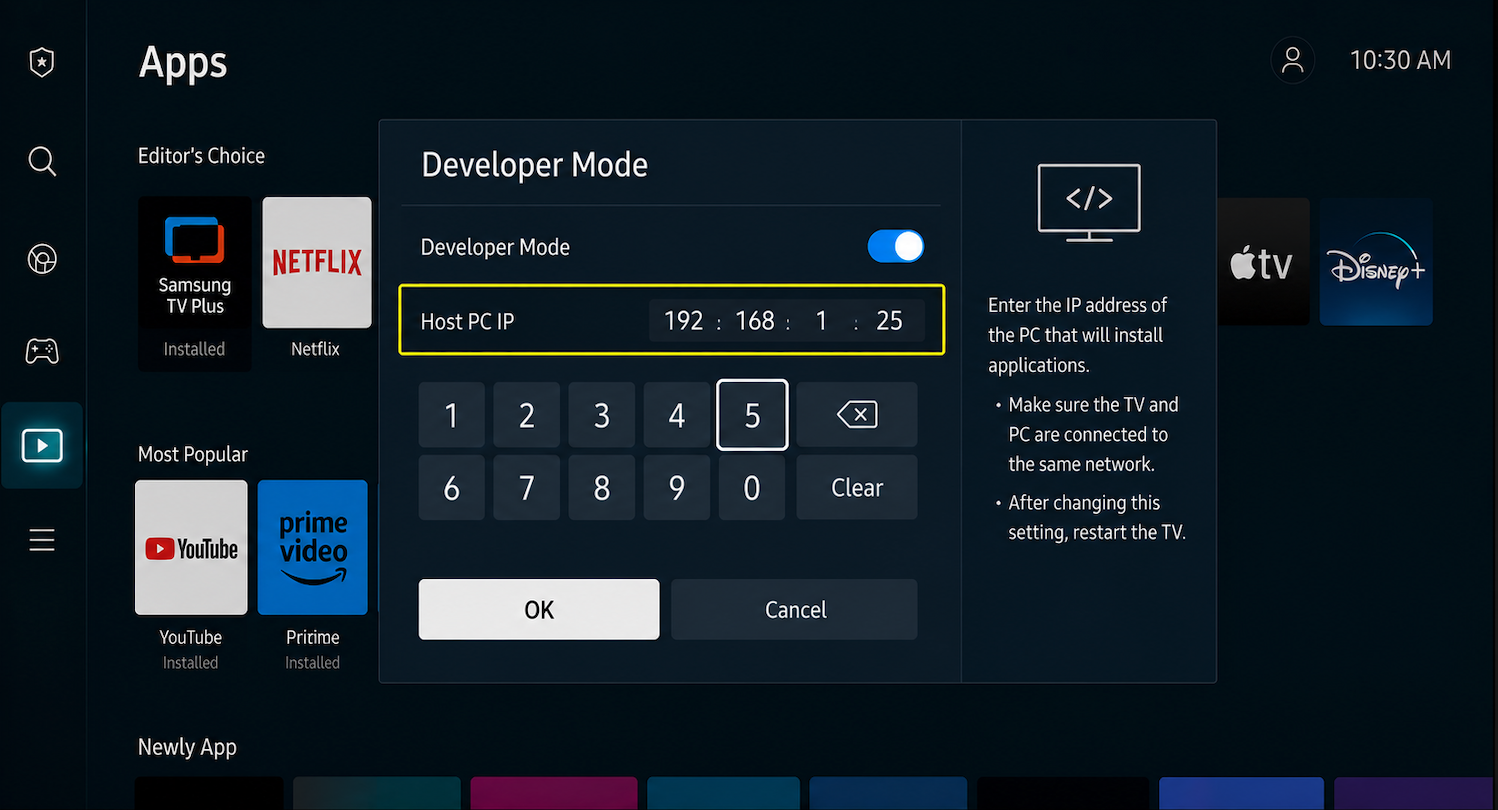
A Developer Mode popup will appear. Turn Developer Mode from Off to On.
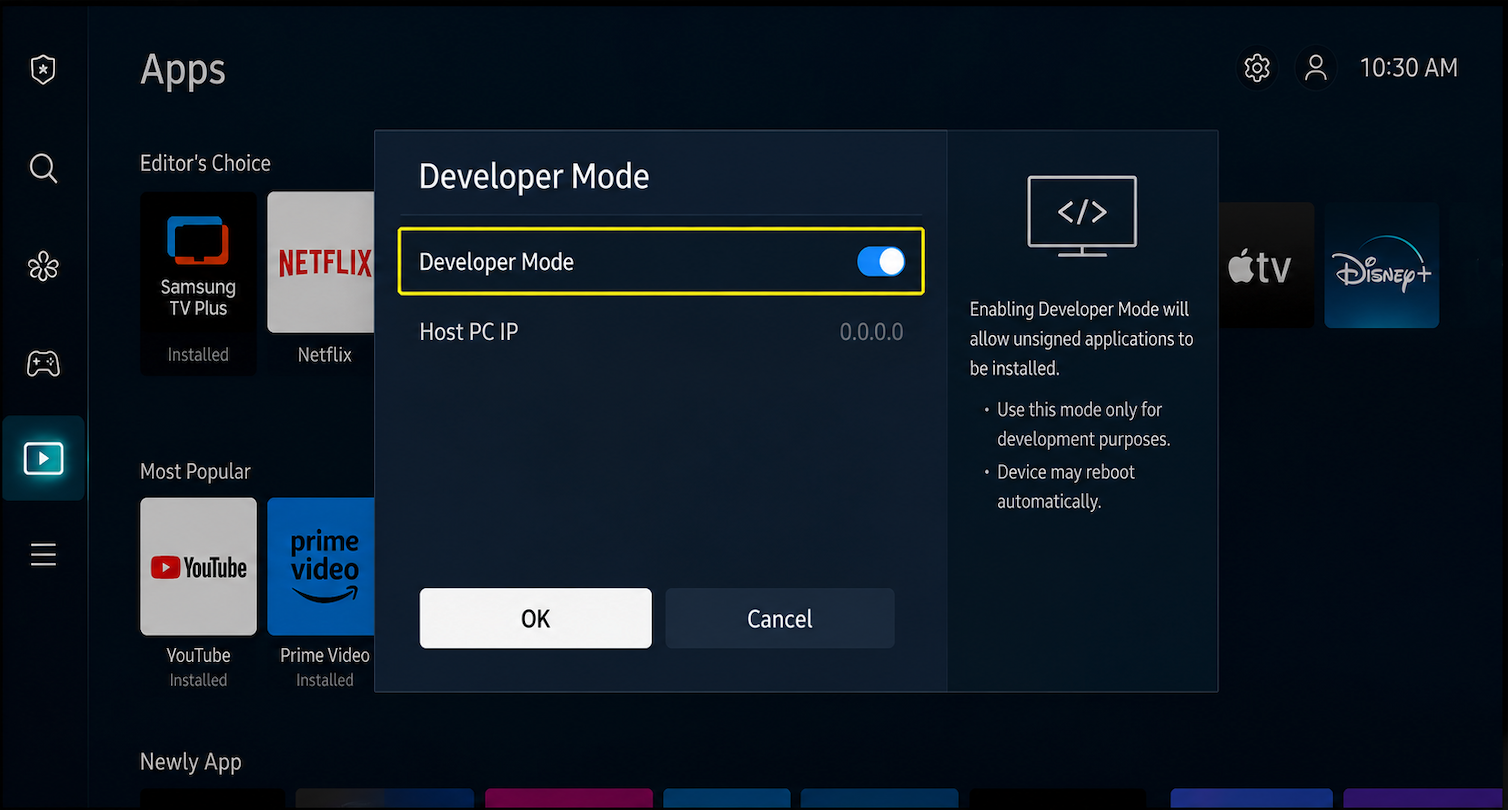
Step 5: Enter Host PC IP Address
Enter the IP address of the computer or device where your installer/tool is running.
Step 6: Reboot the Samsung TV
After enabling Developer Mode, restart/reboot the TV.